Migrate Home Assistant to New Hardware Without Re-Pairing
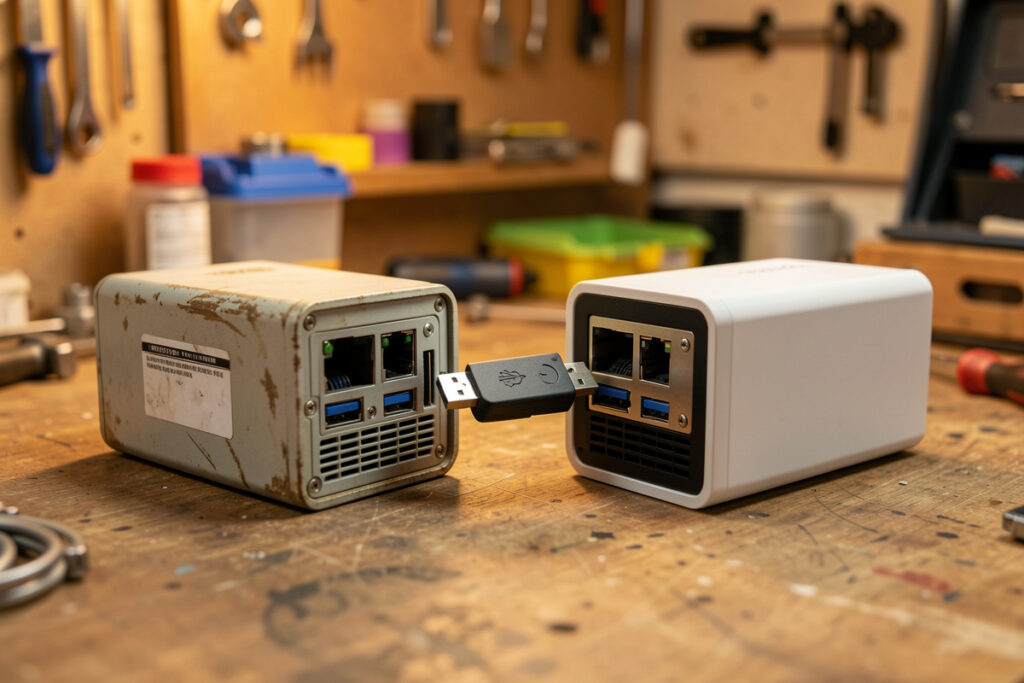
You migrate Home Assistant to new hardware by restoring a full backup onto a fresh install and physically moving your radio coordinator sticks — not by re-pairing devices. Install Home Assistant OS on the new box, choose restore during onboarding, upload your latest archive, move the Zigbee and Z-Wave sticks across, and your mesh comes back exactly as it was. Done right, the whole thing takes under an hour and you re-pair nothing.
The fear that keeps people on failing hardware is the memory of setting it all up the first time — the forty devices, the naming, the automations. Nobody wants to walk the house re-pairing bulbs. But that fear is misplaced: a proper migration doesn’t touch the devices at all, because everything that defines your network lives inside the backup and inside the coordinator sticks. I’ve moved my install across boxes more than once, and the only thing that has ever gone wrong is the one thing this guide exists to warn you about.
What Actually Needs to Move to the New Hardware?
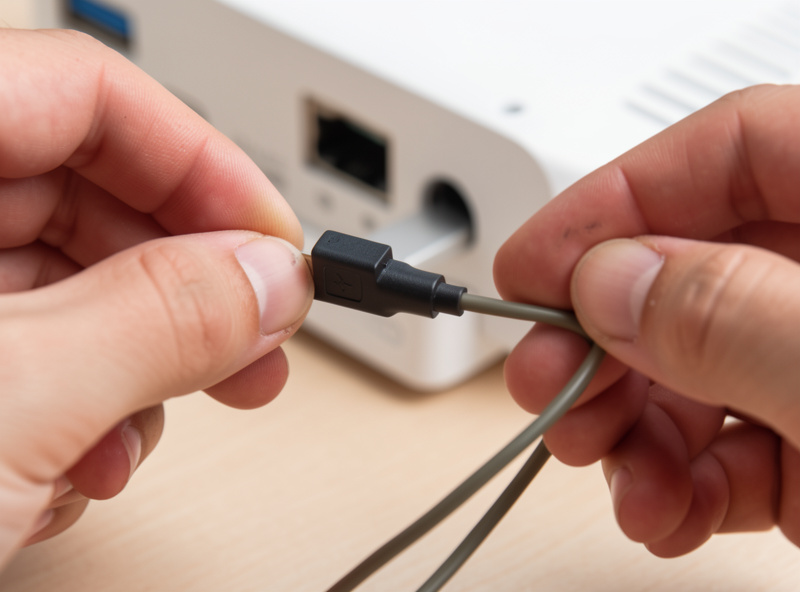
Two things carry your entire Home Assistant identity to new hardware: the full backup archive and the physical radio coordinator sticks. The backup holds your configuration, database, add-ons, and the .storage folder where device registries and pairings are recorded. The sticks hold the low-level network keys and, for Z-Wave, the controller’s own node table. Move both, and the new box is your old setup.
Everything else is replaceable. The mini-PC, the SSD, the case, the power supply — none of it carries any state you can’t rebuild from the backup. This is the mental model that makes migration calm instead of frightening: you’re not moving a house, you’re moving a brain and its two ears. The body is just hardware.
| Item | Travels in the backup? | What you must do |
|---|---|---|
| Configuration & automations | Yes | Nothing — restore brings them |
| Recorder database & history | Yes (full backup) | Nothing — restore brings it |
| .storage (device registry, tokens) | Yes (full backup) | Nothing — restore brings it |
| Zigbee network | Partly | Move the same Zigbee stick across |
| Z-Wave network | Partly | Move the same Z-Wave stick across |
| Add-ons & their data | Yes (full backup) | Nothing — restore brings them |
The “partly” rows are the whole story. The backup records that a device is paired, but the radio keys that let the coordinator actually talk to that device live on the stick. Restore the backup without the original stick and Home Assistant knows a light should exist but can’t reach it. That’s why this guide keeps hammering one point: move the sticks.
How Do You Move Home Assistant Without Re-Pairing Zigbee Devices?
You avoid re-pairing Zigbee devices by moving the exact same Zigbee coordinator stick from the old machine to the new one, so the network keys and pairing table travel with it. Zigbee networks are keyed to the coordinator; keep the coordinator and the mesh stays intact. Restore your backup on the new box, shut it down, unplug the stick from the old machine, plug it into the new one, and boot.
The order matters. I restore the backup first so Zigbee2MQTT or ZHA is fully configured on the new box, then move the stick, then boot — so the software and its radio come up together pointing at the same network. In my setup I run the coordinator on a short USB extension cable to keep it away from USB-3 ports, because USB-3 noise sits right on the 2.4 GHz band Zigbee uses and quietly wrecks range — the Zigbee2MQTT documentation covers the same USB-3 interference issue if you want the technical detail. When I migrate, that extension and stick move as one unit to the new box, same port distance, same placement.
Where people get burned is deciding to “upgrade” the coordinator at the same time as the hardware. Swap to a different stick and you’re building a new Zigbee network from scratch — every device re-paired. If you genuinely want a new coordinator, that’s a separate project with its own backup-and-restore of the Zigbee network, done before or after the hardware move, never during. This whole procedure sits inside the wider strategy in the Home Assistant backup and maintenance guide, and it depends entirely on having a good backup to restore — which is why I set up automatic off-site backups long before I ever need to migrate.
Does Z-Wave Migration Work the Same Way?
Z-Wave migration works on the same principle — move the controller stick — but it’s even more forgiving, because the Z-Wave network’s node table lives on the controller itself, not just in software. Move the Z-Wave stick to the new machine, restore your backup so Z-Wave JS is configured, and the locks and sensors reconnect without re-inclusion. The stick is the network.
I run a dedicated Z-Wave stick specifically for the locks and the long-range, battery-powered devices where Z-Wave’s range and battery behavior beat Zigbee. Because the node information is stored on the controller hardware, a Z-Wave migration is close to foolproof as long as you don’t reset the stick. The one thing I’ve learned to do is note my Z-Wave network’s security keys somewhere safe before any big change — Z-Wave JS stores them, and they’re in the backup, but a controller with the right keys and a restored config is what makes a smart lock reconnect silently instead of demanding a factory reset and re-inclusion. The Z-Wave JS documentation explains exactly how those security keys are stored and why losing them forces re-inclusion.
The Step-by-Step Migration I Run
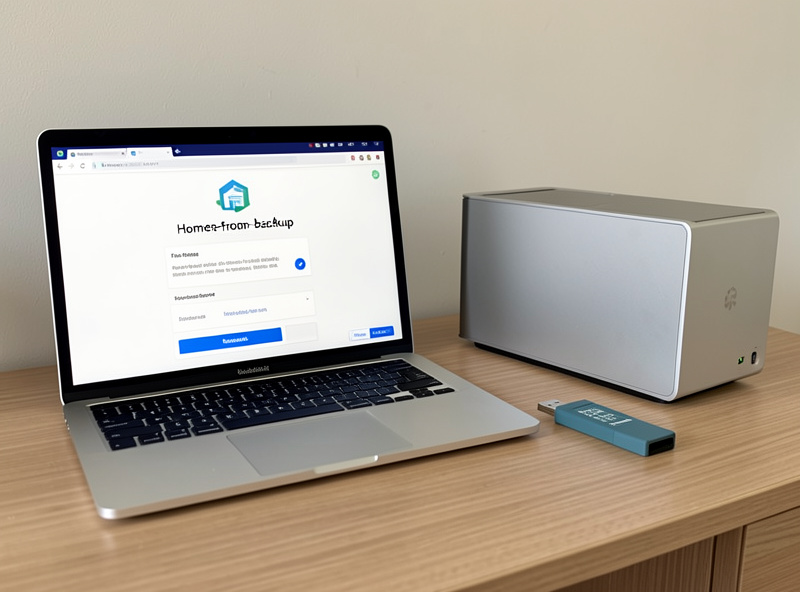
The migration itself is short once you understand what’s happening. Here’s the exact sequence I follow, and it has never once required me to re-pair a device:
First, take a fresh full backup on the old machine and confirm it landed off-box — on the NAS, not just in the local backup folder. This is the archive you’re about to bet your setup on, so it should be minutes old, not days. Second, install Home Assistant OS on the new hardware and boot it to the onboarding screen. Third, instead of creating a new setup, choose “restore from backup” and upload the archive. Let it rebuild — this is where the configuration, database, add-ons, and .storage all come back.
Fourth, once the new box has restored and is running, shut it down cleanly. Fifth, unplug the Zigbee and Z-Wave sticks (and their extension cables) from the old machine and plug them into the new one, matching the same USB placement you used before. Sixth, boot the new box. The radios come up, the coordinators find their networks, and the mesh reforms. Seventh, spend ten minutes clicking through your dashboards and triggering a couple of automations to confirm everything’s alive. That’s it — old box off, new box running your house.
The reason I shut down before moving the sticks is simple: hot-unplugging a coordinator from a running system is asking for a confused radio and a corrupt Zigbee database. Power down, move, power up. Treat the sticks like the delicate part they are.
What Goes Wrong, and How I’ve Fixed It
The most common migration failure is the mesh coming back but half the devices showing unavailable — and it’s almost always the coordinator, not the backup. If the network reformed but distant devices are missing, it’s usually placement: on the new box the stick ended up next to a USB-3 port or a metal case wall, and the 2.4 GHz interference killed the range that a router device used to bridge. I fixed exactly this once by adding a longer USB extension and moving the coordinator a hand’s width further from the machine, and the far bedroom sensors snapped back within minutes as the mesh re-routed — you can actually hear the relief in the house once they do, the hallway light clicking on half a second faster than it had all evening.
The other failure I’ve hit is impatience. A Zigbee mesh doesn’t fully re-optimize its routing the instant you boot; the mains-powered repeaters need a little time to settle the routes to the battery devices hanging off them. The first time I migrated I panicked at a couple of “unavailable” sensors ten minutes in, started re-pairing one, and made things worse. Now I give the mesh an hour to heal before I touch anything, and it almost always sorts itself out. Patience is a migration tool.
If a migration truly goes sideways — wrong stick moved, backup that turned out to be incomplete — the recovery is the same discipline as any other hub disaster: restore a known-good backup and try again. That’s why the archive you restore from should be fresh and tested. A migration is only as calm as your backup is trustworthy.
As an Amazon Associate I earn from qualifying purchases. Keeping your coordinator on a short USB extension cable away from the machine is the single cheapest thing you can do for Zigbee range, before and after a migration.
Will I have to re-pair my devices when I move Home Assistant to a new machine?
No, not if you restore a full backup and move the same Zigbee and Z-Wave coordinator sticks to the new machine. The backup carries the device registry and the sticks carry the network keys, so the mesh reforms on its own. You only re-pair if you also change to a different coordinator stick.
Do I move the radio sticks before or after restoring the backup?
Restore the backup first, then shut down, then move the sticks, then boot. That way the Zigbee and Z-Wave software is fully configured before the radios come online, so they come up pointing at the correct network. Never hot-unplug a coordinator from a running system.
Why are some devices unavailable after migrating Home Assistant?
Usually it is coordinator placement or an unsettled mesh, not a bad backup. Keep the Zigbee stick on a USB extension away from USB-3 ports and metal, and give the mesh up to an hour to re-optimize its routes before re-pairing anything. Distant devices often reappear once the repeaters settle.
Can I migrate to completely different hardware, like from a Raspberry Pi to a mini-PC?
Yes. The backup and restore process is hardware-independent, so moving from a Pi to an Intel mini-PC works the same way. Install Home Assistant OS on the new box, restore your backup, and move the coordinator sticks across. This is also a great moment to move off an SD card onto an SSD.