Smart Home Troubleshooting: The Diagnostic Order That Fixes Most Faults
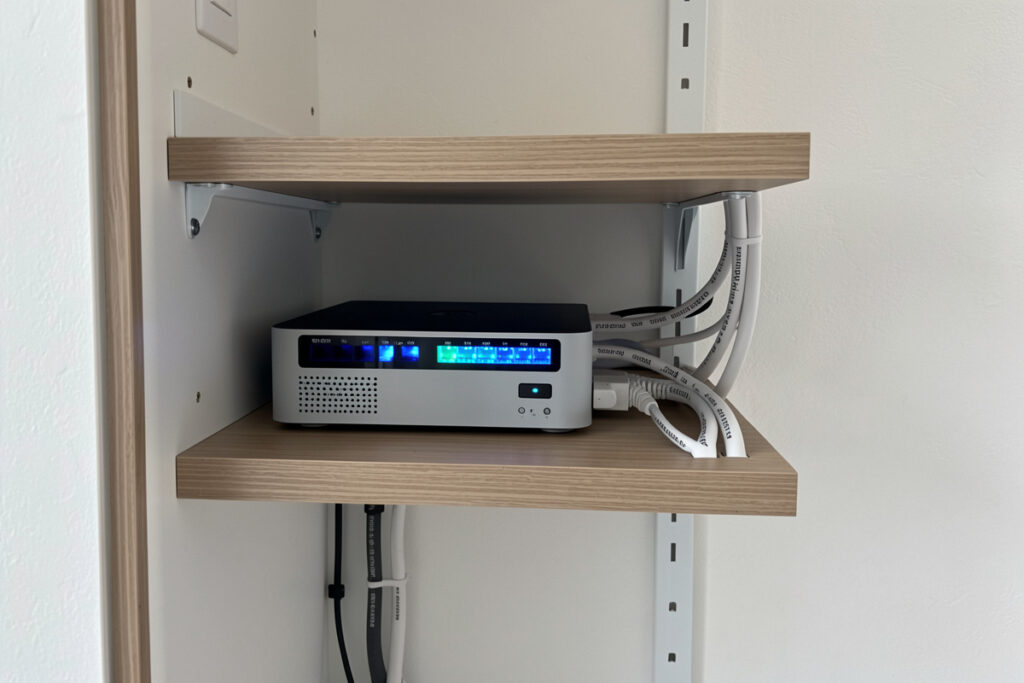
Smart home troubleshooting almost always comes down to four failure points: the device lost power or its radio, the network it depends on changed, the hub or pairing dropped, or the cloud it phones home to is having a bad day. In my own local-first Home Assistant setup I’ve chased every one of these, and the fix is rarely the dramatic one you fear. Ninety percent of “my smart home broke” calls I get from friends are a stale IP lease, a re-flashed router, or a battery sensor that quietly died three weeks ago.
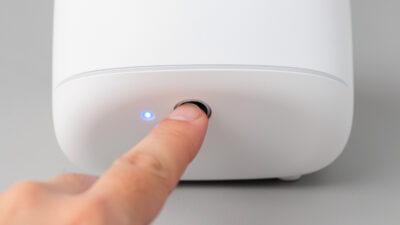
This guide is the map I wish I’d had when I started: a repeatable diagnostic order that isolates which layer actually failed before you touch anything. Work it top to bottom and you stop the worst smart-home habit there is — factory-resetting a device that was never the problem and re-onboarding it for an hour, only to watch it drop again because the real fault was upstream. When a reset is genuinely the right call, see how to factory reset smart home devices correctly.
Start Here: The Four-Layer Diagnostic Order
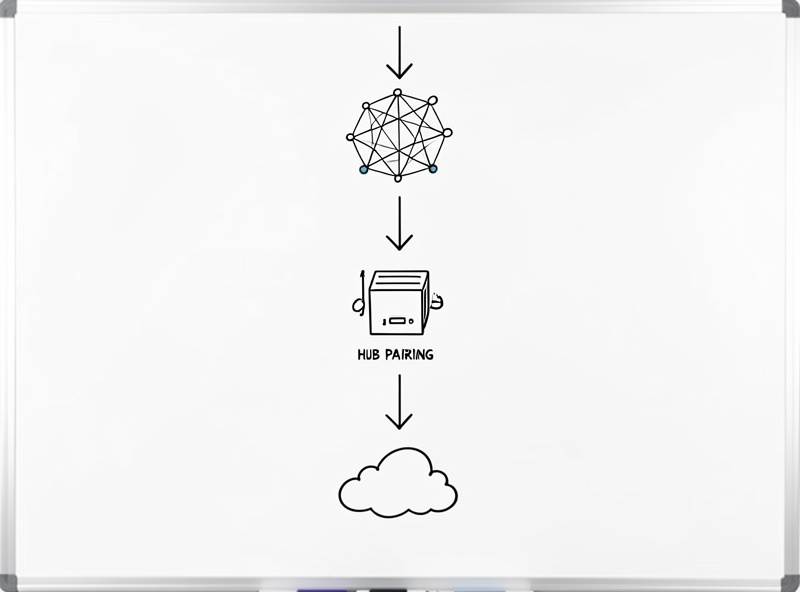
Every smart device sits on a stack: power → radio/network → hub/controller → cloud. A fault at any layer makes everything above it look broken. The single most useful troubleshooting skill is resisting the urge to fix the top layer (the app, the automation) before you’ve confirmed the bottom ones. I work the stack from the bottom up, and I never skip a layer because “it was fine yesterday.”
The reason this order matters: a Zigbee bulb that “won’t respond in the app” can be a dead bulb, a downed mesh route, an offline coordinator, or a cloud outage at the bulb’s manufacturer — four completely different fixes that present identically in the app. Guess wrong and you waste an evening. Diagnose in order and you’ll usually find it in two minutes.
| Symptom | Most likely layer | First thing I check | Time to confirm |
|---|---|---|---|
| One device unresponsive, rest fine | Power / device radio | Power-cycle it; check battery or relay | 1–2 min |
| A group of devices in one area dead | Network / mesh route | Is the nearest repeater or AP up? | 2–5 min |
| Everything offline at once | Hub or router | Reboot router, then hub, in that order | 3–5 min |
| App says “offline” but device works locally | Cloud / account | Check the vendor status page | 2 min |
| Automation never fires | Trigger / controller logic | Read the trigger entity’s real state | 5–10 min |
Layer One: Power and the Device Itself
The most common single-device failure isn’t software — it’s the device losing power or its battery quietly dying. Before anything else, I confirm the device is actually energized. For a mains device that means a real power-cycle: pull power for ten seconds, not a one-second tap, because many controllers hold state on a brief blip. For battery sensors, a “dead” device is usually a flat coin cell, and the tell is that it stopped reporting at a specific timestamp and never came back.
This is also where smart-bulb-versus-smart-switch philosophy bites you: a smart bulb on a wall switch someone flicked off isn’t broken, it’s de-powered, and it’ll drop off the mesh every time. In my setup I push toward relays behind dumb switches precisely so the physical switch can’t orphan a device. If a single device is the only thing misbehaving, you almost never need the network, the hub, or the cloud — start and often finish here. The deep-dive on this pattern is the smart device keeps going offline guide, which walks through each reason a device repeatedly loses its connection and won’t stay on the network.
Layer Two: The Network and Radio Mesh
When a whole cluster of devices in one room goes quiet, suspect the network or the mesh route, not the devices. WiFi devices fail when they can’t pull a DHCP lease, when the band steered them onto 5 GHz they can’t see, or when a dead zone swallows the signal. Mesh-radio devices (Zigbee, Z-Wave, Thread) fail when a mains-powered repeater that was relaying for the battery devices behind it goes offline — knock out one repeater and everything routing through it disappears.
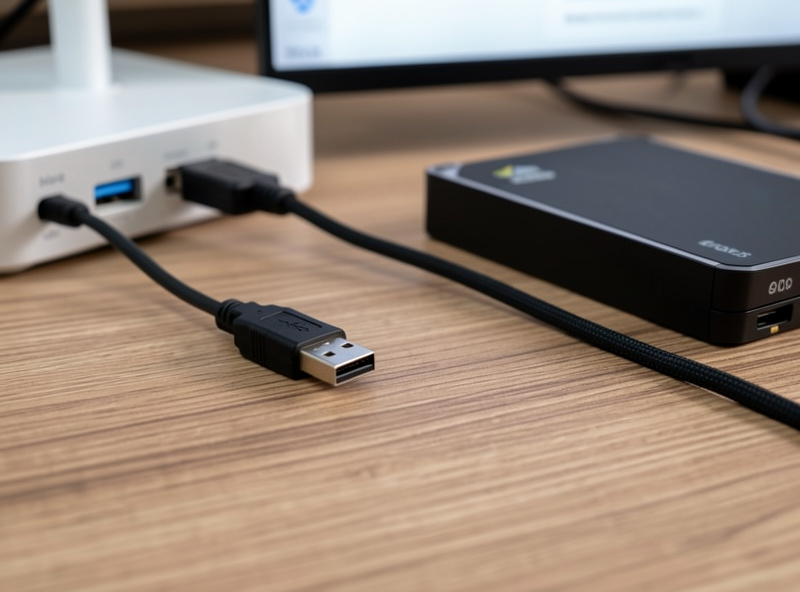
The classic gotcha I’ve personally been bitten by: a Zigbee coordinator parked next to a USB 3.0 SSD or hub. The full picture of how range and interference shape a Zigbee mesh is in the Zigbee range and interference problems guide. USB 3 throws broadband noise right across the 2.4 GHz band and quietly wrecks Zigbee range — devices pair fine up close, then drop the moment they’re across the house. The cure is a short USB extension to move the stick away from the noise, not re-pairing devices one by one. If your “dead zone” maps to a physical area rather than a device type, you’re in a network problem, full stop.
Layer Three: The Hub, Coordinator, and Pairing
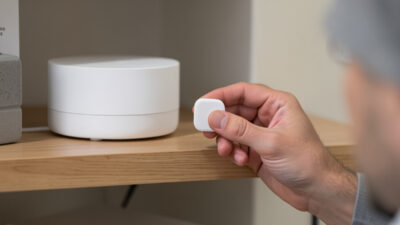
If everything went dark at once, the odds point at the hub or the router — the shared dependency. Reboot the router first, give it two full minutes to hand out leases, then reboot the hub. Order matters: a hub that boots before the network is ready can come up half-broken and look like a deeper fault. Pairing failures are their own category — a device that won’t onboard is usually too far from the coordinator during pairing, on the wrong channel, or still bonded to a previous hub it was never reset from.
Here’s the rule I live by on pairing: a device can only belong to one network at a time. Half the “won’t pair” tickets I see are a device that was added to one ecosystem, never reset, and is now refusing to join a second. Reset it properly first. And keep your coordinator’s firmware current but not bleeding-edge — I’ve watched a too-new coordinator firmware drop an entire mesh until I rolled it back. If a device is stuck refusing to join at all, the smart device won’t pair with hub guide covers every scenario in order: wrong protocol, still bonded to a previous network, bad factory reset, and range failures at inclusion time.
Layer Four: The Cloud and Your Account
The most frustrating failure is the one you can’t fix: the device works, your network is fine, but the manufacturer’s cloud is down. The tell is that local control still works (the physical button, or an automation that runs entirely on your hub) while the app shows “offline” or won’t log in. When that happens, no amount of resetting on your end helps — the fault is on a server you don’t own.
This is exactly why I build the load-bearing automations to run locally and treat the cloud as a convenience, never a dependency. A cloud-only device in a core automation means that when the vendor has a bad night, your lights, locks, or alarm logic go with it. If you find yourself troubleshooting the same cloud device for the third time, the real fix isn’t another reset — it’s moving that function onto something that survives an outage.
WiFi: The Layer That Causes the Most “Random” Failures
More smart-home grief traces back to WiFi than to any radio protocol, because WiFi devices are cheap, plentiful, and assume a perfect network they rarely get. The three failure modes I see over and over are band steering, DHCP churn, and sheer airtime congestion. Band steering is when a router advertises one network name for both 2.4 GHz and 5 GHz and “helpfully” pushes a device onto 5 GHz — except most cheap IoT chips are 2.4 GHz only, so they fall off and can’t get back. The fix is a dedicated 2.4 GHz SSID for the IoT gear so nothing can steer them onto a band they can’t see.
DHCP churn is subtler: a device gets a new IP every time its lease expires, and any automation or app that cached the old address loses it. On my own network I hand the important devices reserved leases so their address never moves, which quietly kills a whole class of “it worked, now it doesn’t” faults. The third one, congestion, is what you get when forty chatty devices share the same airspace as the laptops and the TV — the network technically works but latency spikes and devices time out at random. That’s the practical reason I segment IoT onto its own VLAN and SSID: it’s not paranoia, it’s keeping the dumb devices from drowning each other.
If your WiFi devices fail in a pattern — same time of day, after a router reboot, only the far rooms — that pattern is the diagnosis. A device that drops at a fixed hour is hitting a lease renewal or a scheduled router task; one that only fails in distant rooms is a coverage problem no reset will cure. Map the pattern before you touch the device.
Zigbee and Z-Wave: Mesh Problems Hide as Device Problems
The thing that makes mesh networks wonderful — devices relaying for each other — is also what makes them confusing to troubleshoot, because a failure can be two rooms away from the symptom. When a battery sensor at the edge of the house goes unresponsive, the device is often fine; the mains-powered repeater it was routing through is what failed, and now the sensor has no path home. People re-pair the innocent sensor, it works for a day because it grabbed a temporary route, then drops again. The actual fix is restoring or adding a repeater on that path.
Coordinator placement is the other silent killer, and I covered the USB 3.0 interference trap above, but it’s worth saying plainly: a Zigbee or Thread coordinator buried in a media cabinet behind a metal-cased NAS is starting every device at a disadvantage. Give the coordinator clear air and distance from noise sources before you blame any individual device. For Z-Wave, the equivalent gotcha is region and frequency — a device bought for one region runs on a frequency your hub may not, and it will simply never pair, which looks like a broken device but is a mismatched radio.
Healing the mesh matters too. After you add or move several mains-powered devices, the network needs to rebuild its routing tables, and on most systems that doesn’t happen instantly. If a batch of devices feels flaky right after a reorganization, give the mesh time — or trigger a network heal — before concluding anything is broken. Patience here saves a lot of needless re-pairing.
Automations That Don’t Fire: Debug the Trigger, Not the Action
When an automation misbehaves, the instinct is to rewrite the action — the part you can see doing something. Almost always the fault is upstream, in the trigger or the condition. I debug automations in a strict order: first confirm the trigger entity is actually reporting the state I think it is, because a motion sensor that’s gone to sleep or a contact sensor with a dead battery will never produce the event the automation waits for. A trigger that never arrives makes a perfect automation look completely broken. For a full diagnostic sequence covering every trigger, condition, and action failure mode, the smart home automation not triggering guide walks through each step with worked examples.
Second, I check conditions in isolation. A condition that’s quietly false — a “sun is below horizon” check, a presence condition, a time window that doesn’t match the timezone the hub thinks it’s in — will silently suppress a trigger that fired correctly. Timezone and clock drift are sneaky here: an automation that should run at sunset but fires an hour off is usually a timezone or daylight-saving mismatch, not a logic error. Third, only after the trigger and condition check out do I look at whether the target device was even online to receive the command. An action sent to an offline device fails silently and looks like the automation didn’t run at all.
The discipline that makes this fast is good entity naming. When every sensor is called something meaningful instead of “sensor_0x00158d0004a3f2,” you can read an automation and immediately see which entity is suspect. I learned this the hard way after naming forty entities inconsistently and spending an evening figuring out which “motion” sensor a broken automation actually referenced. Naming is troubleshooting infrastructure.
Firmware and Updates: The Fix That Sometimes Is the Cause
Updates are a double-edged tool. An out-of-date device firmware can absolutely be the cause of pairing failures, dropped connections, or features that stopped working — manufacturers fix real bugs in updates. But a brand-new firmware can just as easily introduce a regression that takes down a device or a whole mesh. For step-by-step recovery from update failures, see smart device firmware update problems, which is why I keep coordinator and hub firmware current but not bleeding-edge, and I update one thing at a time so I can tell what changed. Mass-updating every device at once and then discovering something broke leaves you with no idea which update did it.
The safe pattern: when a device starts misbehaving, note whether it recently updated. If the trouble started right after an update, the update is your prime suspect and rolling back or waiting for the next patch is often the real fix, not endless resetting. Conversely, a device that’s been flaky for a long time on old firmware may simply need the update it’s been missing. Either way, treat “did anything change recently” as one of the first diagnostic questions — the timeline usually points straight at the cause.
The One Tool That Settles Most Arguments: Read the Real State
Apps lie. They cache, they show “last known” state, and they paper over the truth with a spinner. The single habit that has saved me the most time is reading a device’s actual reported state — last-seen timestamp, link quality, battery level — instead of trusting the tile in the app. A sensor that “isn’t triggering my automation” is very often a sensor whose last-seen is two days old: it’s not a logic bug, it’s a dead device, and you’d have wasted an hour rewriting an automation that was already correct.
When an automation genuinely won’t fire, I check three things in order: is the trigger entity reporting the value I think it is, is the condition actually true at trigger time, and is the target device even online to receive the command. Nine times out of ten the automation logic is fine and one of those three is quietly false.
Build a Setup That’s Easy to Troubleshoot in the First Place
The best troubleshooting is the kind you never have to do, and that comes from architecture decisions made before anything breaks. The single biggest one is choosing local control over cloud dependence wherever it matters — if you’re still deciding how your home is wired together, my guide to whether you need a smart home hub and the Zigbee vs Z-Wave vs WiFi protocol breakdown are where I’d start, because the protocol mix you pick determines which failure modes you’ll be living with. A home built mostly on local mesh radios behaves predictably; one built on a pile of cloud-only WiFi gadgets is a string of single points of failure.
Networking is the foundation under all of it. Getting the smart home WiFi setup right, killing WiFi dead zones before they swallow your far-room devices, and understanding 2.4GHz vs 5GHz for IoT will eliminate most of the “random” drops covered above. If you’ve got more than a handful of devices, putting them on a separate WiFi network for IoT stops the chatty gear from drowning each other and makes problems far easier to isolate. A good mesh WiFi system closes the coverage gaps that no amount of device resetting will fix.
Choosing reliable devices in the first place is the other half. Where I can, I lean on hardware that keeps working when the cloud doesn’t — the kind of thinking behind lights that don’t depend on a flaky bridge and being honest about whether something like the ecosystem you’ve committed to actually supports local control. Even small choices, like favoring a vacuum or a thermostat with a local fallback, mean one fewer thing that breaks in a way you can’t fix yourself. And if a single device is the problem, a worked example like the smart plug that won’t connect to WiFi shows the exact four-layer process from this guide applied end to end.
When to Stop Troubleshooting and Change the Device
Not every fault is worth fixing. A cloud-only device that drops weekly, a sensor with a soldered non-replaceable battery, or a bulb that needs re-pairing after every power blip is telling you something: it’s the wrong tool for a reliable smart home. I’ve retired devices that technically still worked because the time I spent nursing them cost more than replacing them with something local-first. The cheapest device is rarely the cheapest to live with.
A reliable smart home isn’t one that never fails — it’s one that fails in ways you can diagnose in two minutes and that keeps its core jobs running when one piece goes down. Build it on local control, segment the chatty IoT gear, name your entities so you can actually find the broken one, and most “my smart home is broken” panics shrink to a single power-cycle.
Frequently Asked Questions
Why does my smart device keep going offline?
A device that repeatedly drops is almost always a network or power problem, not a broken device. The usual causes are a weak WiFi signal or dead zone, a DHCP lease that keeps changing, a smart bulb on a switch someone keeps flicking off, or a mesh repeater that’s gone offline. Fix the layer underneath the device before resetting the device itself.
Should I reboot the router or the hub first?
Router first, always. Reboot the router, wait two full minutes for it to hand out network leases, then reboot the hub. A hub that boots before the network is ready can come up half-broken and look like a deeper fault, sending you chasing the wrong problem.
Why won’t my smart device pair with my hub?
The most common reason is that the device is still bonded to a previous network and was never reset. A device can only belong to one network at a time. Other causes are pairing it too far from the hub, being on the wrong radio channel, or interference. Reset the device fully, then pair it close to the coordinator.
How do I know if the problem is the device or the cloud?
Try controlling the device locally — the physical button, or a hub automation that runs without internet. If local control works but the app shows offline or won’t log in, the fault is the manufacturer’s cloud, not your setup. No amount of resetting on your end will fix a server outage you don’t own.
My automation stopped working but the device is fine. What’s wrong?
Check three things in order: is the trigger entity actually reporting the value you expect, is the condition true at trigger time, and is the target device online to receive the command. Most of the time the automation logic is correct and one of those three is quietly false — often a sensor with a stale last-seen timestamp.
Is factory resetting a smart device a good first step?
No. A factory reset is a last resort, not a first move. It wipes pairing and settings and forces a full re-onboard, and if the real fault was the network, the hub, or the cloud, the device will just drop again. Work the diagnostic order first and only reset once you’ve confirmed the device itself is the problem.
Related Guides
- Smart home WiFi setup guide — the network layer most troubleshooting traces back to.
- How to fix WiFi dead zones — when a whole area of devices drops.
- Smart plug not connecting to WiFi — a worked single-device example.
- Zigbee vs Z-Wave vs WiFi protocols — why mesh failures look the way they do.
- Do you need a smart home hub? — the layer that takes everything down when it fails.
- 2.4GHz vs 5GHz for IoT — the band-steering trap behind a lot of WiFi drops.