Smart Device Keeps Going Offline? Fix It in This Exact Order
When a smart device shows “offline,” the device itself is rarely the culprit — nine times out of ten it lost power, lost its place on the network, or is waiting on a cloud server that’s having a bad day. In my own setup the word “offline” has come to mean “start at the bottom of the stack,” because I’ve wasted enough evenings resetting a perfectly good device when the real fault was a changed IP or a repeater that quietly died.
This is the exact sequence I run before I’ll let myself touch a factory reset. It isolates which layer actually failed so you fix the cause once, instead of re-onboarding a device that drops again the moment it’s back. As an Amazon Associate I earn from qualifying purchases.
What “Offline” Actually Means
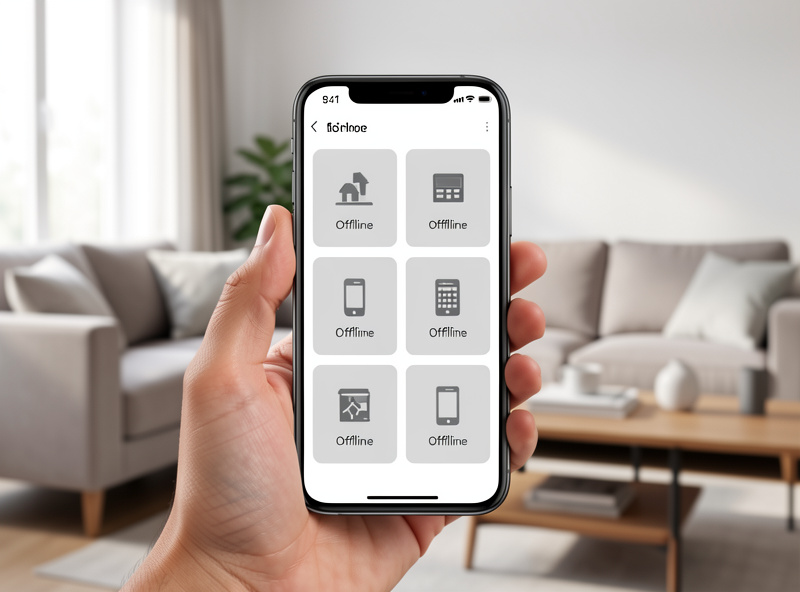
“Offline” is a status the app shows when it hasn’t heard from a device recently — and that silence has four very different causes. The device lost power. The device lost its network path (WiFi drop, dead mesh route, changed IP). The hub or coordinator that relays for it went down. Or the manufacturer’s cloud can’t reach it even though everything in your house is fine. Each one looks identical in the app, which is exactly why guessing is so wasteful.
The fastest way to cut the problem in half is to ask one question: is it one device offline, or several? A single device offline points at that device’s power or radio. A cluster of devices offline points at the network or a shared hub. Everything offline at once points at the router or the internet. I let that one observation decide where I start, every single time.
First: Confirm Power, Properly
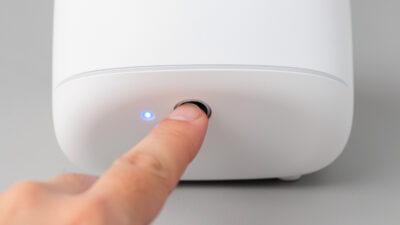
The most common single-device “offline” is simply no power, and people miss it because the fix feels too obvious to check. For a mains device, do a real power-cycle: cut power for a full ten seconds, not a one-second tap. Many smart devices hold their state across a brief blip, so a quick flick proves nothing — the ten-second wait forces the radio and controller to cold-start and re-join the network.
For a smart bulb, check the wall switch first. A bulb on a switch someone turned off isn’t offline, it’s de-energized, and it will report offline every single time until the switch goes back on. This is the exact problem that pushes me toward smart switches and relays instead of smart bulbs in any spot where someone might hit the physical switch — a bulb that can be cut off at the wall is a bulb that will keep “going offline.”
Second: Confirm the Battery Isn’t Dead
For battery devices — sensors, some locks, contact switches — “offline” usually means a flat cell. The tell is unmistakable once you know to look: the device stopped reporting at a specific timestamp and never came back. A device that’s been silent since 3 a.m. last Tuesday didn’t develop a software fault at 3 a.m.; its battery gave out. I keep a small stock of the coin cells my sensors use precisely so a dead sensor is a two-minute fix and not a multi-day mystery.
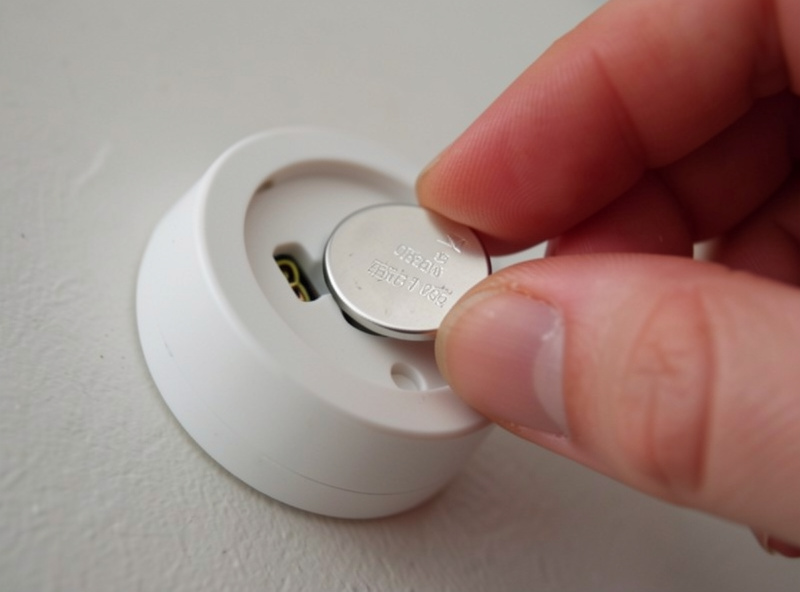
If you want to stop being surprised by dead batteries, the real fix is monitoring battery levels and acting on the warnings before a device drops. A sensor that’s been reporting 100% for a year is suspicious, not reassuring — many cheap sensors report a flat 100% right up until they die. A bulk pack of the right coin cells kept in a drawer is the cheapest reliability upgrade in the whole hobby.
Third: The Network and the Changed IP
If the device has power and a good battery but still reads offline, it lost its place on the network. For WiFi devices, the usual villains are a changed IP address, a band-steering router that shoved a 2.4 GHz-only device onto 5 GHz, or a coverage dead zone. The changed-IP problem is sneaky: the device is connected and happy, but the app or automation is looking for it at an address it no longer holds. Reserving a fixed IP for each important device (a DHCP reservation in your router) kills this whole category of fault.
Band steering bites cheap IoT gear hard. Most inexpensive smart plugs and bulbs only have 2.4 GHz radios, so a router advertising one combined network name can push them onto a 5 GHz band they literally cannot see, and they fall off. The clean fix is a dedicated 2.4 GHz SSID for the IoT devices so nothing can steer them wrong. If your offline devices are all the cheap WiFi kind and they dropped after a router change, this is almost certainly why.
Fourth: Mesh Routes and Repeaters
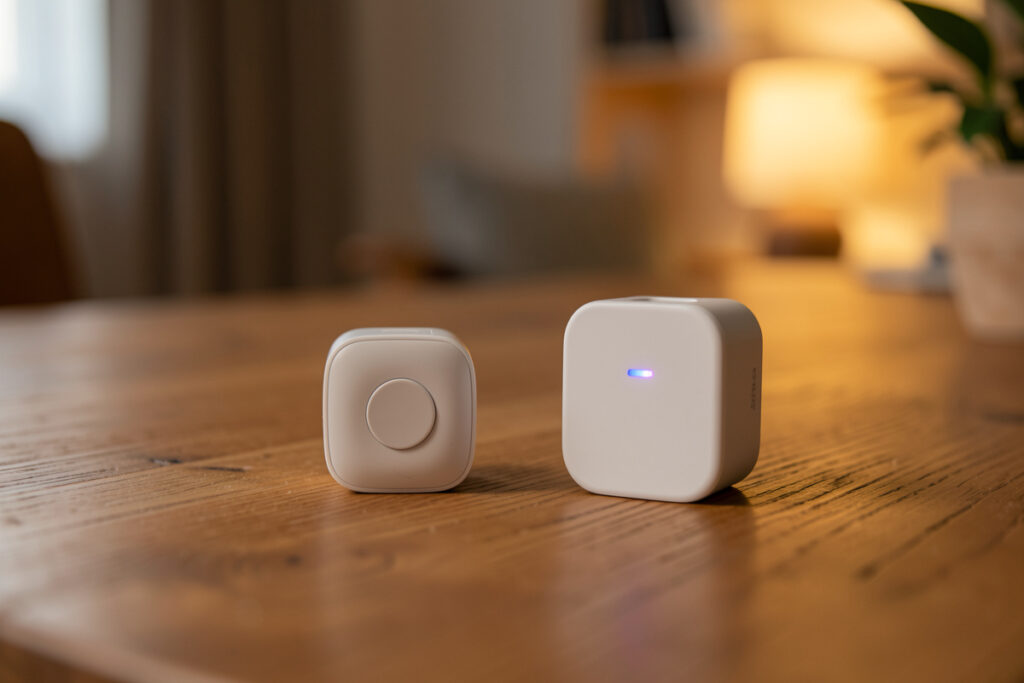
For Zigbee, Z-Wave, and Thread devices, “offline” often means the mesh route home was broken — and the break can be two rooms away from the device that shows offline. A mains-powered device acts as a repeater for the battery devices behind it; if that repeater loses power or fails, every device that was routing through it goes dark at once. The mistake is re-pairing the innocent battery sensor. The fix is restoring the repeater, then letting the mesh re-route.
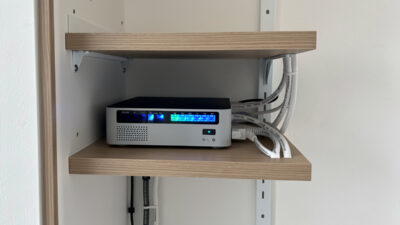
Coordinator placement matters here too. A Zigbee or Thread coordinator stuffed in a cabinet next to a USB 3.0 drive is fighting interference on every link, and the far devices will be the first to drop offline. Give the coordinator clear air and a short USB extension away from noisy USB 3 ports before blaming any individual device. A device that pairs fine up close but goes offline across the house is a range-and-interference story, not a broken device.
Fifth: When It’s the Cloud, Not You
Sometimes the device has power, a good battery, and a solid network connection — and the app still says offline. The giveaway is that local control still works: the physical button does its job, or a hub automation that runs without internet still fires, while the app shows offline or won’t log in. When that’s the picture, the fault is the manufacturer’s cloud, and nothing you reset on your end will help. Check the vendor’s status page and wait it out.
This is the failure mode that convinced me to keep load-bearing automations local. A cloud-only device in a core routine means your lights, lock, or alarm logic go offline whenever the vendor has a bad night. If a particular device keeps going cloud-offline, the durable fix isn’t another reset — it’s moving that function onto something that works without the internet, or replacing the device with a local-control alternative.
The Reset Is the Last Step, Not the First
A factory reset wipes the device’s pairing and settings and forces a full re-onboard — and if the real fault was power, the network, the hub, or the cloud, the freshly reset device will simply go offline again, now with all its settings gone too. That’s why the reset lives at the bottom of my list. Work power, battery, network, mesh, and cloud first. Only when you’ve confirmed the device itself is genuinely confused — it won’t respond locally and nothing upstream explains it — does a reset and re-pair make sense.
The payoff of this discipline is real: most “offline” panics collapse into a ten-second power-cycle or a battery swap, and the ones that don’t get diagnosed in minutes instead of evenings. A device that goes offline and you know exactly why is a manageable smart home. A device that goes offline and you reflexively reset is how you end up doing the same hour-long re-onboard every few weeks.
Frequently Asked Questions
Why does my smart device show offline when it still works?
That pattern — works locally but shows offline in the app — almost always means the manufacturer’s cloud can’t reach it, not that your device or network failed. Try the physical button or a local automation; if those work, the fault is the vendor’s server. Check their status page and wait it out.
How long should I cut power when restarting a smart device?
A full ten seconds, not a quick tap. Many smart devices hold their state across a brief power blip, so a one-second flick proves nothing. Ten seconds forces the radio and controller to cold-start and re-join the network, which is what actually clears a stuck connection.
My battery sensor went offline and won’t come back. Why?
A battery sensor that stopped reporting at a specific time and never returned has almost certainly got a flat cell. Many cheap sensors report 100% right until they die, so the level reading isn’t reliable. Swap the coin cell first — it’s the fix far more often than any reset.
Why do my WiFi smart devices keep going offline after a router change?
Usually band steering: a router with one combined network name pushes a 2.4 GHz-only device onto a 5 GHz band it can’t see, and it drops. The fix is a dedicated 2.4 GHz network for IoT gear. A changed IP address the app can no longer find is the other common cause; a DHCP reservation solves that.
Should I factory reset a device that keeps going offline?
Not first. A reset wipes pairing and settings and forces a full re-onboard, and if the real cause was power, the network, the hub, or the cloud, the device just goes offline again. Work through power, battery, network, mesh, and cloud first; reset only once you’ve confirmed the device itself is the problem.
Related Guides
- Smart home troubleshooting: the diagnostic order — the full four-layer method this fits into.
- How to fix WiFi dead zones — when offline maps to a physical area.
- Smart plug not connecting to WiFi — the single-device version, worked end to end.
- 2.4GHz vs 5GHz for IoT — the band-steering trap behind WiFi drops.
- Separate WiFi network for IoT — stops chatty devices from knocking each other offline.