2.4 GHz vs 5 GHz for Smart Home Devices
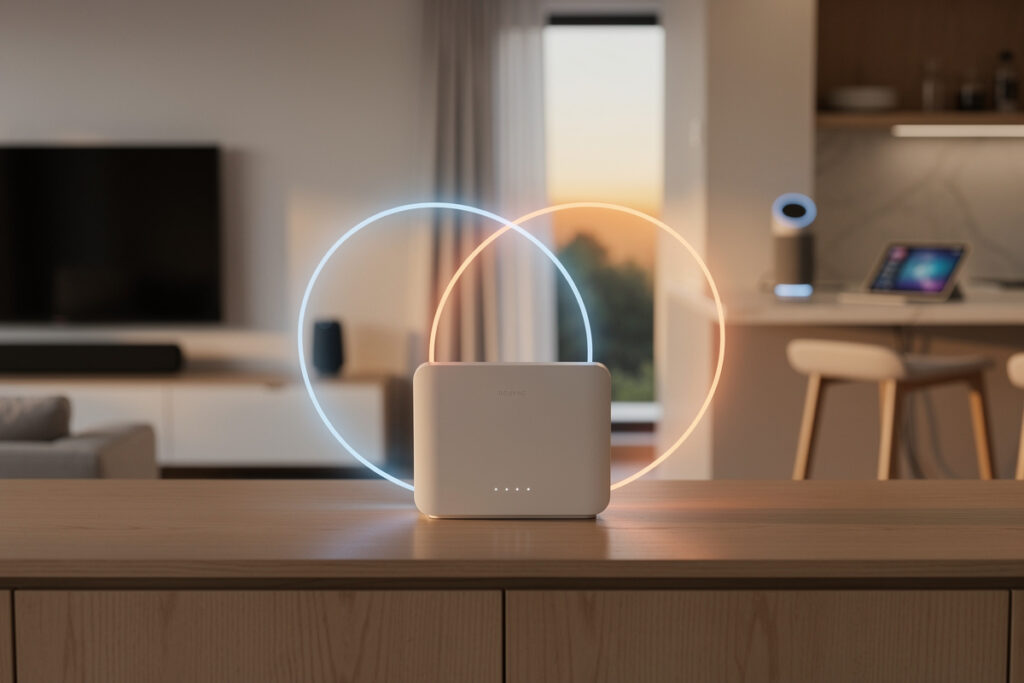
For 2.4 GHz vs 5 GHz for smart home devices, the answer is almost always 2.4 GHz. It travels roughly twice as far through interior walls and penetrates dense materials better, which is exactly what battery sensors and distant plugs need. Most IoT chips are 2.4 GHz only anyway — reserve 5 GHz for cameras, displays, and other high-bandwidth gear.
This is the band confusion that quietly breaks more smart homes than any other single issue. People assume the faster band is the better band and let their router shove everything onto 5 GHz, then wonder why the garage plug drops every few hours. Here is the real trade-off and how I set my own network up to avoid it entirely.
Disclosure: HomeAutoCentral is reader-supported. As an Amazon Associate I earn from qualifying purchases made through links in this article, at no extra cost to you. I only point to gear I actually use or would buy for my own smart home.
The Real Difference Between the Bands
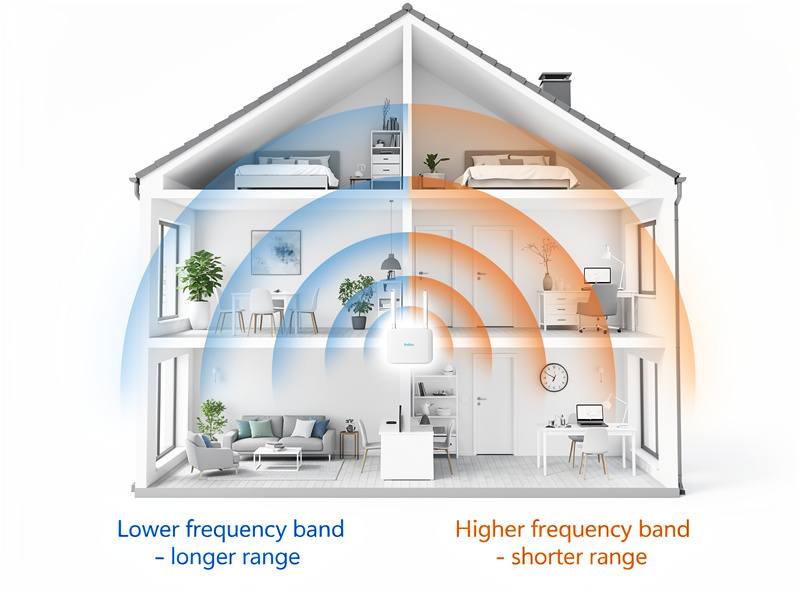
2.4 GHz is slower but reaches far and penetrates walls; 5 GHz is much faster but its range drops sharply and it struggles through brick, concrete, and metal. For a smart home built on dozens of low-bandwidth devices spread across the house, range and penetration beat speed every time.
The physics is simple. Lower-frequency 2.4 GHz signal has longer wavelengths that bend around obstacles and pass through walls with less loss, reaching roughly twice as far as 5 GHz at the same power. Higher-frequency 5 GHz packs more bandwidth into each transmission but loses energy quickly through dense material, so a 5 GHz signal that is strong in the same room is weak two rooms away. A smart plug or a leak sensor sends a trickle of data and needs to stay connected from a far corner — that is a 2.4 GHz job. A 4K camera streaming continuously near an access point is a 5 GHz job. Matching the device to the band is the whole game. The bigger coverage picture is in my smart home WiFi setup guide.
Why Most Smart Devices Use 2.4 GHz
Most smart plugs, bulbs, sensors, and many cameras are 2.4 GHz only because the chips are cheaper, draw less power, and reach farther. Manufacturers design for it deliberately — a battery sensor on 5 GHz would have worse range and shorter battery life for no real benefit, since it sends almost no data.
It is not a cost-cutting accident, it is the right engineering choice for the job. Low-power IoT radios sip battery, and 2.4 GHz lets them reach the router from a distant closet without draining quickly. The data these devices send — a state change, a temperature reading, a motion event — is tiny, so the extra bandwidth of 5 GHz would be wasted. The downside is that the 2.4 GHz band is crowded, shared with old devices, microwaves, and neighbors, so keeping it clean matters. This is also part of why offloading the densest, most numerous devices to dedicated mesh radios like Zigbee makes sense, which I compare in WiFi vs Zigbee for smart devices.
Band-Steering: The Hidden Cause of Dropouts
The most common self-inflicted bug is band-steering. Many routers broadcast both bands under one SSID and try to push clients toward 5 GHz. A cheap IoT chip with a marginal 5 GHz radio gets steered onto a band it cannot hold, connects, then drops repeatedly. The fix is a dedicated 2.4 GHz SSID.
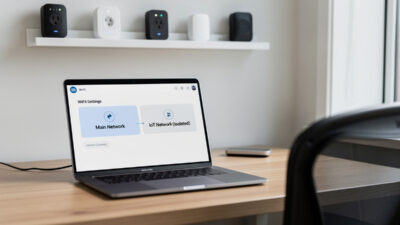
Band-steering works fine for laptops and phones with strong dual-band radios, but it routinely breaks smart devices. The device sees the 5 GHz network, half-connects, fails to maintain it, and falls offline — and because it is intermittent, you blame the device or the cloud. The clean solution in my setup is a separate, named 2.4 GHz-only SSID that every smart device joins, so nothing ever gets steered off the band it needs. If your router cannot split the bands, that alone is a reason to upgrade to a mesh WiFi system that can. Creating that dedicated SSID also pairs perfectly with putting IoT on its own network, covered in separate WiFi network for IoT.
| Factor | 2.4 GHz | 5 GHz | Winner for IoT |
|---|---|---|---|
| Range | Long, through walls | Short, line-of-sight | 2.4 GHz |
| Wall penetration | Good | Poor | 2.4 GHz |
| Speed | Lower | Much higher | 5 GHz (rarely needed) |
| Congestion | Crowded band | Cleaner band | 5 GHz |
| Device support | Nearly all IoT | Cameras, displays | 2.4 GHz for sensors |
| Power draw | Lower | Higher | 2.4 GHz |
Keeping the 2.4 GHz Band Clean
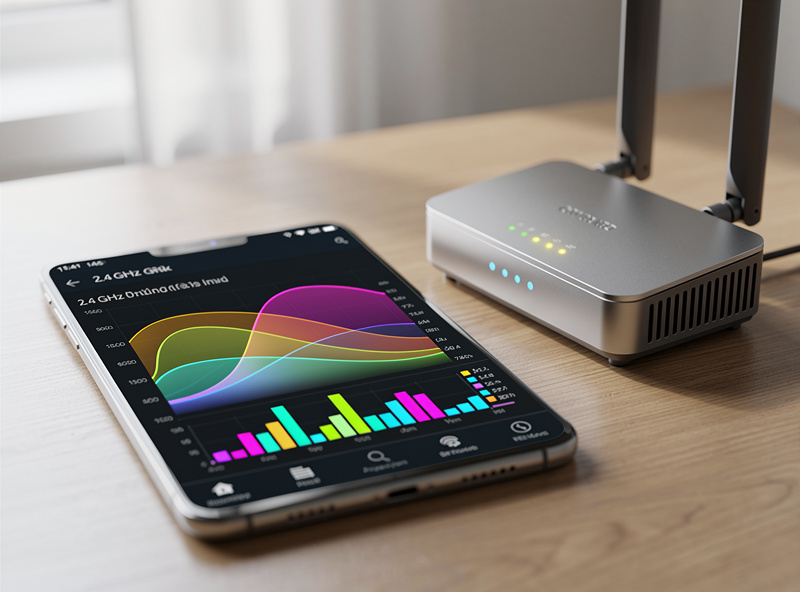
Because 2.4 GHz is crowded, channel choice matters. Stick to channels 1, 6, or 11 — the only three that do not overlap — and avoid 40 MHz channel width on 2.4 GHz, which doubles interference for almost no real-world gain on low-bandwidth IoT traffic. Let the router auto-select or pick the least congested of the three.
In a dense apartment building, half your dropouts can come from neighbors’ networks colliding with yours on overlapping channels. The three non-overlapping channels — 1, 6, and 11 — exist so networks can coexist without stepping on each other; using anything in between just guarantees interference. Set 2.4 GHz to 20 MHz width, not 40, because the wider channel eats two of those three lanes and buys you throughput your sensors will never use. A quick scan with a WiFi analyzer app shows which of the three channels is least crowded in your space. These small tweaks meaningfully cut the random drops people blame on their devices. For the deeper-range cases, see how to fix WiFi dead zones.
How to Set Your Network Up Right
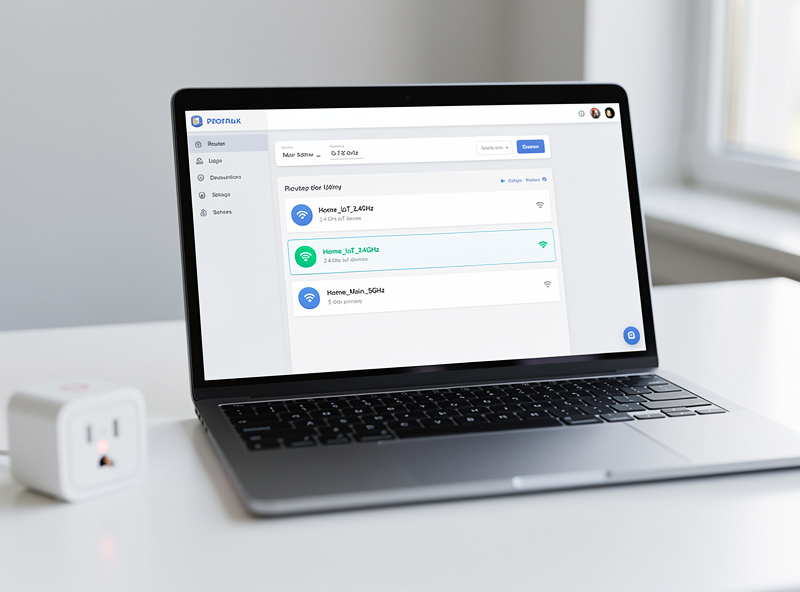
The clean setup is three SSIDs: a 5 GHz network for laptops and phones, a 2.4 GHz IoT network for smart devices, and optionally a 6 GHz network if you have Wi-Fi 6E gear. Join every smart device to the dedicated 2.4 GHz SSID and never let band-steering touch them.
Most mesh systems and many routers let you split the bands into separate named networks, or at least create a 2.4 GHz-only IoT SSID alongside the main one. Name them clearly so you never join the wrong device to the wrong band. Where you want to extend that 2.4 GHz coverage to an outbuilding or far room cleanly, a wired WiFi 6 access point broadcasting the IoT SSID does it without sacrificing a backhaul radio. Set it up once this way and the whole class of “my device randomly disconnects” problems disappears. The full network blueprint, including segmentation and node placement, lives in the best mesh WiFi for a smart home guide.
Frequently Asked Questions
Should smart home devices use 2.4 GHz or 5 GHz?
Use 2.4 GHz for nearly all smart devices. It travels about twice as far through walls and most IoT chips are 2.4 GHz only. Reserve 5 GHz for cameras, displays, and high-bandwidth gear. Create a dedicated 2.4 GHz SSID so devices never get band-steered off it.
Why do smart plugs only support 2.4 GHz?
Because 2.4 GHz chips are cheaper, draw less power, and reach farther, which suits low-data battery and plug devices. A smart plug sends tiny amounts of data, so the extra speed of 5 GHz would be wasted while range and battery life would suffer.
What is band-steering and why does it break smart devices?
Band-steering is when a router broadcasts both bands under one SSID and pushes clients toward 5 GHz. A cheap IoT device with a weak 5 GHz radio gets steered onto a band it cannot hold, connecting then dropping. A dedicated 2.4 GHz SSID prevents it.
Which 2.4 GHz channel is best for smart home devices?
Use channel 1, 6, or 11, the only three that do not overlap. Pick the least congested of the three with a WiFi analyzer, and set 20 MHz channel width rather than 40 MHz to avoid doubling interference on the crowded 2.4 GHz band.
Is 5 GHz ever better for smart home devices?
Yes, for high-bandwidth devices close to an access point, like security cameras streaming 4K or smart displays. For the dozens of low-data sensors, plugs, and bulbs spread around the house, 2.4 GHz wins on range, penetration, and power draw.
Should I separate the 2.4 GHz and 5 GHz bands?
Yes. Splitting them into separate named SSIDs lets you join smart devices to a dedicated 2.4 GHz network and your laptops to 5 GHz, eliminating band-steering dropouts. Most mesh systems and many routers support this in the admin app.