How to Fix WiFi Dead Zones in a Smart Home
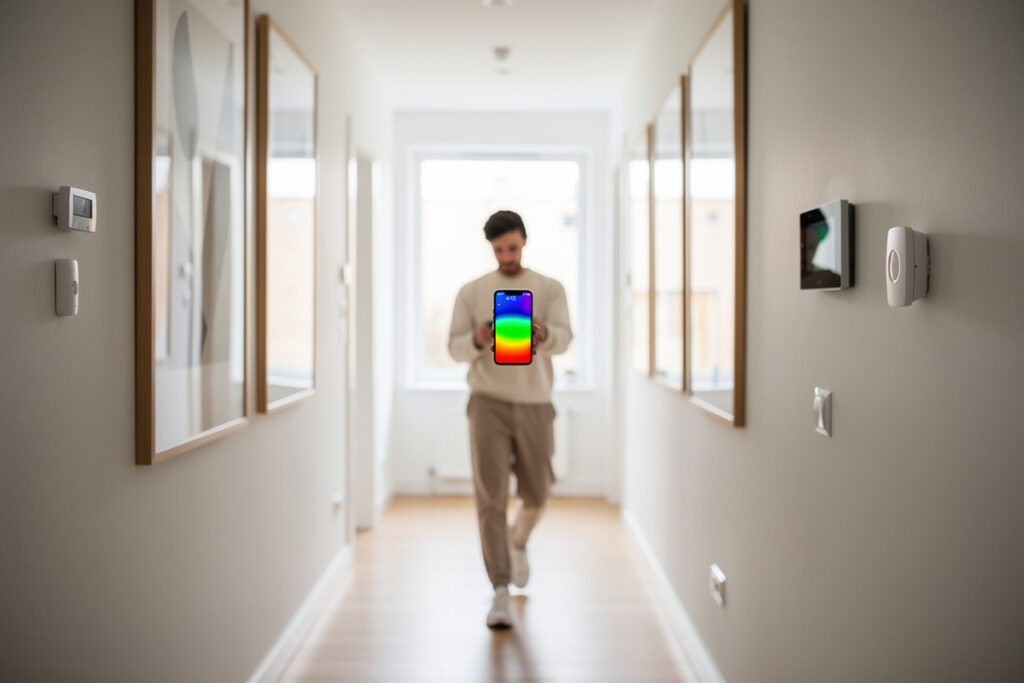
To fix WiFi dead zones, diagnose with signal strength first, then add or move a node closer to the weak area rather than buying a bigger antenna. Anything below roughly -70 dBm is where smart devices start dropping. The real fix is coverage geometry — a mesh node placed two-thirds of the way toward the dead zone, not inside it.
Dead zones are where smart homes quietly fail: the garage door sensor that misses half its triggers, the basement leak detector that goes offline, the back-fence camera that buffers. I have chased every one of these in my own house, and the fix is almost never the gadget the marketing sells you. Here is the diagnosis-first method I actually use.
Disclosure: HomeAutoCentral is reader-supported. As an Amazon Associate I earn from qualifying purchases made through links in this article, at no extra cost to you. I only point to gear I actually use or would buy for my own smart home.
Diagnose Before You Buy Anything
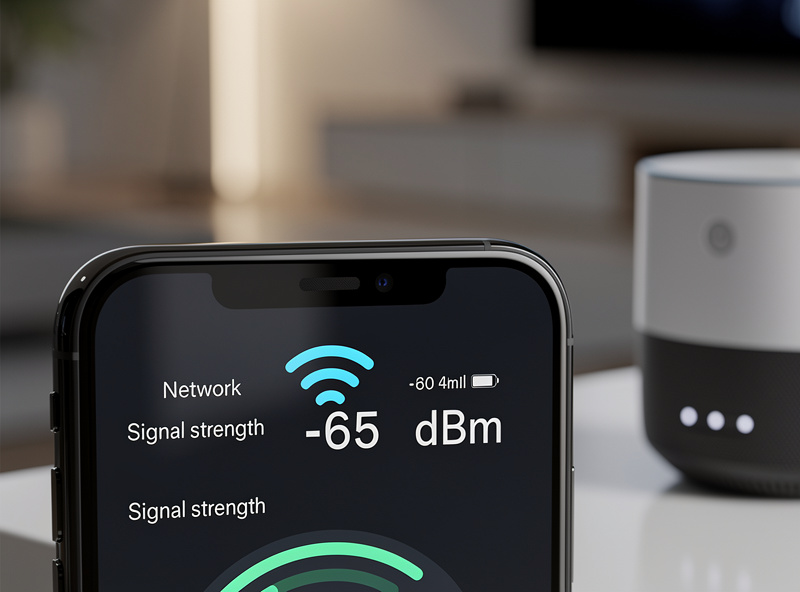
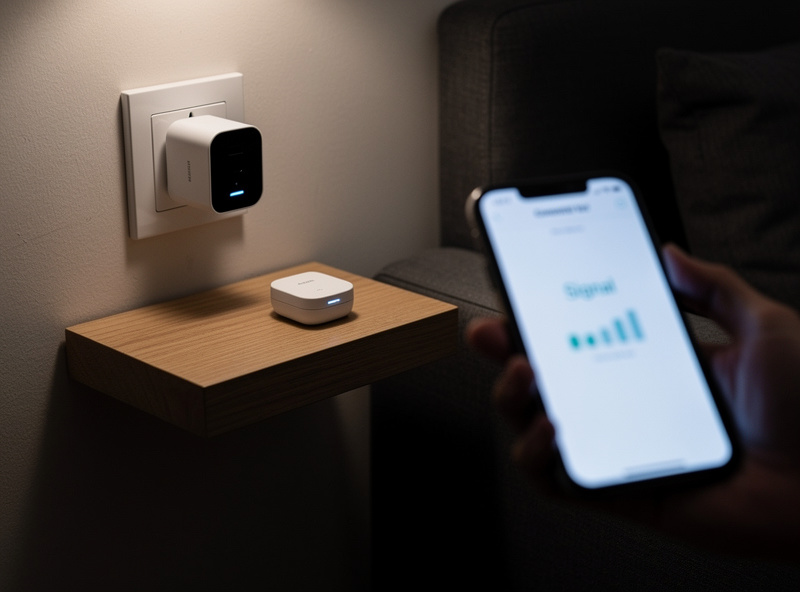
Start by measuring, not guessing. Every decent router app and most phones show per-device signal strength in dBm — a number closer to zero is stronger. Above -67 dBm is solid, -67 to -70 is marginal, and below -70 dBm is where IoT devices begin dropping. Walk the house and write down where the numbers fall off.
This one habit saves the most money. People feel a dead zone and immediately buy an extender, when half the time the real problem is a router stuffed in a closet or a single node trying to cover three floors. Open your router or mesh app, find the signal-strength or RSSI reading per device, and map the weak spots room by room. Pay special attention to where your smart devices actually live — a -75 dBm reading at the garage door is exactly why that sensor misses triggers. Once you can see the weak zones as numbers, the fix becomes obvious instead of a guessing game. The full coverage philosophy is in my smart home WiFi setup guide.
What Actually Causes Dead Zones
Dead zones come from distance, dense materials, and interference — rarely from a weak router. Brick, concrete, metal appliances, mirrors, and even large fish tanks absorb or reflect 2.4 GHz signal. A single router simply cannot push through enough of them to reach a far corner at usable strength.
The physics is unforgiving. Every interior wall costs signal, and some materials cost a lot: a brick chimney, a metal-clad fridge, a tiled bathroom, or a foil-backed insulation wall can each knock a connection from solid to unusable. Interference adds to it — microwaves, cordless phone bases, and a neighbor’s congested channel all sit in or near the 2.4 GHz band your sensors depend on. Because 2.4 GHz is the band most smart devices use, and it travels far but penetrates poorly through dense material, the far rooms and outbuildings are always where IoT struggles first. Understanding why your devices live on that band is covered in 2.4 GHz vs 5 GHz for IoT.
The Fixes, Ranked Best to Worst
Ranked by how well they actually work: wired backhaul to a far access point is best, adding or repositioning a mesh node is excellent, MoCA or powerline to a distant node is a strong wired-ish option, and a plug-in extender is the last resort. Extenders halve throughput and create a sticky second SSID.
If your walls allow it, running Ethernet to an access point in the dead zone is the gold standard — full speed, no airtime cost. No cable route? A mesh node placed sensibly fixes most homes; the key is putting it where it still hears the previous node strongly, not deep in the dead zone. Where you cannot pull Ethernet but have coax or want to use existing wiring, a MoCA adapter turns a TV coax line into a wired backhaul for a far node. Only if none of that is possible should you reach for a WiFi extender — and even then, expect compromises. My picks for whole-home coverage are in the best mesh WiFi for a smart home.
| Fix | How it works | Speed impact | Roaming | Effort | Verdict |
|---|---|---|---|---|---|
| Wired AP (Ethernet) | Full wired backhaul | None | Seamless (one SSID) | High (cable run) | Best |
| Add/move mesh node | Wireless backhaul | Minor | Seamless | Low | Best for most |
| MoCA over coax | Coax as backhaul | None | Seamless | Medium | Great if you have coax |
| Powerline to node | Mains wiring backhaul | Variable | Seamless | Low | Decent, wiring-dependent |
| Plug-in extender | Repeats same radio | Halved | Poor (separate SSID) | Low | Last resort |
Where to Place the Node
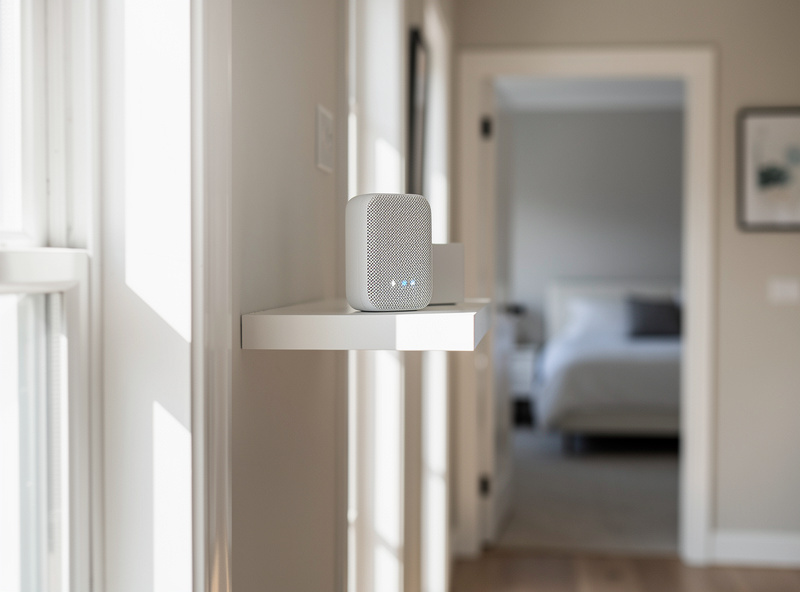
Place a new node or access point roughly two-thirds of the way from your router toward the dead zone, never inside it. The node needs a strong link back to relay from, so positioning it in the weak area only repeats a weak signal. Keep it off the floor and away from metal and microwaves.
This is the mistake almost everyone makes: they feel the dead zone in the back bedroom and put the extender or node right there, where it has nothing solid to relay back to. Walk it toward the router until the node reports a strong backhaul link, then let it cover the weak room from that stronger position. Height helps — a node on a shelf clears furniture and bodies that absorb 2.4 GHz. And keep it clear of the fridge, the microwave, and any cordless-phone base, all of which sit in or near the band. For outdoor coverage at the property edge, the same rule applies: anchor the node where it still has a strong indoor link.
When the Dead Zone Is Really the Device
Sometimes the network is fine and one device is the problem — a cheap plug with a marginal antenna, or a device band-steered onto 5 GHz it cannot hold. Before blaming coverage, check whether one specific gadget drops while neighbors on the same shelf stay solid. That points to the device, not the zone.
A single smart plug that connects then disconnects, while the sensor right next to it stays online, is usually a band-steering or weak-radio issue rather than a true dead zone. The fix there is a dedicated 2.4 GHz SSID so the device never gets pushed to 5 GHz, plus choosing hardware rated for the range you need. I walk through that exact failure mode in why a smart plug will not connect to WiFi, and the segmentation that prevents band-steering is in separate WiFi network for IoT. Diagnose the one-device case separately from the whole-zone case, or you will buy hardware that does not solve your actual problem.
Frequently Asked Questions
How do I fix a WiFi dead zone?
Diagnose with signal strength first, then add or move a mesh node toward the weak area, ideally with wired backhaul. Anything below about -70 dBm is where smart devices drop. The best fix is coverage geometry, not a bigger antenna or a plug-in extender.
What signal strength is too weak for smart devices?
Above -67 dBm is solid, -67 to -70 dBm is marginal, and below -70 dBm is where IoT devices begin dropping. Measure per-device RSSI in your router or mesh app and map where the numbers fall off before buying any hardware.
Are WiFi extenders good for fixing dead zones?
They are the last resort. Extenders repeat the signal on the same radio they receive it on, halving throughput, and create a separate SSID that smart devices roam between badly. A mesh node, MoCA, or a wired access point fixes dead zones far better.
Where should I place a mesh node to fix a dead zone?
Place it roughly two-thirds of the way from the router toward the dead zone, never inside it. The node needs a strong link back to relay from. Keep it off the floor and away from metal appliances, microwaves, and cordless-phone bases.
What causes WiFi dead zones in a house?
Distance, dense building materials, and interference. Brick, concrete, metal appliances, mirrors, and even large fish tanks absorb or reflect 2.4 GHz signal, while microwaves and congested channels add interference. A single router cannot push through enough of them to reach far corners.
Why does only one smart device drop while others stay online?
That points to the device, not a dead zone, usually a marginal antenna or band-steering onto 5 GHz it cannot hold. Fix it with a dedicated 2.4 GHz SSID and hardware rated for the range, rather than adding coverage.