Smart Home WiFi Setup: The Complete 2026 Guide
A reliable smart home WiFi setup starts with one decision most guides skip: keep your chatty IoT devices off the same network and band as your laptops. A mesh system, a dedicated 2.4 GHz SSID, and a hub that survives an outage will out-perform any single expensive router.
I run a local-first Home Assistant install with dozens of devices hanging off it, and I have rebuilt my home network three times as the device count climbed. Almost every “my smart home is flaky” problem I have ever diagnosed traces back to WiFi architecture, not the devices themselves. This guide is the playbook I wish I had before I made every one of those mistakes.
What a Smart Home Actually Demands From Your WiFi
A smart home does not need fast WiFi. It needs consistent WiFi with broad low-band coverage and a high device-count ceiling. A single smart plug pulls a few kilobits per second, but forty of them hammer your router with constant tiny keep-alive packets that a gaming-tuned router handles badly.
The metric that matters is not megabits, it is how many simultaneous associations your access point can hold without dropping older clients. Cheap routers advertise “supports 128 devices” but start evicting idle IoT clients at 30 to 40. When a smart plug gets evicted, your automation silently fails and you blame the plug. In my setup the single biggest reliability jump came from picking hardware rated for high client counts and spreading those clients across multiple access points, not from raising the speed tier. Coverage and client capacity are the smart-home currency, not throughput.
How Many Devices Can One Router Really Handle?
Most consumer routers comfortably manage 20 to 30 active WiFi smart devices. Past that you hit airtime contention and the broadcast chatter starts colliding. A mesh system with two or three nodes roughly triples that headroom by splitting devices across radios and physically shortening the distance each weak IoT antenna has to reach.
Here is the part the box never tells you: the limit is rarely the advertised client number, it is airtime. Every device that talks shares the same channel time, and a distant smart bulb clinging to one bar of signal transmits at the slowest legacy rate, which monopolizes airtime far out of proportion to the data it sends. That is why one badly-placed sensor in the garage can drag down responsiveness for the whole house. The fix is coverage, so every device connects at a healthy rate, plus separating the IoT swarm from your high-bandwidth devices so video streaming and a forty-device sensor mesh are not fighting over the same airtime. If you are still deciding whether you even need a separate brain for all this, my breakdown of whether you need a smart home hub is the place to start.
The Three WiFi Mistakes That Break Smart Homes
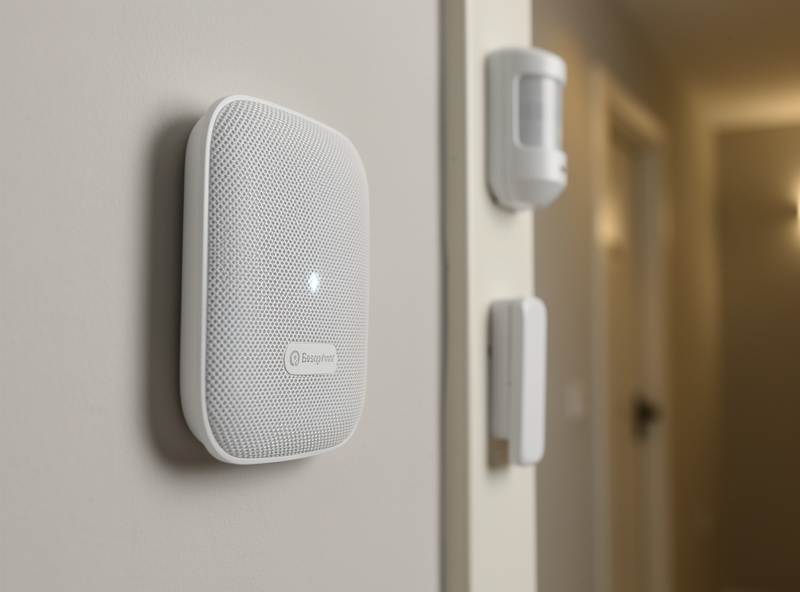
The three failures I see most often are: one router trying to cover the whole house, IoT devices sharing a network with laptops and TVs, and smart devices pushed onto the 5 GHz band where they cannot hold a connection. Each one produces the same symptom: automations that work “most of the time.”
Mistake one is the single-router gamble. One box in the living room leaves the far bedroom, garage, and yard on the ragged edge of coverage, and that is exactly where leak sensors and outdoor cameras live. Mistake two is the flat network. When your work laptop, a 4K stream, and forty smart plugs share one SSID, the IoT chatter and the bandwidth-heavy traffic degrade each other, and you also expose poorly-patched gadgets to everything else on your LAN. Mistake three is band confusion — letting a cheap router shove a 2.4 GHz-only device toward a 5 GHz radio it cannot use, so it drops every few hours. Avoiding all three is less about spending more and more about architecture. My roundup of the most common smart home mistakes covers the non-network versions of the same lesson.
Mesh vs Single Router vs Extenders: What Actually Works
For any home above roughly 1,500 square feet or with devices spread across floors, a mesh system wins. Extenders are the worst option for a smart home because they halve throughput and create a second SSID that IoT devices roam between badly. A single strong router only works in small, open apartments.
The reason mesh beats a lone router is not raw power, it is geometry. Three nodes mean every weak IoT antenna has a strong access point within a couple of rooms, so devices connect at high rates and surrender airtime quickly. Extenders, by contrast, repeat the signal on the same radio they receive it on, cutting effective bandwidth and — worse for automations — often broadcasting a separate _EXT network that sticky IoT clients cling to long after you have walked into a better-covered room. Wired backhaul between mesh nodes, where you can run an Ethernet cable, removes the single biggest mesh weakness and is worth the afternoon of cable-pulling.
| Approach | Best for | Device ceiling | IoT coverage | Roaming | Verdict |
|---|---|---|---|---|---|
| Single router | Small open apartment | ~20-30 devices | One zone only | N/A | Fine until you scale |
| Mesh (wireless backhaul) | Most homes | ~60-90 devices | Whole-home | Seamless | Best all-round |
| Mesh (wired backhaul) | Homes with Ethernet | ~90+ devices | Whole-home, full speed | Seamless | Best possible |
| Router + extenders | Stopgap only | ~25-35 devices | Patchy, sticky | Poor (separate SSID) | Avoid for IoT |
| Access points + managed switch | Power users, wired house | 100+ devices | Whole-home, segmented | Seamless with one SSID | Endgame setup |
If you want the full decision walkthrough with specific systems for each tier, see the dedicated guide to the best mesh WiFi for a smart home.
2.4 GHz vs 5 GHz: Why Your IoT Lives on the Slow Band
The vast majority of smart home devices — plugs, bulbs, sensors, most cameras — are 2.4 GHz only. That band is slower but travels farther and penetrates walls better, which is exactly what battery-powered sensors in a far closet need. Forcing IoT toward 5 GHz is the most common self-inflicted reliability bug.
2.4 GHz reaches roughly twice as far through interior walls as 5 GHz at the same power, which is why every sensor manufacturer designs for it. The problem is that many combined routers broadcast both bands under one SSID and let the router “band-steer” clients. A cheap IoT chip with a marginal 5 GHz radio can get steered onto 5 GHz, fail, and drop repeatedly. The clean fix in my setup is a separate, named 2.4 GHz-only SSID that every smart device joins, so nothing ever gets steered off the band it actually needs. The full reasoning, including channel-width and congestion specifics, is in my deep dive on 2.4 GHz vs 5 GHz for IoT devices.
Does WiFi 6 or WiFi 6E Matter for a Smart Home?
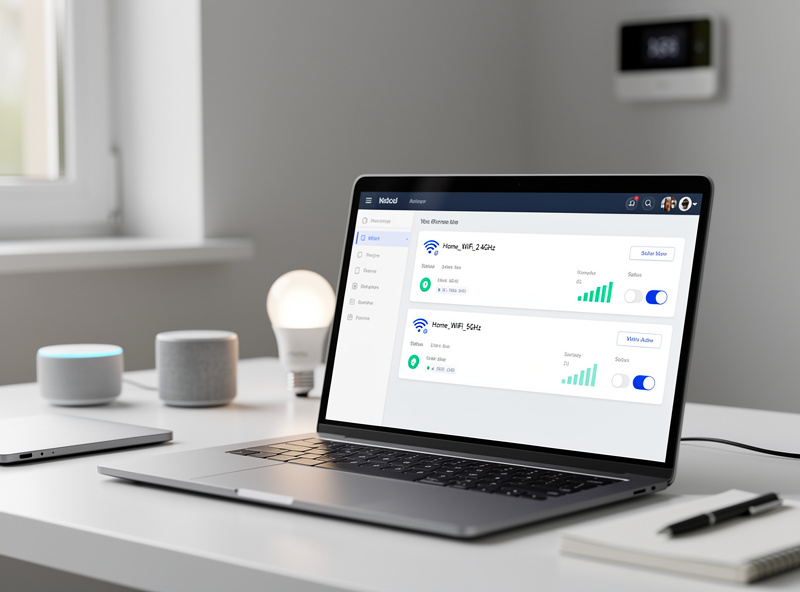
For raw speed, no. For a device-dense smart home, yes — but not for the reason the marketing implies. WiFi 6 brings OFDMA and improved scheduling that let an access point service many small clients far more efficiently, which is exactly the workload forty smart plugs create. The benefit is capacity, not megabits.
Older WiFi standards talk to one client at a time per channel, so a swarm of chatty IoT devices spends most of its airtime waiting in line. WiFi 6’s OFDMA divides each transmission into sub-channels and serves multiple devices in the same airtime slot, and Target Wake Time lets battery devices sleep on a schedule instead of constantly polling — meaningfully better battery life on the sensors that support it. WiFi 6E adds the clean 6 GHz band, but almost no IoT device uses it, so 6E helps your laptops and headsets, not your sensors. My honest take from running both: WiFi 6 is worth specifying on a new mesh system for the client-handling alone, but do not pay a premium to “upgrade” a working network just for 6E. The bottleneck in a flaky smart home is coverage and segmentation, not the WiFi generation. If you are still assembling the rest of the kit, my smart home equipment guide covers what is worth buying and what to skip.
Should Your Smart Devices Even Be on WiFi?
Not all of them. WiFi is right for high-bandwidth devices like cameras and displays, but for the dozens of low-power sensors and switches, low-power mesh radios — Zigbee, Z-Wave, and Thread — are far more reliable and never touch your WiFi airtime at all. A healthy smart home mixes both deliberately.
This is the lens that separates a robust smart home from a fragile one. Every cheap WiFi sensor you add is another client contending for airtime and another cloud dependency. Zigbee and Z-Wave devices form their own self-healing mesh, sip battery for years, and keep working when your internet is down. I run my locks and battery sensors on Z-Wave, most switches and contact sensors on Zigbee, and reserve WiFi for cameras and the hub itself. If you are weighing the radios, my focused comparison of WiFi vs Zigbee for smart devices covers the two-way decision, and the full three-radio breakdown lives in Zigbee vs Z-Wave vs WiFi. For the newest standard tying them together, read what Matter actually is. None of this works without local control, which is why I insist a smart home should keep working without internet.
Segmenting IoT Onto Its Own Network
Putting smart devices on a separate network — a second SSID at minimum, a dedicated VLAN at best — is the upgrade that improves both security and reliability at once. It isolates poorly-patched gadgets from your personal data and stops IoT broadcast chatter from degrading your main devices. Every serious setup does this.
The easy version takes ten minutes: most routers and every mesh system can broadcast a guest or IoT network. Put a 2.4 GHz IoT SSID there and join every smart device to it. The advanced version uses a true VLAN with firewall rules so the IoT subnet cannot initiate connections to your laptops, only respond to them. I walk through the accessible route in my guide to a separate WiFi network for IoT, and the full managed-VLAN build is in smart home VLAN setup. If you run your own router or pfSense box, the homelab-grade version — firewall rules, inter-VLAN policy, and intrusion detection — is covered in depth at homelabrouter.com’s network hardening guide.
Fixing Dead Zones and Weak Signal
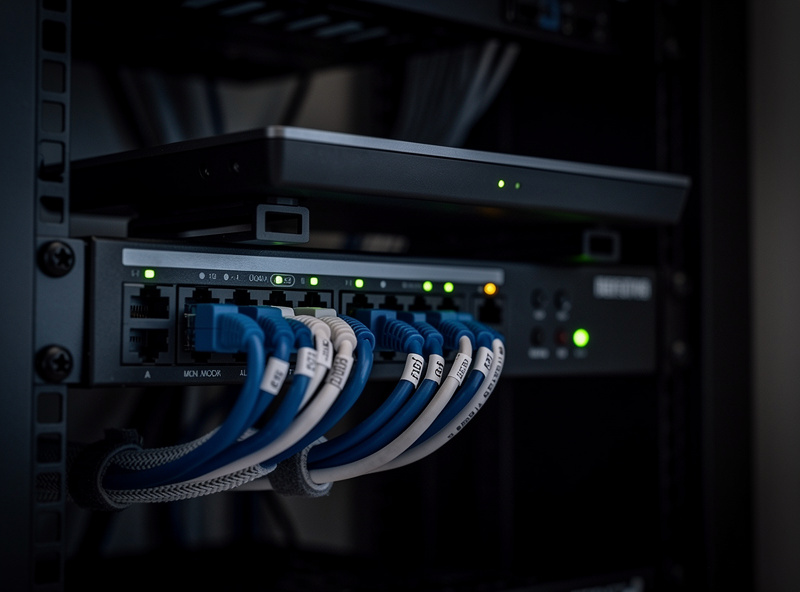
Dead zones are where smart homes quietly fail: the garage door sensor, the basement leak detector, the back-fence camera. The fix is rarely a bigger antenna — it is adding a node closer to the dead zone, moving the existing one, or running Ethernet to a far access point. Diagnose with signal strength, not guesswork.
Before you buy anything, map the problem. Most phones and every decent router app show per-device signal strength (RSSI); anything weaker than about -70 dBm is where IoT devices start dropping. Walls, mirrors, metal appliances, and — surprisingly — large fish tanks and brick chimneys are the usual culprits. A mesh node placed two-thirds of the way toward the dead zone, not inside it, usually solves it, because the node still needs a strong link back to the main router. My full troubleshooting flow, including the meter readings I use, is in how to fix WiFi dead zones. For the specific case of a smart plug that connects then drops, see why a smart plug will not connect to WiFi.
Where to Place Your Router and Mesh Nodes
Placement is the cheapest performance upgrade you will ever make. Put the main router central and high, never in a closet or behind the TV, and space mesh nodes so each one still sees a strong signal back to the next — roughly two rooms apart, not at the very edge of coverage. A node that can barely reach the router only repeats a weak signal.
The mistake I see constantly is people pushing a node into the dead zone, where it has nothing solid to relay back to. Walk it back toward the router until the node reports a strong backhaul link, then let it cover the weak area from there. Keep nodes off the floor and away from large metal objects, microwaves, and cordless-phone bases, all of which sit in or near the 2.4 GHz band. If a far node will anchor cameras or a hub, run Ethernet to it — wired backhaul turns a good mesh into a great one and frees the wireless radios entirely for client devices. The same physics applies to outdoor coverage for cameras and the smart security cameras and sensors that live at the edges of the house, where signal is always weakest and reliability matters most.
A WiFi Setup Checklist for a Reliable Smart Home
A bulletproof smart home network comes down to seven moves: mesh coverage, a dedicated 2.4 GHz IoT SSID, IoT segmentation, wired backhaul where possible, the right radio per device, mapped signal strength, and a hub that runs locally. Do these and “flaky” disappears from your vocabulary.
Work through them in order. Start with coverage, because nothing else matters if devices cannot hold a connection. Then split the IoT SSID off the main band and segment it. Move your sensors and switches to Zigbee or Z-Wave so WiFi only carries what truly needs the bandwidth. Pull Ethernet to your mesh nodes if your walls allow it. Finally, anchor the whole thing on a local-first hub — my complete smart home automation guide covers that brain, and smart home for beginners is the gentle on-ramp if this is your first build. Get the network right and every device, sensor, and automation you add later just works.
Frequently Asked Questions
Do I need a special router for a smart home?
No special router, but you need broad 2.4 GHz coverage and a high client-count ceiling. A two or three node mesh system handles 60 to 90 devices reliably, far more than a single router. Coverage and client capacity matter more than speed.
How many smart devices can my WiFi handle?
Most consumer routers manage 20 to 30 active WiFi smart devices before airtime contention causes drops. A mesh system roughly triples that to 60 to 90 by splitting devices across nodes and radios. Offloading sensors to Zigbee or Z-Wave removes WiFi load entirely.
Should smart home devices use 2.4 GHz or 5 GHz?
Use 2.4 GHz for nearly all smart devices. It travels farther and penetrates walls better, which battery sensors need, and most IoT chips are 2.4 GHz only. Reserve 5 GHz for cameras, displays, and other high-bandwidth gear. Create a separate 2.4 GHz SSID so nothing gets band-steered off it.
Should I put IoT devices on a separate WiFi network?
Yes. A separate IoT SSID, or ideally a VLAN, isolates poorly-patched gadgets from your personal data and stops IoT chatter from degrading your main devices. The easy version is a guest or IoT network most routers can broadcast in minutes.
Why do my smart plugs keep disconnecting from WiFi?
The usual causes are weak 2.4 GHz signal at the plug, band-steering pushing a 2.4 GHz device toward 5 GHz, or a router evicting idle IoT clients past its real limit. Fix coverage, create a dedicated 2.4 GHz SSID, and choose hardware rated for high client counts.
Is mesh WiFi or an extender better for a smart home?
Mesh is far better. Extenders halve throughput and create a separate SSID that IoT devices roam between badly, causing drops. A mesh system gives whole-home coverage under one SSID with seamless roaming, and wired backhaul makes it nearly bulletproof.
Can a smart home work without WiFi?
Partly. Devices on Zigbee, Z-Wave, or Thread keep working through a local hub even when WiFi or internet is down, which is why local-first design matters. WiFi-only and cloud-dependent devices stop, so a robust smart home leans on local mesh radios for critical automations.