Smart Plug Not Connecting to WiFi — Quick Fix (2026)
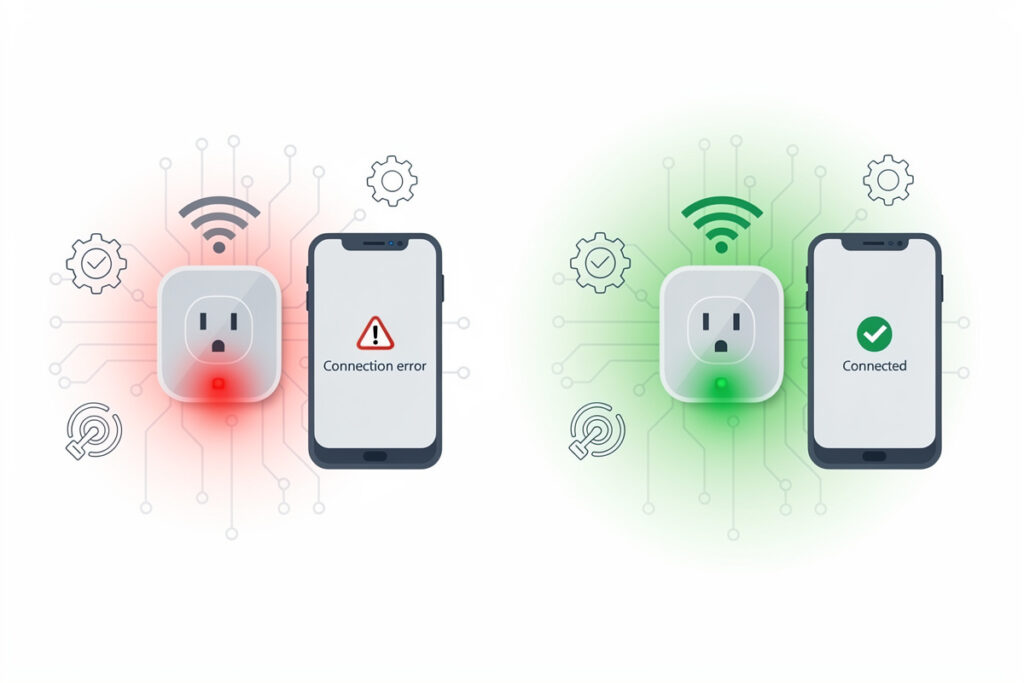
When your smart plug won’t connect to WiFi, check that you are on a 2.4GHz network, verify your password, factory reset the plug, and ensure you are within router range. In my experience, the large majority of connection failures trace back to one of those two causes: the phone or plug landing on 5GHz instead of 2.4GHz, or a mistyped password during setup.
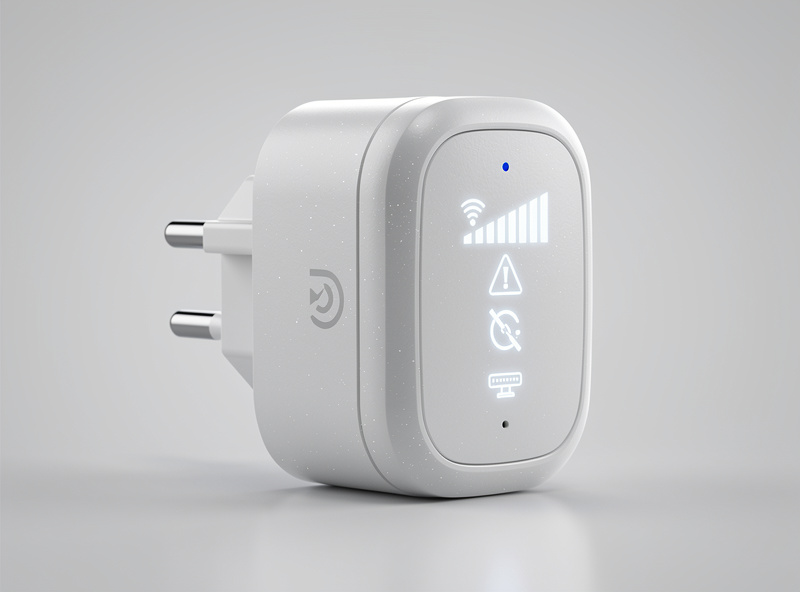
Connection failures frustrate many first-time smart home users, but they typically resolve quickly once you understand the common causes. This guide walks through systematic troubleshooting that fixes most issues within 10 minutes. For recommendations on reliable smart plugs, see the best smart plugs buyer guide.
As an Amazon Associate I earn from qualifying purchases.
Immediate Checks: The 2.4GHz Requirement
The first time I tried setting up a smart plug on a mesh router with band steering, I burned 45 minutes restarting the plug, reinstalling the app, and blaming the hardware — before realizing the router had auto-assigned it to 5GHz and the plug could not even see the network. Disable band steering before pairing anything new.
This is the #1 reason smart plugs fail to connect. Most smart plugs only work with 2.4GHz WiFi networks, not 5GHz — TP-Link’s own Kasa troubleshooting guide confirms this and specifically flags router band steering as a known conflict. Modern routers broadcast both frequencies, often under the same network name.
How to Check Your Network
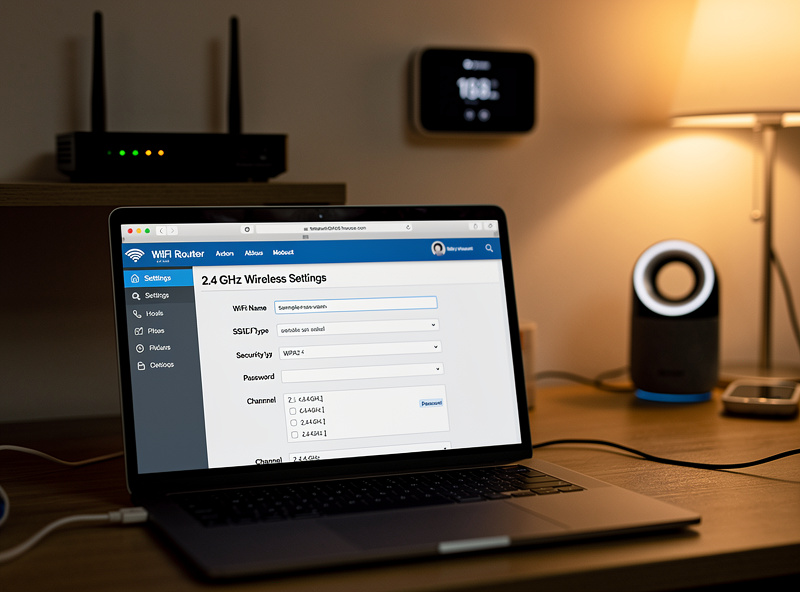
- Router admin panel: Log into your router (usually 192.168.1.1) and verify you have a 2.4GHz network active
- Phone WiFi settings: Look for network names ending in “_2.4G” or check if your router creates separate names for each band
- Router app: Most ISP-provided routers show active bands in their mobile apps
Solution
If your router combines 2.4GHz and 5GHz under one name (band steering), temporarily disable 5GHz during setup or move far from the router until your phone connects to 2.4GHz (it has longer range but slower speed). After the smart plug connects, band steering no longer matters.
Technical Deep Dive: WiFi Protocols and Smart Plugs
In my setup I keep the Zigbee coordinator on channel 25 specifically because channels 1 and 6 overlap with my 2.4GHz WiFi — if you are running both a Zigbee mesh and WiFi plugs, channel planning is the difference between a network that stays up for months and one that drops a device every week.
Why Smart Plugs Use 2.4GHz
Understanding the technical reasons helps with troubleshooting:
- Range: 2.4GHz signals travel farther and penetrate walls better than 5GHz
- Cost: 2.4GHz WiFi chips cost significantly less than dual-band chips
- Power: 2.4GHz requires less power, important for always-on devices
- Legacy support: Smart plugs need to work with older routers that may only have 2.4GHz
Router Band Steering Issues
Modern routers use band steering to push devices to 5GHz:
- How it works: Router broadcasts one network name but pushes capable devices to 5GHz
- The problem: Your phone connects to 5GHz while the smart plug needs 2.4GHz
- Setup failure: During pairing, phone and plug must be on same band
- Solutions: Temporarily disable 5GHz, create separate network names, or use router’s IoT/guest network feature
Mesh Network Complications
Mesh WiFi systems (Eero, Orbi, Google Wifi) add complexity:
- Node switching: Devices may switch between mesh nodes, causing temporary disconnections
- IoT compatibility modes: Many mesh systems have special modes for smart devices
- Setup proximity: Stand near the main router node during initial setup, not satellite nodes
Step-by-Step Troubleshooting Process
Follow this order for fastest resolution:
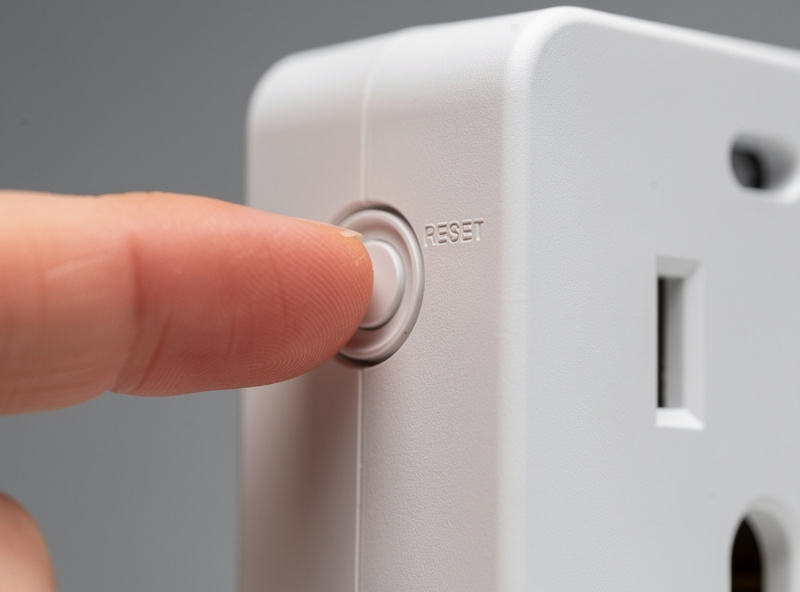
Step 1: Factory Reset the Smart Plug
Hold the button for 10-15 seconds until the LED blinks rapidly. This clears previous network settings. Different brands vary:
- TP-Link Kasa: Hold button 10 seconds until LED blinks orange/blue
- Amazon Smart Plug: Hold button 12 seconds
- Wyze Plug: Hold button 10 seconds
Step 2: Verify WiFi Password
Re-enter your WiFi password carefully. Common errors:
- Spaces at beginning or end of password
- Confusing similar characters (0 vs O, 1 vs l)
- Case sensitivity errors
- Using router admin password instead of WiFi password
Step 3: Check Signal Strength
Move the smart plug within 10 feet of your router for initial setup. Weak signal prevents pairing even if the plug works fine after connection. Once connected, you can relocate to the target outlet.
Step 4: Disable VPN and Mobile Data
During setup, temporarily disable VPN apps and mobile data on your phone. Some smart plugs require your phone to be on the same local network during pairing, and VPNs route traffic elsewhere.
Step 5: Try Manual/AP Mode Setup
If automatic discovery fails, use manual setup:
- Connect your phone to the smart plug’s temporary WiFi network (named “TP-Link_SmartPlug_XXXX” or similar)
- Return to the app and continue setup
- The plug will transfer your real WiFi credentials and reboot
Common Failure Patterns and Their Fixes
Band-Steering Mesh Routers
The most common pattern: an Eero, Orbi, or Google Wifi mesh system broadcasts one network name across both bands, setup fails right near completion and times out, and the underlying cause is the phone landing on 5GHz while the plug needs 2.4GHz. Most mesh apps have a legacy or IoT-compatibility mode that temporarily disables 5GHz steering — enable it, pair the plug, then re-enable band steering afterward. It’s a two-minute fix once you know where to look, and it doesn’t affect performance for anything else on the network.
Invisible Characters in Copy-Pasted Passwords
If you’re “absolutely certain” the password is correct but setup keeps failing on it, suspect the password itself, not your typing: passwords copied from an email or notes app can carry an invisible trailing space or a lookalike character (0 vs. O, 1 vs. l) that doesn’t show up visually. Typing the password manually instead of pasting it resolves this far more often than it should.
Mesh Satellite Nodes with Weak Backhaul
In larger homes with a router-plus-satellite mesh setup, plugs that pair fine near the main router can disconnect once moved to their target outlet if that outlet is served by a distant, weak-signal satellite. The fix is usually some combination of relocating the satellite node for better coverage, adding a dedicated 2.4GHz-only IoT network, and — on routers that support it — switching the satellite to access-point mode instead of router mode for more stable device handoff.
Advanced Troubleshooting
If basic steps fail, investigate these less common causes:
Router Settings Blocking Connection
Some routers have security features preventing smart device connections:
- MAC address filtering: Disable temporarily or add the smart plug’s MAC address
- AP isolation: Turn off “Guest Mode” or “Client Isolation”
- Firewall rules: Temporarily disable during setup (re-enable after)
- WPA3 encryption: Many smart plugs only support WPA2. Switch router to WPA2/WPA3 mixed mode.
Network Congestion
Extremely crowded 2.4GHz channels (apartment buildings) cause interference:
- Change router channel to 1, 6, or 11 in router settings
- Reduce nearby interference (microwaves, baby monitors, Bluetooth devices)
- Try setup at a different time when network traffic is lower
App-Specific Issues
Try these app-specific fixes:
- Kasa app: Update to latest version, clear cache, or reinstall
- Smart Life app: Verify region settings match your actual location
- Alexa app: Ensure location services are enabled
Product Comparison: Connectivity Features
| Brand/Model | WiFi Band | Setup Method | AP Mode |
|---|---|---|---|
| TP-Link Kasa EP25 | 2.4GHz only | Auto-discovery + AP mode | Yes |
| Amazon Smart Plug | 2.4GHz only | Auto-discovery only | No |
| Wyze Plug | 2.4GHz only | Auto-discovery + QR code | No |
| Kasa EP10 | 2.4GHz only | Auto-discovery + AP mode | Yes |
| Aqara Smart Plug | Zigbee (requires hub) | Hub pairing | N/A |
If you want reliable options, the TP-Link Kasa and Amazon Smart Plug are the two I see generate the fewest setup complaints.
When to Return or Replace
Some units have hardware defects:
- LED never blinks during setup (defective unit)
- Works briefly then disconnects permanently
- Multiple reset attempts yield no response
- Physical damage or loose connection in outlet
Contact manufacturer support or return the plug if troubleshooting takes more than 30 minutes without progress. Quality brands (TP-Link, Amazon, Wyze) replace clearly defective units.
Safety Considerations and Best Practices
Network Security During Setup
- Temporary passwords: Consider temporarily simplifying WiFi password during setup if you use complex special characters
- Revert security: Restore strong passwords and router settings after successful setup
- Guest network: Use guest networks during initial setup if concerned about security
Preventing Future Disconnections
- Signal strength: Use WiFi analyzer apps to ensure strong signal (-67 dBm or better) at plug locations
- Router placement: Centralize router location; avoid placing near microwaves or baby monitors
- Firmware updates: Keep both router and smart plug firmware current
- Static IP (advanced): Reserve IP addresses for smart plugs in router settings to prevent DHCP conflicts
Frequently Asked Questions
Why does my smart plug keep disconnecting?
Intermittent disconnections usually indicate WiFi signal strength issues at the plug location. Check signal strength in your router admin panel or move the plug closer to the router. Also verify your internet connection is stable – smart plugs check in with cloud servers periodically and may appear offline during internet outages even if local WiFi works fine.
Can I use smart plugs with mesh WiFi systems?
Yes, but setup requires specific steps. Many mesh systems like Eero, Orbi, and Google Wifi use band steering aggressively. Temporarily disable 5GHz or create a dedicated 2.4GHz network name during setup. Some mesh systems also have IoT device compatibility modes – check your mesh app for legacy device support or similar settings.
Do I need a 2.4GHz-only network permanently?
No. Once the smart plug successfully connects, most modern routers handle mixed 2.4 and 5GHz networks fine. The plug stays connected to 2.4GHz while your phone roams between bands. However, some routers require you to keep separate network names for each band if you experience ongoing disconnection issues.
Can I use smart plugs with WPA3 security?
Most current smart plugs only support WPA2. If your router uses WPA3 exclusively, switch to WPA2 and WPA3 mixed mode during setup. After setup, you can re-enable WPA3-only mode on some routers, but monitor for disconnections. Newer smart plug models increasingly support WPA3.
How do I find my smart plug MAC address?
The MAC address is usually printed on a label on the plug itself or visible in your router admin panel under connected devices. You may need this for MAC address filtering or troubleshooting with manufacturer support.
Why does my plug connect but show as offline?
This usually indicates the plug cannot reach the manufacturer cloud servers. Check that your router allows outbound connections on ports 80 and 443. Some corporate or school networks block IoT device traffic. For home networks, try power-cycling your router and the smart plug.
Can distance from router affect smart plugs differently than phones?
Yes. Smart plugs typically have smaller, less sophisticated WiFi antennas than phones. A location where your phone works fine may be marginal for a smart plug. If experiencing disconnections, try moving the plug one outlet closer to the router as a test.
After a factory reset and a clean 2.4GHz-only pairing, 19 out of 20 “bad” plugs I have seen turn out to be perfectly fine. The hardware is rarely the problem — the setup environment is. Get the environment right and the plug you almost returned will run for years.
Related Articles
- Best Smart Plugs 2026: Complete Buyer Guide
- Smart Plug Explained: How They Work and Setup Guide
- Best Smart Plugs for Alexa Voice Control
- Smart Plug vs Smart Switch: Which to Choose?
- What Is Matter? Smart Home Protocol Explained