Home Assistant Kiosk Mode: Lock a Tablet to One Dashboard
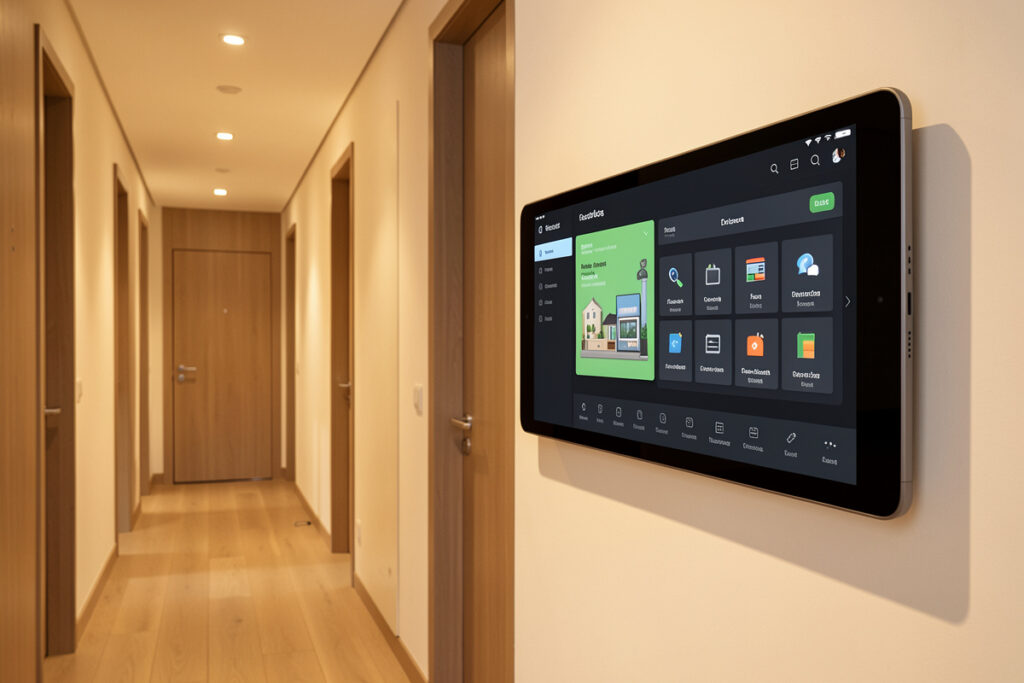
Kiosk mode is what turns a cheap tablet into a proper wall panel: it locks the screen to a single Home Assistant dashboard, full-screen, with no browser bars, no Home Assistant sidebar, and no way for a guest to swipe out into settings or another app. In my setup the kitchen tablet boots straight into one dashboard and physically cannot show anything else — that is the whole job, and it takes two layers to do it right.
People conflate two different things under “kiosk mode.” One is hiding Home Assistant’s own sidebar and header so the dashboard fills the screen. The other is locking the device itself so nobody can leave the app. You usually want both, and they are configured in different places. Here is how I set each layer, and which tools I trust. This pairs with my dashboard design guide — build the clean dashboard first, then lock a tablet to it.
Layer One: Hide the Home Assistant Chrome
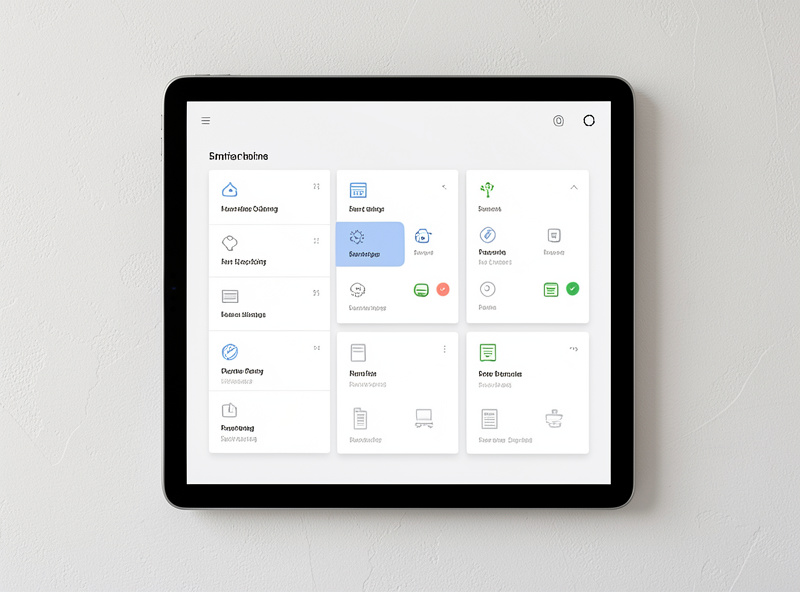
By default a Home Assistant dashboard shows the left sidebar and a top header. On a wall tablet that is wasted space and a doorway into everything else. The cleanest fix is the kiosk-mode frontend module from HACS, which hides the sidebar and header on the dashboards you choose, per user or per device. You add a small block to the dashboard configuration and the chrome vanishes, leaving only your cards.
The important detail is scoping. I hide the chrome only for the wall-tablet user account, not for myself, so when I open the same dashboard on my laptop I still get the full Home Assistant interface to edit things. Kiosk-mode supports exactly that — hide by username or by a URL parameter — so one dashboard serves both the locked panel and the admin who maintains it. Build a dedicated tablet user, point it at one dashboard, and hide the chrome for that user only.
Layer Two: Lock the Tablet Itself
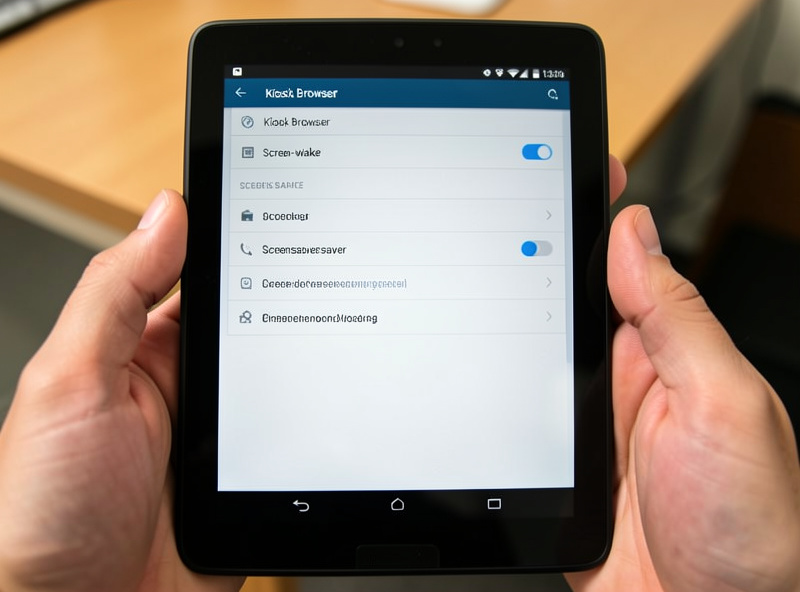
Hiding the sidebar does nothing to stop someone swiping to the home screen. For that you need device-level lockdown, and on Android the standard tool is Fully Kiosk Browser. It loads your dashboard full-screen on boot, blocks the status bar and navigation gestures, prevents leaving the app, and adds genuinely useful extras: motion-triggered screen wake, a scheduled screensaver, screen-on/off control, and even device sensors you can pull into Home Assistant. It is the piece that makes a tablet feel like a purpose-built panel rather than a tablet running a website.
Fully Kiosk also solves the two annoyances every wall tablet hits: the screen either stays on all night burning power and risking burn-in, or it sleeps and you have to wake it every time you walk past. With motion detection it wakes as you approach and dims when the room is empty — the behavior you actually want. On an iPad the equivalent is Guided Access, which is more limited but locks the device to the single Home Assistant Companion app well enough for a fixed panel.
The Methods Compared
There are several ways to get to a locked panel. Here is how they stack up in real use:
| Method | Platform | Locks the device? | Best for |
|---|---|---|---|
| kiosk-mode (HACS) | Any browser | No (hides HA chrome only) | Full-screen dashboard, per-user |
| Fully Kiosk Browser | Android | Yes | The standard wall-panel lockdown |
| HA Companion app (fullscreen) | Android / iOS | Partly | Simple setups, native app feel |
| WallPanel | Android | Yes | Open-source Fully alternative |
| Guided Access | iPad / iOS | Yes | Locking an iPad to one app |
My combination is kiosk-mode to hide the Home Assistant chrome plus Fully Kiosk Browser to lock the Android tablet — the two layers together. That gives a screen that boots into one dashboard, wakes on motion, and cannot be escaped without the admin passcode. WallPanel is a solid open-source alternative to Fully if you prefer to avoid the paid unlock; it covers most of the same ground.
Picking and Mounting the Tablet
You do not need an expensive tablet for this. A basic Android tablet with a decent screen and reliable Wi-Fi is plenty, since all the heavy lifting happens on your hub — the tablet just renders a web page. I cover the actual hardware choice and the mounting and always-on-power details in my wall-mounted tablet guide, because the display decision is separate from the software lockdown covered here. If you are shopping, an inexpensive Android tablet with a wall mount is all the hardware most panels need.
As an Amazon Associate I earn from qualifying purchases.
One practical warning: leaving a tablet plugged in at 100% all day is hard on the battery over a year or two. Some panel builders wire the charging through a smart plug and let Home Assistant top the battery up to 80% and stop, which is exactly the kind of loop the same hub already runs for other jobs in my house. It is optional, but it noticeably extends the life of a tablet that lives on the wall.
The Details That Make It Feel Finished
A few settings separate a rough kiosk from a polished one. Set the dashboard as the tablet user’s default so it lands there on login. Turn on motion wake so the screen is live when someone walks up and dark when the room is empty. Disable the pull-to-refresh gesture, which otherwise reloads the dashboard on an accidental swipe. And restrict the tablet user account to only the one dashboard in Home Assistant, so even if someone did escape the kiosk browser, there is nothing else for that account to see.
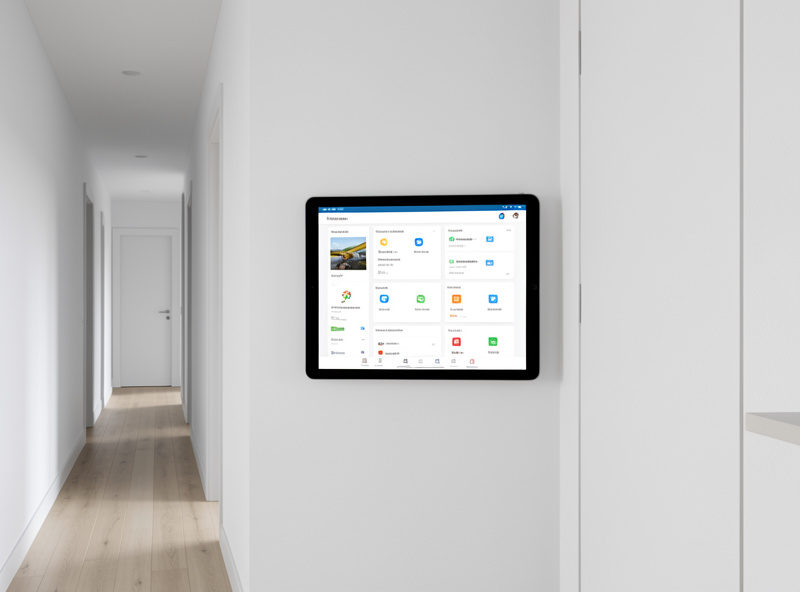
Do all of that and the tablet stops being “an old tablet showing a website” and becomes a genuine control surface — the kind you tap on the way past without thinking. Combine it with a floorplan layout so you tap the room instead of a list, and conditional cards so it only surfaces what needs attention, and the wall panel earns its spot for years.
Frequently Asked Questions
What is kiosk mode in Home Assistant?
Kiosk mode locks a device to a single full-screen Home Assistant dashboard, hiding the sidebar, header, and browser bars so nobody can navigate away. It usually takes two layers: hiding the Home Assistant chrome and locking the tablet itself.
How do I hide the sidebar on a Home Assistant dashboard?
Install the kiosk-mode frontend module from HACS and add its configuration to the dashboard. It hides the sidebar and header, and you can scope it to a specific user or URL so your admin view still shows the full interface.
What is the best app to lock an Android tablet to Home Assistant?
Fully Kiosk Browser is the standard. It boots your dashboard full-screen, blocks navigation out of the app, and adds motion-triggered screen wake and a screensaver. WallPanel is a capable open-source alternative if you prefer to avoid the paid unlock.
How do I lock an iPad to a Home Assistant dashboard?
Use Guided Access in iOS accessibility settings to lock the iPad to the Home Assistant Companion app running your dashboard. It is more limited than Android tools but locks a fixed panel to one app effectively.
How do I stop a wall tablet screen from staying on all night?
Use a kiosk app with motion detection, such as Fully Kiosk Browser, so the screen wakes when someone approaches and dims or turns off when the room is empty. This saves power and reduces the risk of screen burn-in.
Do I need an expensive tablet for a Home Assistant wall panel?
No. The hub does the work; the tablet only renders a web page. A basic Android tablet with a decent screen and stable Wi-Fi is enough. Spend on the mount and always-on power rather than on tablet performance.