Mushroom Cards Setup: A Clean, Touch-Friendly Dashboard Fast
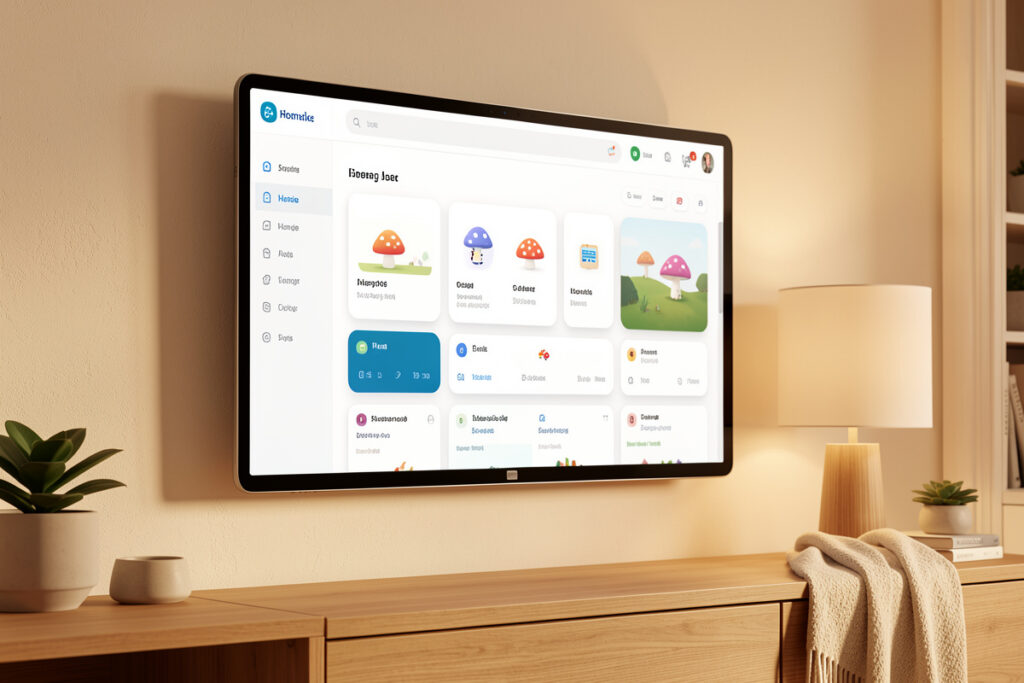
Mushroom is the fastest way I know to turn a plain Home Assistant dashboard into something that looks designed and feels good under a thumb. It is a collection of community cards — installed through HACS — built around chunky icons, clean sliders, and consistent spacing. You can go from the default toggle-soup to a genuinely touch-friendly wall dashboard in an evening, and this is the exact path I take when I set one up.
The appeal is not just looks. Mushroom cards are opinionated in a good way: they nudge you toward one entity per card, big tap targets, and a calm layout. That happens to be everything a wall tablet needs. If you have read my dashboard design guide, this is the card family I reach for when the goal is “make it look clean, fast.”
Installing Mushroom Through HACS
Mushroom is not built in, so you install it via HACS, the Home Assistant Community Store. If you already run HACS, it is a two-minute job: open HACS, search for Mushroom in the frontend section, download it, and reload your browser. Home Assistant registers the new card types and they appear in the card picker like any other. If you do not have HACS yet, install that first — it is the gateway to every custom card, and Mushroom is the one most worth having.
One thing worth knowing up front: because Mushroom is a community card, it is a dependency. When a big Home Assistant release lands, occasionally a custom card needs a day or two for its author to catch up. This is exactly why I keep my custom-card count low and lean on built-in Tile cards for the rest. Mushroom earns one of my precious dependency slots; most custom cards do not.
The Mushroom Cards You Will Actually Use
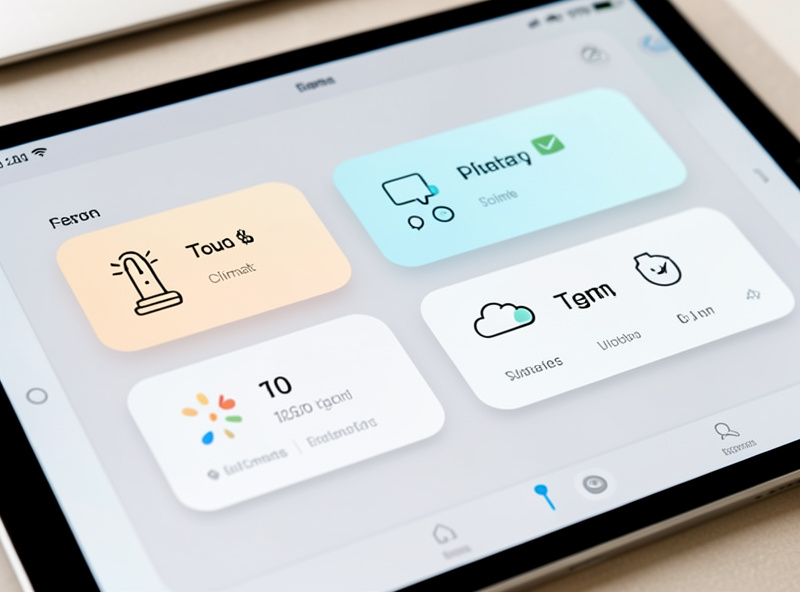
Mushroom ships a whole family of cards, but a handful do most of the work. Here is how I pick between them:
| Mushroom card | Best for | Why I reach for it |
|---|---|---|
| Light card | Any light or dimmer | Big toggle plus an inline brightness slider on one card |
| Entity card | Switches, sensors, generic entities | The clean all-purpose control |
| Climate card | Thermostats and TRV valves | Compact temperature control without the big dial |
| Cover card | Blinds, shades, garage | Up/stop/down buttons that read clearly |
| Person card | Presence / who is home | Avatars with home/away state at a glance |
| Chips card | Status pills across the top | Tiny glanceable indicators that save vertical space |
| Template card | Custom logic and text | When you want a card that says exactly what you mean |
The Chips card deserves special mention. Chips are the little rounded status pills you put along the top of a view — someone is home, the alarm is armed, it is 4 degrees outside. They are glanceable, take almost no space, and give a dashboard that finished feel. I use a row of chips as the header on nearly every Mushroom dashboard I build.
Building a Clean Dashboard Fast
My quick recipe for a good Mushroom view: start with a Chips card header for the always-relevant status, then a Mushroom Title card to label a section, then a grid of Mushroom Light and Entity cards for that room’s controls. Repeat per room. Because every card follows the same visual language, the result looks cohesive without any custom CSS, and it stays readable on both a phone and a wall tablet.
The Template card is where Mushroom gets powerful. It lets you set the icon, the color, the primary text, and the secondary text from templates — so a single card can say “Washer: 12 min left” and turn green when done, or show the next sunrise, or display whatever status line you care about. I use a couple of Template cards per dashboard for the bespoke bits that no generic card covers. Just remember that templating errors tend to fail quietly, so test them as you go.
Theming and Layout Mode
Mushroom respects Home Assistant themes, so if you run a dark theme the cards follow it automatically. There is also a handful of per-card layout options — fill container, hide the name, alignment — that let you tune density. My advice is to change as little as possible: the defaults are already well judged, and the temptation to over-customize is how a clean dashboard slowly turns into a fragile one. Set a theme you like globally and let the cards inherit it.
For layout, Mushroom cards drop straight into the newer sections dashboard layout, which handles grouping and spacing far better than the old masonry view. Combine Mushroom cards with sections headings and you get a dashboard that looks professionally organized with almost no effort. Pair that with conditional visibility so cards appear only when relevant, and with a kiosk-mode wall tablet to display it full-screen, and you have a control surface that genuinely earns its place on the wall.
Mushroom is not magic and it is not mandatory — the built-in Tile card now covers a lot of similar ground with zero maintenance. But when the goal is a clean, touch-first dashboard built quickly, it is the single most useful custom card family in the ecosystem, and the one HACS install I never regret.
The Mistakes I Made First
My first Mushroom dashboard was a mess, and the reasons are the ones I now warn people about. I over-customized: I set custom colors and icons on every single card until the layout no longer felt cohesive, which defeated the entire point of a card family designed to look uniform. Pull back and let the defaults do their job. I also crammed too much onto one view, because the cards were so pleasant to place that I forgot the goal is fewer controls, not more. A room needs its four real controls, not fourteen.
The other early mistake was leaning on Template cards for things a plain Entity card already did. Template cards are wonderful for genuinely custom status lines, but every one you write is logic you have to maintain, and a broken template shows nothing at all rather than an error. Reach for the simple card first and only escalate to a template when the simple card genuinely cannot say what you need. Restraint is what keeps a Mushroom dashboard looking as clean six months later as it did on day one.
Frequently Asked Questions
What are Mushroom cards in Home Assistant?
Mushroom is a collection of community dashboard cards installed through HACS. They provide chunky, touch-friendly controls with clean icons and consistent spacing, making it fast to build a good-looking, wall-tablet-friendly dashboard without custom CSS.
How do I install Mushroom cards?
Install HACS first if you have not already, then open HACS, search for Mushroom in the frontend section, download it, and reload your browser. The Mushroom card types then appear in the normal card picker alongside the built-in cards.
Are Mushroom cards better than the built-in Tile card?
Not universally. Tile is built in and needs no maintenance, while Mushroom offers a chunkier, more customizable touch look. Many dashboards mix both: Tile for simple controls and Mushroom where you want the cleaner touch feel on a tablet.
What are Mushroom chips?
Chips are small rounded status pills you place along the top of a view, such as who is home, whether the alarm is armed, or the outdoor temperature. They are glanceable, use almost no vertical space, and give a dashboard a polished header.
Will Mushroom cards break when Home Assistant updates?
Occasionally a major Home Assistant release requires the Mushroom author to publish an update, so a card might misbehave for a day or two. Keeping the auto-generated dashboard as a fallback and updating custom cards after core updates avoids being left without an interface.