Indoor Security Camera Privacy — What You Should Know (2026)
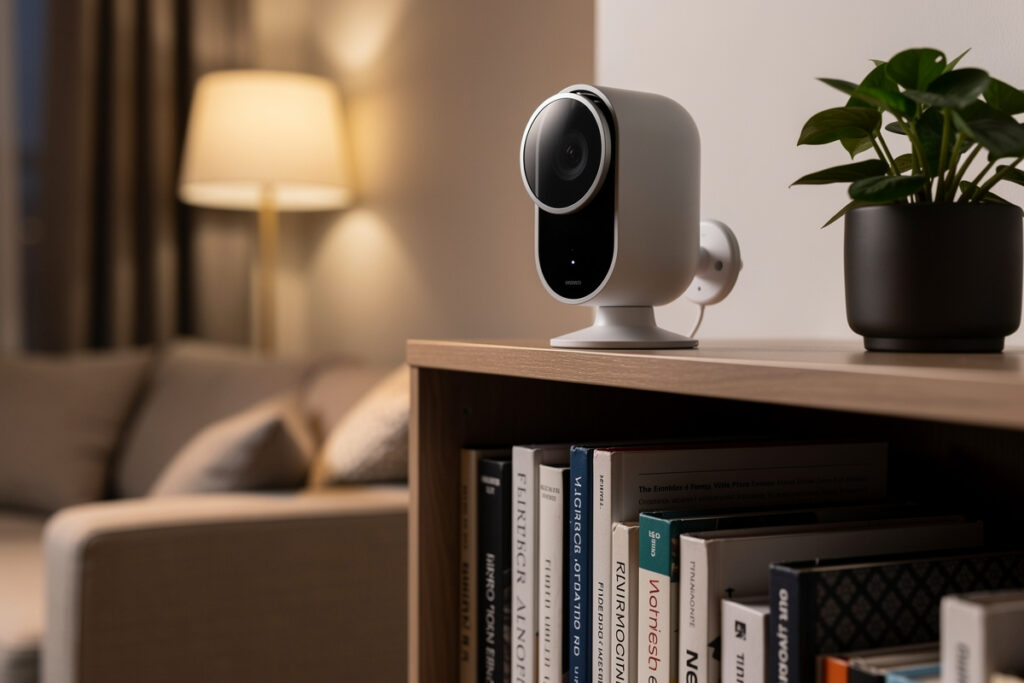
Protecting privacy with indoor security cameras requires choosing brands with local storage options, enabling end-to-end encryption, using physical privacy shutters, placing cameras only in common areas, and regularly reviewing who has access to your feeds. Never place cameras in private spaces like bathrooms or bedrooms without explicit consent from all occupants.
As an Amazon Associate I earn from qualifying purchases.
The Privacy Risks of Indoor Cameras
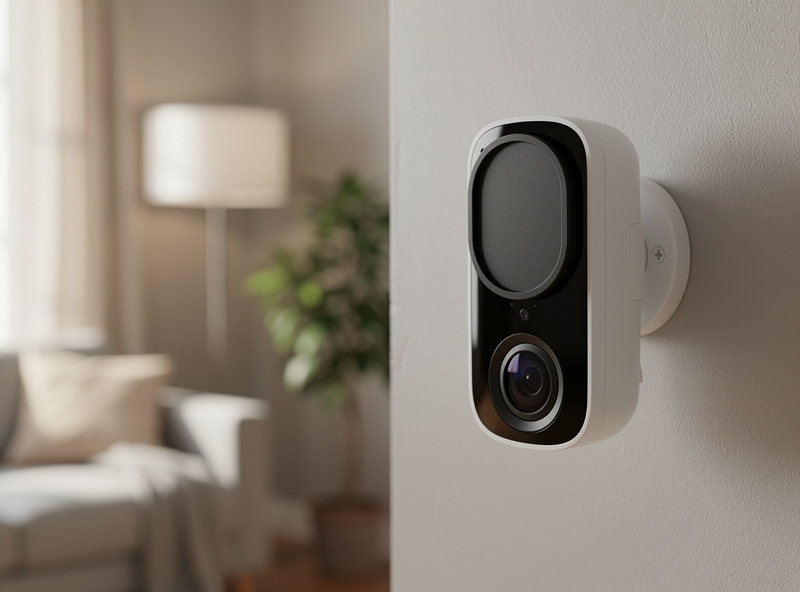
Indoor cameras capture intimate moments of daily life: family conversations, children playing, your comings and goings, even personal habits and routines. For a complete overview of all smart security camera options, see the best smart security cameras guide. When this footage uploads to cloud servers, you lose physical control over who can access it. Data breaches, unauthorized employee access, government requests, and even accidental public sharing have all exposed private camera footage.
These risks are not hypothetical. In February 2024, a faulty caching library at Wyze crossed device-ID and user-ID mappings during a mass reconnect event, and about 13,000 customer accounts briefly saw live feeds and thumbnails from other people’s homes. Wyze added a verification layer to prevent a repeat, but the incident is a real example of exactly the kind of cloud-side bug that local-only storage sidesteps entirely.
Choosing Privacy-Focused Cameras
Local Storage vs. Cloud Storage
For specific camera recommendations that prioritize local storage, see the guide on cameras without subscription fees.
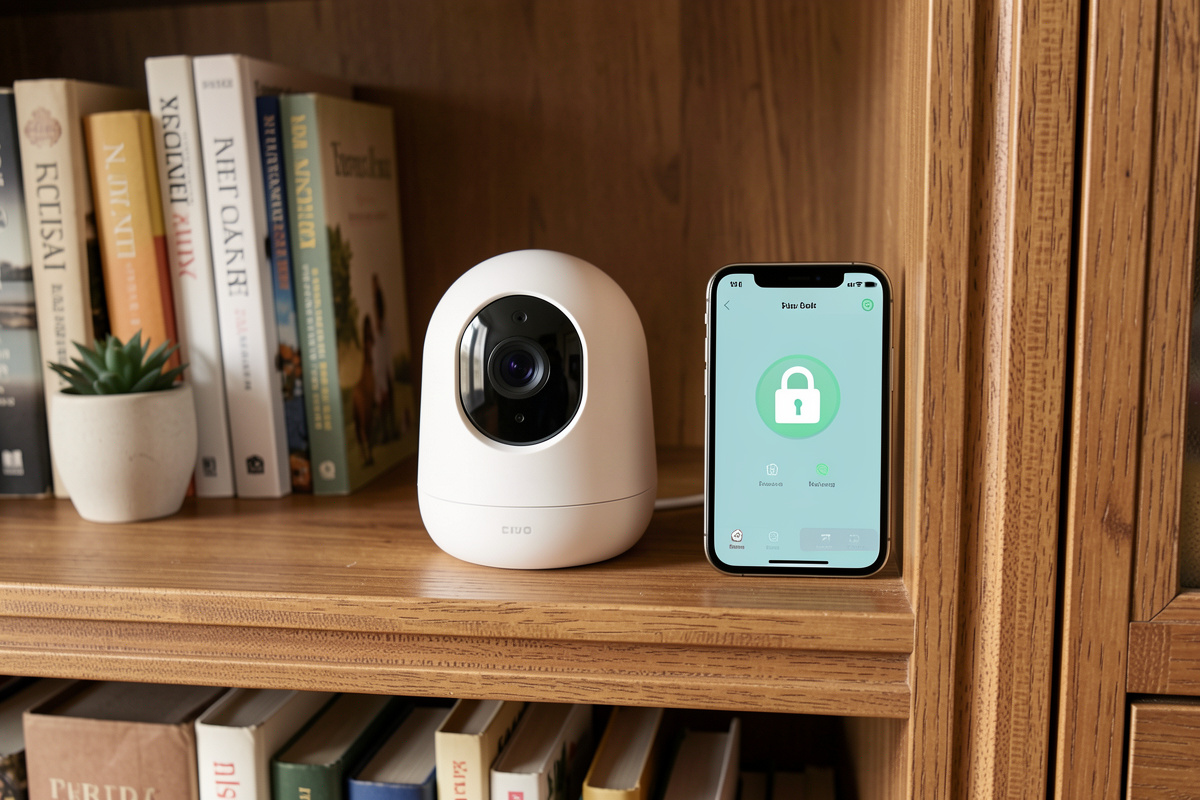
Most Private: Cameras with local microSD card storage or home base stations that never upload footage to the internet. Reolink, Annke, and some Eufy models offer local recording without mandatory cloud subscriptions.
Acceptable: Cameras with optional cloud backup that you can disable. Arlo, Ring, and Wyze allow local-only operation if you skip the subscription.
Avoid: Cameras requiring cloud storage with no local option—these give you no alternative if you distrust the provider.
Encryption Standards
Look for these security features:
- End-to-End Encryption (E2EE): Only you can decrypt the footage—not even the company can view it
- AES-256 Encryption: Industry standard for data at rest
- TLS/SSL Transmission: Secures data in transit from camera to servers
- Two-Factor Authentication (2FA): Prevents account takeover even if passwords leak
Brands with strong encryption: Apple (HomeKit Secure Video), Eufy (with E2EE enabled), and Reolink
Physical Privacy Features
The most privacy-respecting cameras include:
- Motorized Privacy Shutter: Physically blocks the lens when disarmed (Arlo, some Logitech models)
- Privacy Mode: Stops recording and often rotates the camera away (Eufy, Reolink)
- LED Indicator: Clear visual signal when camera is active
- Geofencing: Automatically disarms when you are home
Strategic Camera Placement
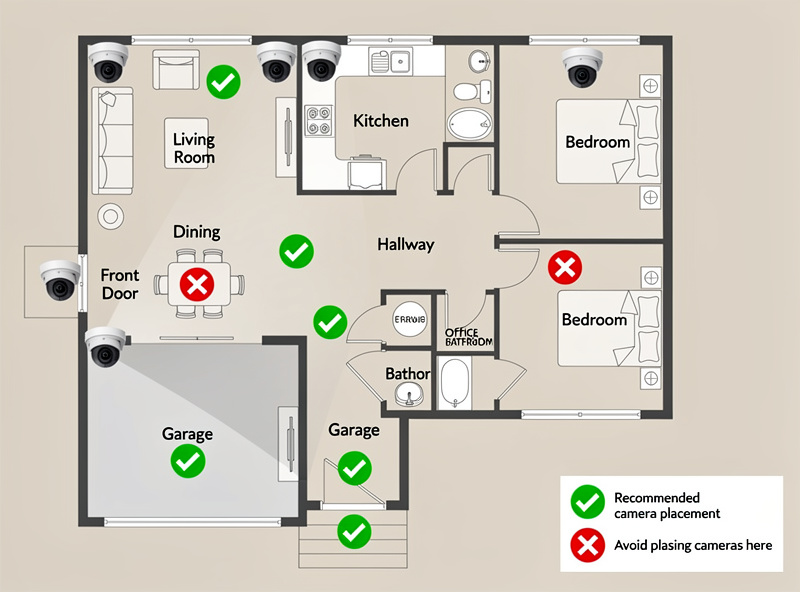
Recommended Locations
- Entry points: Front door, back door, garage entry—common areas where intruders would enter
- Main living areas: Living room, kitchen—general monitoring without invading privacy
- Staircases: Captures movement between floors without targeting specific rooms
Locations to Avoid
- Bedrooms: Never appropriate without explicit consent from all occupants
- Bathrooms: Unacceptable in all circumstances
- Children’s rooms: Raises ethical concerns; consider baby monitors instead
- Home offices: May capture sensitive work information or confidential calls
- Guest rooms: Violates visitor privacy expectations
Visitor Considerations
When guests visit your home, they have a reasonable expectation of privacy. Consider:
- Disabling cameras or activating privacy mode during gatherings
- Informing guests that cameras are present (signage or verbal notice)
- Placing cameras in obvious locations rather than hiding them
- Never recording audio without consent (illegal in many jurisdictions)
Securing Your Camera Accounts
Account Best Practices
- Use Unique Passwords: Never reuse passwords from other accounts
- Enable 2FA: Use authenticator apps rather than SMS when possible
- Regular Access Audits: Review who has access to your camera feeds quarterly
- Remove Former Users: Immediately revoke access for ex-partners, former roommates, or service providers
- Disable Unused Features: Turn off cloud storage, audio recording, or motion zones you do not need
Sharing Access Safely
Most camera apps allow sharing access with family members. Use these features rather than sharing your main account password. Set appropriate permission levels—some users only need live viewing, not historical access or settings changes.
Legal and Ethical Considerations
Legal Requirements
Laws vary by jurisdiction, but common requirements include:
- Notification: Many states require informing people they are being recorded (especially audio)
- Consent: Some jurisdictions require all-party consent for audio recording
- Reasonable Expectation: Recording private spaces may violate privacy laws regardless of consent
- Tenant Rights: Landlords generally cannot place cameras inside rental units
Household Agreements
All adults in the home should agree on:
- Where cameras are placed
- When they are active vs. in privacy mode
- Who has access to footage
- How long footage is retained
- Whether audio recording is enabled
Alternative Security Approaches
If indoor cameras feel too invasive, consider:
- Door/window sensors: Alert when entry points open without recording video
- Motion detectors: Detect movement without identifying individuals
- Glass break sensors: Detect breaking windows
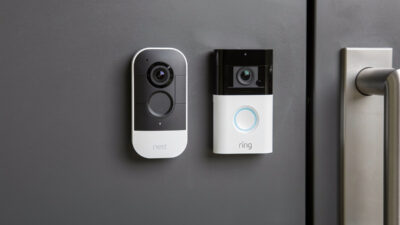
- Smart doorbells: Monitor entry points without capturing interior life. Compare Nest vs Ring doorbells for the best entry monitoring option.
Safety Considerations and Best Practices
Physical Security of Camera Hardware
Securing the cameras themselves prevents tampering and ensures continuous protection:
- Mount cameras out of reach: Position cameras at least 8-9 feet high to prevent easy access or vandalism
- Secure mounting hardware: Use tamper-resistant screws and mounting brackets that require special tools to remove
- Protect cables: Run power and network cables through walls or conduit to prevent cutting. Use battery backup for critical cameras
- Weatherproofing: For cameras near windows or in humid areas, ensure adequate weatherproofing (IP65+ rating) to prevent moisture damage
- Secure the recording device: If using local storage, place NVRs or base stations in locked cabinets or utility rooms
Network Security for Cameras
Cameras are common entry points for network attacks. Implement these protections:
- Isolate on VLAN: Place cameras on a separate network segment that cannot access computers, phones, or sensitive devices
- Disable UPnP: Universal Plug and Play often opens security holes. Disable it on routers and cameras
- Use strong, unique passwords: Change default admin passwords immediately. Use 20+ character randomly generated passwords stored in a password manager
- Enable WPA3 encryption: Use the strongest WiFi encryption available on your router
- Disable cloud if not needed: If using local recording only, disable cloud connectivity entirely to reduce attack surface
- Regular firmware updates: Check for and apply security patches monthly. Enable auto-updates if available
- Turn off unused features: Disable remote access, port forwarding, or P2P features you don’t actively need
Data Retention and Storage Security
- Set retention limits: Configure automatic deletion after 7-30 days rather than indefinite storage. Less data means less risk
- Encrypt local storage: Use encrypted microSD cards or NAS devices with encryption enabled
- Secure cloud accounts: If using cloud storage, enable 2FA, use unique passwords, and review connected apps regularly
- Regular audits: Quarterly, review stored footage and delete anything unnecessary. Check who has access to cloud archives
- Physical destruction when disposing: Before discarding old cameras or storage devices, perform secure wiping or physical destruction of storage media
Privacy Shutter and Indicator Best Practices
- Test privacy modes regularly: Monthly, verify that privacy shutters close completely and cameras properly rotate away in privacy mode
- Verify LED indicators: Ensure recording status LEDs function correctly and cannot be disabled in firmware
- Use geofencing thoughtfully: While convenient, test that geofencing properly disarms cameras when you arrive home and re-arms when you leave
- Manual override capability: Ensure family members know how to manually activate privacy mode without using the app (physical buttons on cameras)
Troubleshooting Common Issues
Camera Won’t Connect to WiFi
Problem: Camera fails to pair with network during setup or loses connection repeatedly.
Solutions:
- Check frequency band: Most security cameras only support 2.4GHz WiFi. Temporarily disable 5GHz band on your router during setup
- Signal strength: Use a WiFi analyzer app to check signal strength at the camera location. Aim for -67dBm or stronger (closer to zero is better)
- Router compatibility: Some cameras have issues with certain router brands. Update router firmware and check manufacturer compatibility lists
- MAC address filtering: If enabled on your router, add the camera’s MAC address to the allowed list before setup
- Factory reset: Hold the reset button for 10-30 seconds (varies by model), then restart setup process
- Firewall ports: If using NVR systems, ensure ports 80, 443, 554, and 8000 are not blocked (check manufacturer’s specific port requirements)
Poor Video Quality or Constant Buffering
Problem: Video appears pixelated, drops frames, or constantly shows loading/buffering.
Solutions:
- Bandwidth check: Each camera needs 1-4 Mbps upload speed. Test your connection at fast.com. If under 10 Mbps total upload, consider upgrading your internet plan or reducing camera count
- Resolution settings: Lower resolution from 4K to 1080p or 720p to reduce bandwidth requirements
- Frame rate reduction: Lower FPS from 30 to 15 to cut bandwidth usage in half
- Compression settings: Use H.265/HEVC encoding instead of H.264 if your camera supports it (40-50% bandwidth savings)
- Local vs. remote viewing: Quality issues are often upload-speed related and only affect remote viewing. Test on local network to confirm
- WiFi congestion: Change your router to a less crowded channel. Use WiFi 6 (802.11ax) if available for better multi-device handling
Motion Detection Not Working or Too Many False Alerts
Problem: Camera misses actual motion or sends alerts for every shadow and pet movement.
Solutions:
- Sensitivity adjustment: Reduce sensitivity in 10% increments until false alerts stop while still catching real events
- Motion zones: Define specific areas for motion detection rather than the entire frame. Exclude trees, busy streets, or areas with shadows
- Scheduled arming: Disable alerts during times when motion is expected (when you’re home, during delivery hours)
- Person detection: Enable AI-based person detection if available. This filters out pets, vehicles, and shadows
- Lighting issues: Sudden light changes (clouds passing, headlights) trigger false alerts. Adjust sensitivity lower for outdoor cameras
- Cooldown periods: Set 5-10 minute cooldown between alerts to prevent notification spam from the same event
- Height and angle: Mount cameras 8-10 feet high and angle slightly downward for optimal motion detection (reduces distant false triggers)
Night Vision Not Working or Poor Quality
Problem: Night vision is dark, shows glare, or doesn’t activate.
Solutions:
- IR reflection: Glass windows reflect infrared light back into the camera. Never point night vision cameras through glass—mount outside or use a camera without IR illuminators behind glass
- Range limitations: Most IR LEDs only illuminate 20-30 feet. Ensure subjects are within this range or add supplemental IR illuminators
- Obstructions: Remove spider webs, dirt, or condensation from camera lens and IR LED array
- Glare from surfaces: White walls, metal surfaces, or water features near the camera reflect IR light causing washout. Adjust camera angle or add non-reflective materials nearby
- Color night vision issues: Cameras using ambient light for color night vision need some light source. Add a motion-activated floodlight for better color night performance
Storage Full or Recording Not Working
Problem: Camera stops recording or displays storage full messages.
Solutions:
- Retention settings: Reduce storage duration from 30 days to 7-14 days. Most security incidents are discovered within a week
- Motion-only recording: Switch from continuous to motion-activated recording to save 80-90% of storage space
- SD card issues: Not all SD cards work with all cameras. Use cards from the manufacturer’s compatibility list, preferably High Endurance models designed for constant writing
- Format the card: In camera settings, perform a full format (not quick format) of the SD card every 3-6 months to prevent corruption
- Check motion settings: If using motion recording, verify sensitivity isn’t set too low, causing the camera to miss events it should record
- NVR hard drive health: For NVR systems, check hard drive health in system settings. Replace drives every 3-5 years proactively
App Not Showing Camera or Connection Failed
Problem: Camera works locally but app shows offline or won’t connect remotely.
Solutions:
- Re-link the camera: In app settings, remove and re-add the camera to refresh the cloud connection
- Check cloud service status: Visit the manufacturer’s status page to see if cloud servers are experiencing outages
- Update the app: Outdated apps lose compatibility with cloud services. Update to the latest version
- VPN interference: If using a VPN on your phone, temporarily disable it—some camera apps don’t work through VPNs
- Cellular vs. WiFi: Test on cellular data to determine if the issue is your home network (camera problem) or just remote access (cloud/ISP issue)
- Time zone mismatch: Ensure camera time zone matches your phone time zone. Mismatched times can cause authentication failures
Product Recommendations
Based on privacy features, security standards, and real-world reliability, here are our top indoor security camera recommendations:
Best for Privacy: Apple HomeKit Secure Video
Options: Logitech Circle View, Eve Cam, Aqara Camera Hub G3
HomeKit Secure Video offers end-to-end encryption with no access for Apple or the manufacturer. Video is analyzed locally on your HomeKit hub (Apple TV, HomePod, or iPad), and footage stores in your iCloud account—not on third-party servers. Requires iCloud+ subscription for storage.
Pros: True E2EE, no manufacturer access, integrated with Apple ecosystem
Cons: Requires Apple hardware and iCloud+, limited camera selection
For end-to-end encryption that needs no extra setup, the Logitech Circle View Camera is the most polished HomeKit Secure Video option.
Best Local Storage: Reolink Indoor Camera
Options: Reolink E1 Pro, Reolink E1 Zoom
Reolink cameras excel at local recording with no mandatory cloud. Reolink’s own spec page lists microSD support up to 512GB, and both models work with Reolink NVRs for centralized local storage. The E1 Pro offers 5MP resolution with pan-tilt capabilities for comprehensive room coverage.
Pros: No cloud required, affordable, high-quality video, NVR compatible
Cons: App is basic, limited smart home integration, requires technical setup for advanced features
To keep footage fully local with no cloud account, the Reolink E1 Pro Indoor Camera pairs a microSD slot with 4MP pan-tilt coverage.
Best with Physical Privacy: Eufy Indoor Cam
Options: Eufy Indoor Cam 2K, Eufy Indoor Cam Pan & Tilt
Eufy offers local AI processing for person/pet detection and optional local storage. The Pan & Tilt model includes privacy mode that physically rotates the camera to face away when disarmed. With E2EE enabled, even Eufy cannot access your footage.
Pros: Physical privacy mode, local AI processing, optional E2EE, good app
Cons: E2EE must be manually enabled, some features require cloud subscription
The Eufy Indoor Cam 2K stands out for a privacy mode that physically rotates the lens away when you disarm it.
Best Budget with Privacy: Wyze Cam v3
Wyze offers surprisingly good video quality at budget prices. While Wyze pushes cloud subscriptions heavily, you can use local microSD storage only if you prefer. The v3 has an IP65 rating suitable for sheltered outdoor use as well.
Pros: Very affordable ($30-40), good night vision, local SD storage option, person detection available
Cons: Aggressive cloud marketing, requires internet for setup, privacy history concerns
On a tight budget, the Wyze Cam v3 delivers solid video and local SD storage in the $30-40 range.
Best for Advanced Users: Amcrest 4MP Indoor Camera
Amcrest cameras are designed for users who want full control. Open standards support (ONVIF, RTSP) means they work with any NVR or software like Blue Iris and Home Assistant. No cloud required—you control everything locally.
Pros: Open protocol support, no cloud dependency, professional-grade features, ONVIF compatible
Cons: Requires technical knowledge, app is dated, must configure security yourself
Self-hosters running Blue Iris or Home Assistant tend to pick the Amcrest 4MP Indoor Security Camera for its open ONVIF and RTSP support.
Real User Scenarios
Scenario 1: The Privacy-Conscious Parent
Maria, a mother of two young children, wanted to monitor her living room and kitchen for safety without compromising her family’s privacy. After researching cloud camera incidents, she chose the Eufy Indoor Cam system with local storage only. She configured the cameras to store footage on a microSD card and disabled all cloud features. The cameras automatically enter privacy mode (rotating away) when her phone connects to home WiFi, ensuring they’re only active when the family is away. “I can check on the kids playing in the living room while cooking, but I know the footage never leaves my house,” Maria explains. She performs weekly reviews of the stored footage, deleting anything unnecessary, and formatted the encrypted SD cards every three months. The setup cost $120 for two cameras, with no ongoing subscription fees.
Scenario 2: The Remote Worker with Sensitive Information
James, a financial advisor working from home, needed security monitoring for his home office without risking exposure of client information visible on his monitors. He installed a Reolink camera with local NVR storage in his hallway—capturing anyone approaching his office without viewing the screen contents. For his living room, he uses an Apple HomeKit Secure Video camera that provides end-to-end encryption. “My clients’ data is legally protected, so I can’t risk any cloud service accessing my office footage,” James notes. He created a strict access policy: only he and his spouse have viewing permissions, with quarterly audits of who has access. When clients visit for in-person meetings, he verbally notifies them about hallway camera presence and activates privacy mode on the living room camera to respect their privacy during consultations.
Scenario 3: The Multi-Generational Household
The Chen family—parents, two teenagers, and a grandmother—navigated complex privacy expectations when installing indoor cameras. They held a family meeting to discuss placement, agreeing on entryways and common areas only, explicitly banning cameras in bedrooms and bathrooms. They chose Wyze cameras with local SD storage and created a shared family account with individual logins for each adult. The teenagers (16 and 18) have viewing access but not admin rights. Grandmother has a physical button to disable cameras when she has friends visiting. “Respecting everyone’s comfort level was essential,” says Mr. Chen. “My mother didn’t want cameras watching her daily routine, so we set up geofencing—they’re only active when everyone’s out.” They also established a rule: any guest is verbally informed about camera presence, and privacy mode activates automatically during dinner parties.
Frequently Asked Questions
Are indoor security cameras an invasion of privacy?
Indoor cameras can invade privacy if placed inappropriately or if footage is accessed without consent. Never place cameras in bathrooms, bedrooms, or private spaces without explicit agreement from all occupants. Choose cameras with physical privacy shutters and local storage to minimize privacy risks.
Can someone hack into my indoor security camera?
Quality cameras with strong passwords, two-factor authentication, and regular firmware updates are very difficult to hack. The biggest risks are weak passwords, default credentials, and outdated firmware. Choose reputable brands with strong security track records and enable all available security features.
Should I tell guests about my indoor cameras?
Yes, always inform guests about indoor cameras. In many jurisdictions, recording audio without consent is illegal. Place visible notices at entry points and mention cameras in house rules for regular visitors. Transparency builds trust and protects you legally.
Is local storage better than cloud storage for camera privacy?
Local storage keeps footage on your property, giving you complete physical control. Cloud storage offers backup protection if cameras are stolen or damaged but requires trusting the provider with your footage. The most private setup uses local storage with optional encrypted cloud backup that you control.
What is the most privacy-respecting indoor camera brand?
Apple HomeKit Secure Video leads in privacy with end-to-end encryption and on-device processing. Eufy offers local storage with optional E2EE. Reolink provides local recording without mandatory cloud. Avoid brands with a history of privacy incidents or mandatory cloud requirements.
Related Articles
- Best Smart Security Cameras 2026: Complete Buyer Guide
- Best Smart Cameras Without Monthly Subscription (2026)
- Smart Doorbell Battery Life: What to Expect (2026)
- Best Smart Motion Sensor Lights for Home Security (2026)
- Smart Home for Beginners: Complete Setup Guide