Smart Device Firmware Update Problems: When to Update and When to Wait
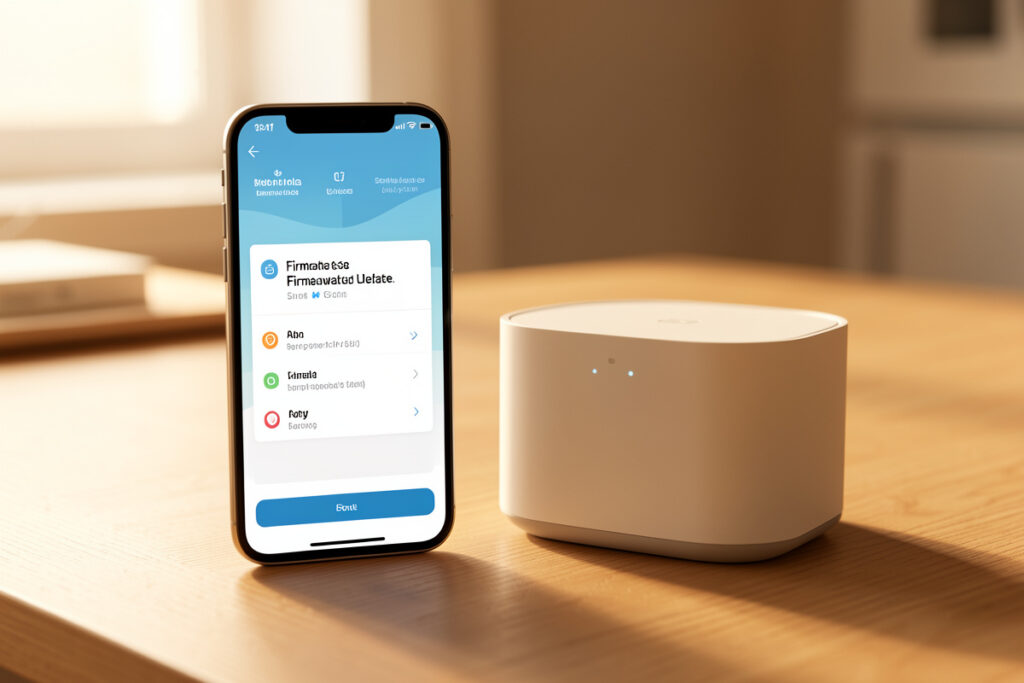
A firmware update is the one fix that’s also a frequent cause — an out-of-date device can drop connections and lose features, but a fresh update can just as easily introduce the bug that breaks it. That double-edged reality is why I treat updates carefully: current but not bleeding-edge, one device at a time, and always with a mental note of what changed and when. Most “it broke for no reason” mysteries resolve the moment you ask whether the device updated recently.
This guide is how I think about firmware on a smart home — when to update, when to wait, and how to recover when an update is the thing that broke something. As an Amazon Associate I earn from qualifying purchases.
Why Firmware Matters More Than People Realize
Firmware is the software that actually runs your device, and it’s where manufacturers fix real bugs — dropped connections, pairing failures, security holes, and features that stopped working. A device stuck on old firmware can exhibit problems that were solved months ago in an update you never installed. So the first thing I check when a device misbehaves in a way that feels like a known issue is whether its firmware is current. Sometimes the fix really is just applying the update that’s been sitting there waiting.
But firmware updates also carry risk, because they replace the working software with new software that wasn’t tested on your exact combination of devices, hub, and network. A regression — a new bug introduced by the update — can take down a single device or, in the worst case with a hub or coordinator, an entire network. This is the tension at the heart of update strategy: you need updates for the fixes, but each one is a small gamble. The job is to capture the benefit while minimizing the blast radius.
The Golden Rule: One Thing at a Time
The single most important habit is updating one device at a time, not mass-updating everything in one click. If you update twenty devices at once and something breaks, you have no idea which update did it — you’re left bisecting a mess. Update one device, confirm it still works and plays nicely with the rest for a day, then move to the next. It’s slower, but it means that when something does go wrong, the cause is obvious and the rollback is targeted.
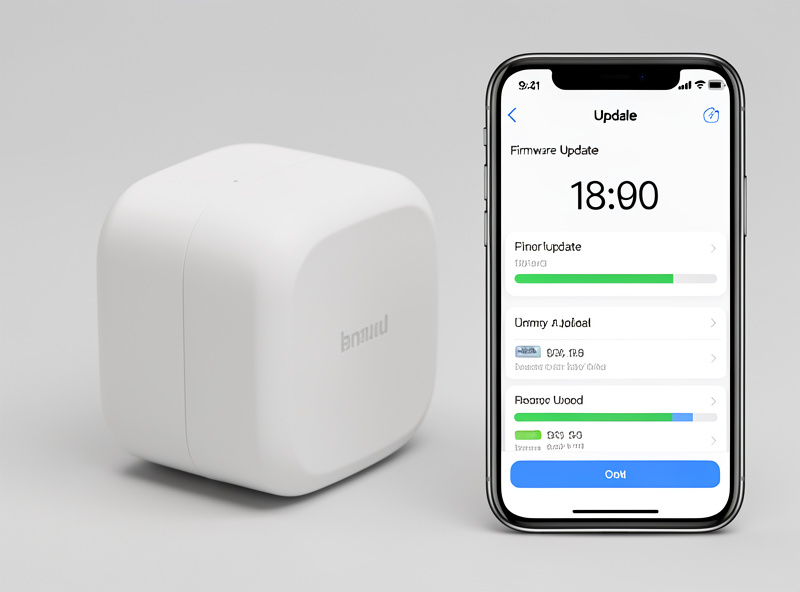
This matters most for the hub and the radio coordinator, because they sit under everything else. A bad coordinator firmware can drop your entire mesh, and I’ve had exactly that happen — a too-new coordinator build took the whole Zigbee network down until I rolled it back. Now I let hub and coordinator firmware mature a little before applying it, and I never update the coordinator at the same time as a batch of devices. The thing everything depends on gets the most cautious treatment.
Current, But Not Bleeding-Edge
There’s a sweet spot between “never update” and “install every beta the day it drops.” Never updating leaves you exposed to fixed bugs and security holes. Chasing every brand-new release makes you the unpaid tester who finds the regressions. I aim for current-but-settled: apply updates after they’ve been out long enough that any serious regression would have surfaced, and skip the bleeding-edge betas unless I’m specifically chasing a fix they contain. For most people, waiting a week or two after a firmware release rather than installing it the first night is the right default.
The exception is a security update or a fix that directly addresses a problem you’re actually having — those are worth applying promptly. The discipline isn’t “delay everything,” it’s “don’t be first for no reason.” If an update fixes a bug that’s biting you, take it; if it’s a routine release and everything’s working, there’s no rush, and a little patience lets other people find the landmines first.
When the Update Is What Broke It
If a device started misbehaving right after it updated, the update is your prime suspect — full stop. This is where keeping track of what changed pays off. A device that was rock-solid for months and went flaky this week, with a firmware update in between, didn’t randomly develop a hardware fault; the new firmware regressed something. The fix in that case isn’t endless resetting and re-pairing, which just wastes an evening on a software problem. It’s rolling back to the previous firmware if the platform allows it, or waiting for the next patch that fixes the regression.
Not every device lets you roll back, which is its own argument for the one-at-a-time, wait-and-see approach — you can’t undo an update you can’t roll back, so the only protection is not having applied the risky one yet. When rollback isn’t possible and the new firmware is broken, your options narrow to waiting for a fix or, if the device is core to your setup and the vendor is slow, replacing it. That’s a frustrating place to be, and it’s exactly the place cautious updating keeps you out of.
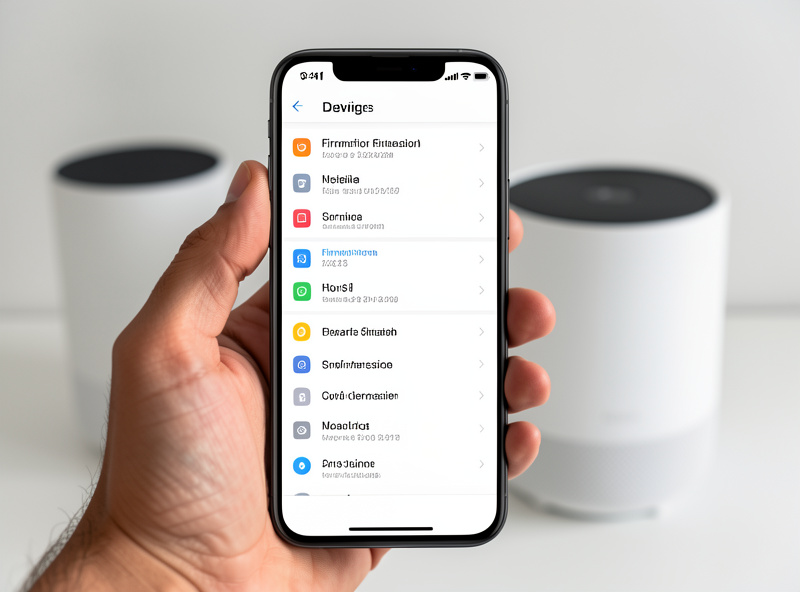
Updates That Won’t Install
The other firmware headache is the update that refuses to complete — it starts, hangs, and the device sits in limbo. The usual causes are the same ones behind every other smart-home failure: a weak or unstable connection during the transfer, low battery on a battery device, or the device being too far from the hub to hold a connection through a multi-minute update. Firmware updates are signal-hungry and power-hungry, so I run them on a strong connection, with the battery fresh or the device on mains, and ideally close to the hub.
An interrupted firmware update is also the one scenario that can genuinely brick a device, which is another reason to do them under good conditions and never yank power partway through. If an update stalls, resist the urge to immediately pull the plug — give it time, because some updates are slow and quiet, and a premature interruption is far more dangerous than a long wait. If it’s truly stuck, follow the manufacturer’s recovery procedure rather than improvising, since a botched recovery can finish off a device a patient one would have saved.
The cheap insurance here, for anything you’re updating a lot, is keeping the gear that makes updates reliable on hand — a strong nearby connection and, for battery devices, a fresh set of the right batteries so a low cell never interrupts an update halfway. A device that fails an update because its battery died mid-transfer is a problem you can prevent for the price of a battery pack.
Frequently Asked Questions
Should I update my smart device firmware?
Usually yes, but not the moment it’s released. Firmware updates fix real bugs, dropped connections, and security holes, so staying current matters. But apply them after they’ve been out a week or two so any serious regression has surfaced first — current but settled, not bleeding-edge, unless an update specifically fixes a problem you’re having.
My device broke right after a firmware update. What do I do?
The update is almost certainly the cause — don’t waste time resetting and re-pairing a software problem. If your platform allows it, roll back to the previous firmware. If it doesn’t, wait for the next patch that fixes the regression, or replace the device if it’s core and the vendor is slow to fix it.
Why does my firmware update get stuck or fail to install?
Usually a weak connection, a low battery, or the device being too far from the hub to hold a connection through the transfer. Updates are signal- and power-hungry. Run them on a strong connection, with a fresh battery or on mains power, close to the hub, and don’t interrupt them partway.
Can a firmware update brick my smart device?
An interrupted update can, which is why you should never pull power partway through and should run updates under good conditions. If an update stalls, give it time rather than yanking the plug — some are slow and quiet. If it’s truly stuck, follow the manufacturer’s recovery procedure instead of improvising.
Should I update all my devices at once?
No. Update one device at a time, confirm it works for a day, then move on. If you mass-update and something breaks, you can’t tell which update caused it. This matters most for the hub and radio coordinator — a bad coordinator update can drop your whole mesh, so give those the most caution.
Is it bad to never update a smart device?
Yes, over time. Old firmware keeps known bugs the manufacturer already fixed and leaves security holes open. Never updating isn’t safer than updating carefully — it just trades the small risk of a regression for the steady accumulation of problems that updates would have solved. Stay current, just not first.
Related Guides
- Smart home troubleshooting: the diagnostic order — the full method firmware fits into.
- Smart device keeps going offline — sometimes the offline cause is a bad update.
- Smart device won’t pair with your hub — outdated firmware can block pairing.
- Zigbee and Z-Wave range problems — why updates need a strong connection to complete.