Zigbee and Z-Wave Range Problems: It Is the Path, Not the Distance
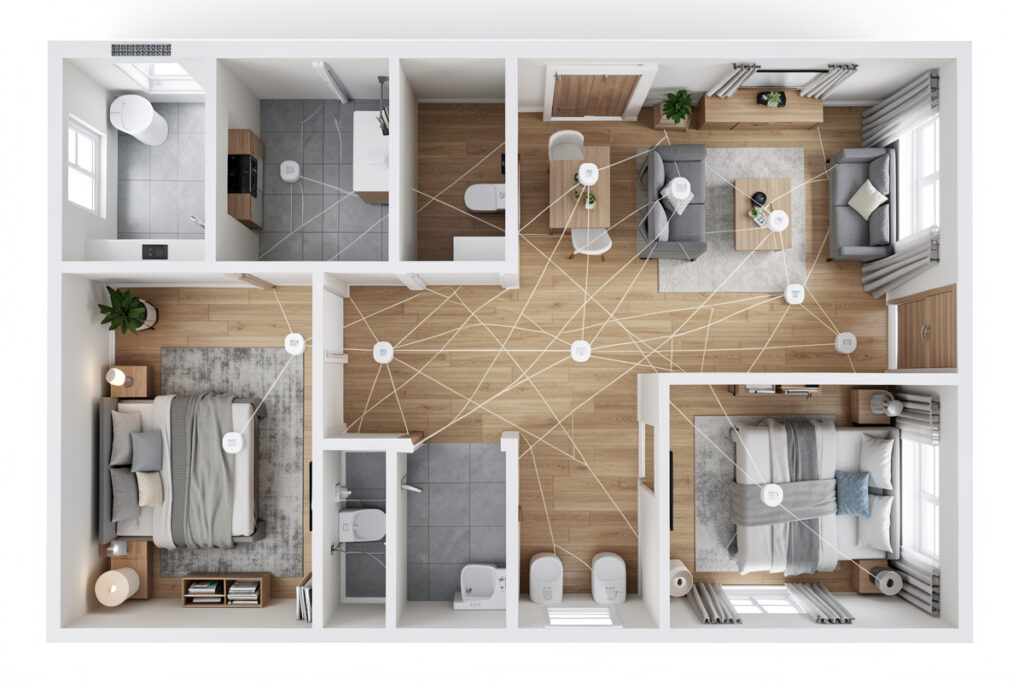
Most Zigbee and Z-Wave range problems aren’t about distance — they’re about a missing repeater, a coordinator drowning in USB 3.0 interference, or a mesh that hasn’t rebuilt its routes. A mesh network is supposed to extend itself through every mains-powered device, so when a far sensor drops, the real question is rarely “is it too far?” and almost always “what’s wrong with the path between here and there?” Fix the path and the range problem disappears.
I’ve torn down and rebuilt my own Zigbee and Z-Wave meshes enough times to know that range troubleshooting is pattern recognition, not guesswork. Here’s how I diagnose it. As an Amazon Associate I earn from qualifying purchases.
A Mesh Is Only as Good as Its Repeaters
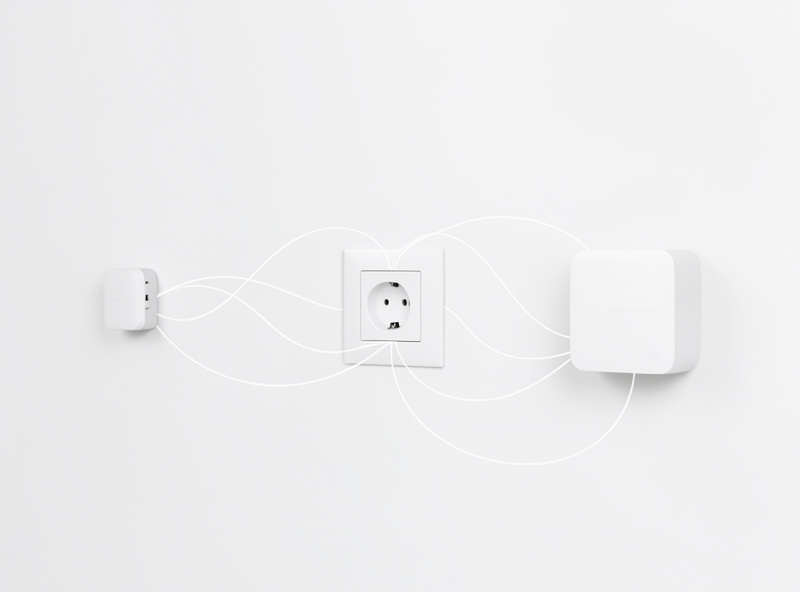
The whole point of Zigbee and Z-Wave is the mesh: every mains-powered device — a smart plug, an in-wall relay, a powered bulb — acts as a repeater, relaying signals for the battery devices further out. Battery devices like sensors usually sleep to save power and do not repeat, so they sit at the edge of the network depending entirely on a powered device to carry their traffic home. This is the single most important thing to understand, because it explains nearly every “out of range” symptom.
When a distant sensor goes unresponsive, the usual cause isn’t the sensor’s distance from the coordinator — it’s that there’s no powered repeater between them, or the repeater that was doing the job lost power or failed. The fix isn’t moving the coordinator or buying a more powerful one; it’s adding a mains-powered device in the gap to give the mesh a stepping stone. A cheap smart plug placed halfway to a problem area often fixes range issues that no amount of repositioning would.
The USB 3.0 Interference Trap
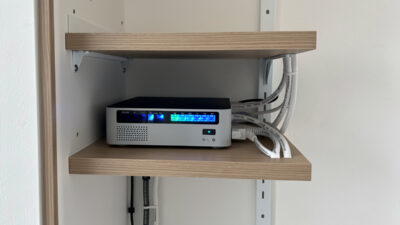
If your Zigbee coordinator is a USB stick — and most are — where you plug it in matters enormously. USB 3.0 ports and the devices on them (external SSDs, hubs, drives) radiate broadband noise right across the 2.4 GHz band that Zigbee and Thread use. Plug a Zigbee stick directly into a port next to a USB 3 SSD and you desensitize the coordinator so badly that it can barely hear distant devices, even though signal strength up close looks fine. This is probably the most common self-inflicted range problem in the hobby.
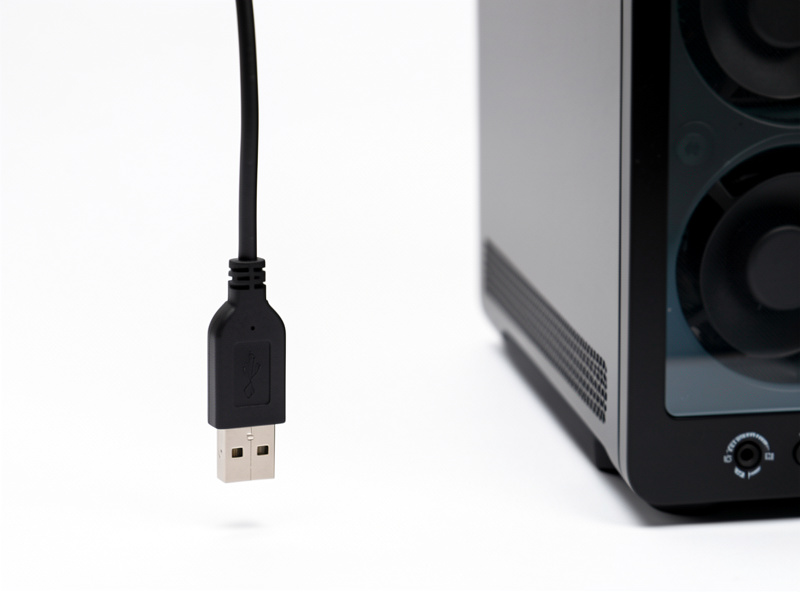
The fix is almost insultingly cheap: a short USB extension cable to move the coordinator a foot or more away from the noisy ports and metal chassis. I’ve watched a flaky mesh with constant far-device dropouts turn rock-solid the moment the coordinator came off the back of the mini-PC and onto a short USB extension cable hanging in clear air. Before you blame range, get the coordinator off the noise.
Z-Wave Plays by Slightly Different Rules
Z-Wave has real advantages for range. It runs on a sub-1GHz frequency that penetrates walls noticeably better than 2.4 GHz Zigbee, and because it doesn’t share spectrum with WiFi, microwaves, and Bluetooth, it’s less prone to the congestion that plagues 2.4 GHz. That makes Z-Wave a strong choice for the devices that have to reach through several walls, like a lock at the far end of the house. But it still meshes through mains-powered devices, so the missing-repeater rule applies just the same.
| Factor | Zigbee (2.4 GHz) | Z-Wave (sub-1 GHz) |
|---|---|---|
| Wall penetration | Lower — shorter wavelength | Higher — long wavelength |
| Interference risk | Shares band with WiFi, USB 3, Bluetooth | Quiet band, far less congestion |
| Repeaters needed | Yes — powered devices extend mesh | Yes — powered devices extend mesh |
| Region-locked | Less so | Yes — frequency differs by region |
| Best for | Dense rooms, many cheap devices | Reaching through walls, locks |
The catch with Z-Wave is region. Its frequency is region-specific, so a device bought for the wrong region won’t talk to your hub at all — that’s not a range problem, it’s a physics problem, and no repeater fixes it. If a Z-Wave device never connects regardless of distance, check the region before anything else.
Channel Clash With WiFi
Zigbee and 2.4 GHz WiFi share the same airspace, and their channels overlap. If your Zigbee coordinator is on a channel that sits right on top of your busiest WiFi channel, the two fight, and the symptom looks exactly like a range problem — devices at the edge drop, retries climb, the mesh feels sluggish. The fix is to move the Zigbee network to a channel that sits in the gaps between common WiFi channels, away from your router’s channel.
This is worth checking whenever a mesh that used to be fine degrades after you changed routers or your neighbors’ WiFi got busier. The radios didn’t move and the walls didn’t thicken — the airspace got more crowded. Picking a quieter Zigbee channel can restore range that congestion quietly stole. It’s a setup-time decision most people never revisit, and it’s one of the higher-leverage fixes when the whole mesh feels weak rather than one device.
How to Actually Diagnose a Weak Link
Guessing wastes time; reading the network’s own data doesn’t. Most Zigbee and Z-Wave platforms expose a link-quality or signal metric and, better still, a route map showing which device relays for which. That map is the fastest diagnostic tool you have. A sensor routing directly to the coordinator across the whole house with a poor link is a missing-repeater story. A sensor routing through a device that itself has a marginal link is a weak-backbone story — fix the backbone, not the leaf. I check the route map before I move a single device, because it turns “somewhere out there is weak” into “this specific hop is the problem.”
The other tell worth reading is the retry or error count. A device that reaches the coordinator but only after many retries is technically “connected” yet living on the edge, and it’ll be the first to drop when conditions get slightly worse — a microwave runs, a neighbor’s WiFi gets busy, someone parks a metal filing cabinet in the path. High retries on a device that looks fine in the app is an early warning that the path is marginal. Addressing it before it fully fails is far easier than chasing an intermittent dropout later, which is the hardest kind of fault to pin down precisely because it’s not there when you go looking.
Physical obstacles matter too, and they’re easy to forget because they’re invisible to the radio’s optimism. Brick, concrete, tile, large appliances, and anything with metal or water in it attenuate 2.4 GHz hard. A sensor that worked fine until you put a fridge or a fish tank between it and its repeater didn’t develop a fault — the path got blocked. When a previously stable device degrades, ask what physically changed in the line between it and the device it routes through. The answer is often a piece of furniture, an appliance, or a closed metal door nobody connected to the smart-home problem.
Let the Mesh Heal Before You Panic
Here’s the step people skip: after you add, move, or remove several mains-powered devices, the mesh needs to rebuild its routing tables, and on most systems that doesn’t happen instantly. If a batch of devices feels flaky right after you reorganized the network, that’s often the routes still settling, not a real fault. Give it time, or trigger a network heal/rebuild if your system offers one, and re-check before concluding anything is broken. I’ve “fixed” problems just by waiting overnight for the mesh to reroute.
The mindset that makes range troubleshooting easy is thinking in paths, not distances. Every device that drops has a route home, and that route runs through powered repeaters across a shared airspace. When the route breaks — a dead repeater, an interfering USB 3 port, a clashing channel, a route that hasn’t healed — the device at the far end goes quiet. Restore the path and the range comes back, without buying anything more powerful or moving your hub to the center of the house.
Frequently Asked Questions
Why does my Zigbee sensor at the edge of the house keep dropping?
Usually there’s no mains-powered repeater between it and the coordinator, or the repeater it relied on lost power. Battery sensors don’t repeat — they depend on powered devices to carry their signal. Add a smart plug or powered device in the gap and the range problem typically disappears.
How do I extend Zigbee or Z-Wave range?
Add mains-powered devices, not a bigger coordinator. Every powered smart plug, relay, or bulb acts as a repeater that extends the mesh. Placing one in a dead-spot hallway between the coordinator and a problem area is the cheapest and most effective range fix there is.
Does USB 3.0 really interfere with Zigbee?
Yes, badly. USB 3.0 ports and drives radiate noise across the 2.4 GHz band Zigbee uses, desensitizing a coordinator plugged in nearby. Devices pair up close but distant ones drop. Move the coordinator onto a short USB extension cable, a foot or more away from USB 3 ports and metal chassis.
Is Z-Wave better than Zigbee for range?
For reaching through walls, often yes. Z-Wave’s sub-1GHz frequency penetrates walls better than 2.4 GHz Zigbee and avoids WiFi congestion. But it still meshes through powered devices, so the missing-repeater rule applies, and it’s region-locked — a wrong-region device won’t connect at any distance.
My whole mesh got weaker after I changed routers. Why?
Your new router may be on a WiFi channel that overlaps your Zigbee channel, and the two are now fighting in the same airspace. Move the Zigbee network to a channel that sits in the gaps away from your busiest WiFi channel, and the range the congestion stole usually comes back.
Further Reading
- Smart home troubleshooting: the diagnostic order — where mesh range fits in the full method.
- Zigbee vs Z-Wave vs WiFi protocols — the deeper protocol comparison.
- Smart device won’t pair with your hub — the same interference often blocks pairing.
- Smart device keeps going offline — what a broken mesh route looks like day to day.
- WiFi vs Zigbee for smart home — choosing the radio that suits your house.