Smart Home Automation Not Triggering? Debug the Trigger, Not the Action
When a smart home automation stops firing, the fault is almost always in the trigger or the condition — not the action you can see failing. The instinct is to rewrite the part that’s supposed to turn the lights on, but in my experience the lights are innocent; the automation simply never decided to run, because the trigger never arrived or a condition was quietly false. Debug from the trigger forward and you find it fast.
This is the order I work every misbehaving automation, and it’s saved me from rewriting perfectly good logic more times than I can count. A motion light that “stopped working” is usually a motion sensor that went to sleep, not a broken rule.
Automations Have Three Parts — Debug Them in Order
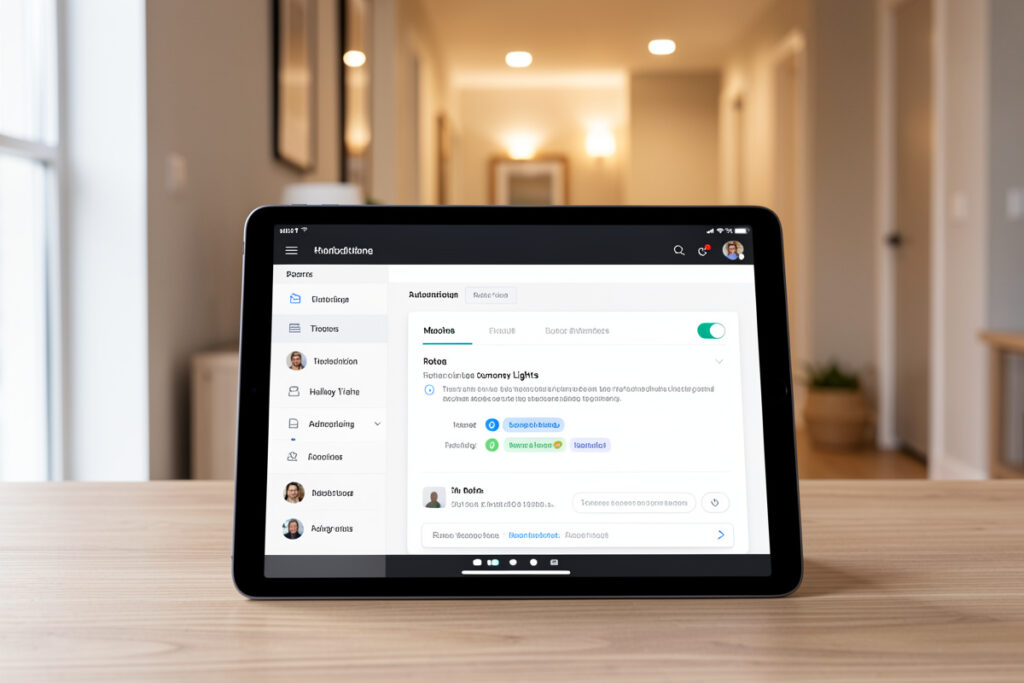
Every automation is a trigger (what starts it), conditions (what must be true for it to proceed), and actions (what it does). When one won’t fire, the temptation is to start at the end and poke the action. That’s backwards. I check them in order: did the trigger actually happen, were the conditions true at that moment, and finally was the target device even online to receive the action. The first two catch the overwhelming majority of failures.
The reason this order works is that a failure at the trigger or condition stage produces exactly the same symptom as a broken action — nothing happens — but the fix is completely different. Rewriting the action when the trigger never fired is wasted effort. Establishing which stage actually failed turns a vague “it doesn’t work” into a specific, fixable problem in about five minutes.
Step One: Did the Trigger Actually Fire?
This is where most automations die, and it’s the least obvious place to look because the trigger is invisible. A motion-activated light depends on the motion sensor producing a “motion detected” event — if the sensor’s battery is flat, if it’s gone offline, or if it’s in a cooldown period and not reporting, that event never arrives and the automation has nothing to react to. The light isn’t broken; the rule was never invoked.
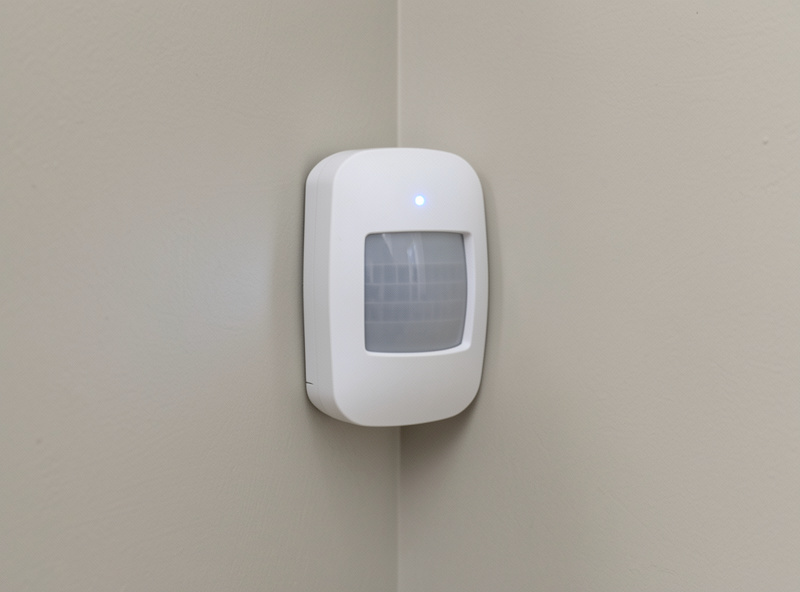
The way to confirm this is to read the trigger entity’s real state directly, not through the automation. Does the sensor show recent activity? What’s its last-seen timestamp? If it last reported two days ago, you’ve found your problem and it has nothing to do with the automation logic. This single check — verifying the trigger entity is alive and reporting — resolves more “automation broken” complaints than every other step combined.
Step Two: Was the Condition Secretly False?
If the trigger genuinely fired but nothing happened, suspect a condition. Conditions silently suppress automations, and the sneaky ones are time- and presence-based. A light automation gated by “only after sunset” won’t run at 4 p.m. even though the motion trigger fired perfectly — and that’s correct behavior, just not what you remembered building. A presence condition that thinks someone is home when they’re not, or vice versa, blocks automations in ways that look like total failure.
Timezone and clock issues are the most maddening version of this. An automation set to run at sunset that fires an hour off, or a time-window condition that never matches, is usually a hub whose timezone or daylight-saving setting is wrong — not a logic error. Before rewriting anything, check each condition in isolation: is it actually true at the moment the trigger fires? Disabling conditions one at a time to see which one is blocking the run is the fastest way to isolate the culprit.
Step Three: Is the Target Device Even Reachable?
Only after the trigger and conditions check out do I look at the action. An action sent to an offline or unreachable device fails silently — and Zigbee mesh failures are a common hidden cause, so see Zigbee range and interference problems if your devices keep dropping off the mesh — the automation ran, did its job, and the command went nowhere because the bulb or plug wasn’t online to receive it. This looks identical to the automation not running at all, which is why it’s the last thing to check, not the first.
Confirm the target device responds to a direct manual command right now. If you can’t turn it on yourself from the app, the automation was never going to either, and you’ve actually got a device or network problem wearing an automation costume. This is the handoff point back to ordinary device troubleshooting — power, network, mesh, cloud — rather than anything to do with the rule itself. If a full device reset becomes necessary, see how to factory reset smart home devices without losing your setup.
The Naming Problem Nobody Warns You About
Here’s the failure that doesn’t fit the three-stage model but causes endless grief: inconsistent entity naming. When your automation references a sensor by a cryptic identifier and you have six similar sensors, you can stare at a “broken” automation for an hour before realizing it’s pointing at the wrong entity entirely — a sensor in a different room, or one you decommissioned months ago. The logic is fine; it’s just wired to the wrong thing.
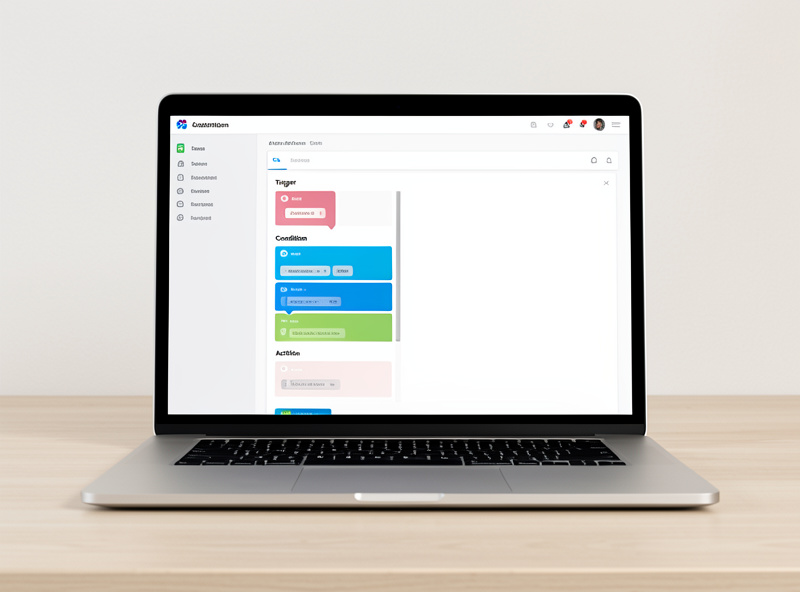
I learned this the hard way after naming forty-odd entities inconsistently early on and paying for it every time something broke. Now everything follows a clear convention, and debugging an automation means reading it like a sentence and immediately seeing which part is wrong. If you take one preventative lesson from this, make it naming — it turns future troubleshooting from archaeology into reading.
Cloud-Dependent Automations Fail in Their Own Way
There’s a category of automation failure that has nothing to do with your logic and everything to do with where the automation actually runs. If your automation lives in a manufacturer’s app or cloud — the kind you build inside a single brand’s ecosystem rather than on a local hub — then it depends on that vendor’s servers being up and your internet being connected. When either is down, the automation simply doesn’t fire, no matter how perfect the rule is. The tell is that the failure correlates with an internet blip or a vendor outage rather than anything you changed.
This is the single biggest reason I run load-bearing automations locally instead of in vendor clouds. An automation that executes on a hub in your house keeps working when the internet doesn’t, and it removes an entire class of intermittent, un-debuggable failures where the rule is fine but the infrastructure it depends on vanished for ten minutes. If a particular automation fails unpredictably and you can’t tie it to any device or condition, ask where it actually runs — a cloud round-trip you can’t see may be the weak link. Moving it onto local execution is the durable fix, not another round of rule-tweaking.
When an Automation Fires Too Often or at the Wrong Time
The mirror-image problem — an automation that runs when it shouldn’t — is usually an over-eager trigger or a missing condition. A motion light that flickers on and off is a sensor re-triggering faster than the off-delay, or two automations fighting each other for the same device. The fix is rarely deleting the automation; it’s adding the condition or delay that was missing, or finding the second rule that’s also touching that device. Two automations controlling one light, each undoing the other, is a classic and genuinely confusing one until you go looking for the second rule. Device-side issues like a bad firmware update can look identical, so see smart device firmware update problems if the device itself is behaving erratically.
The broader lesson across all of this: automations don’t usually “break” on their own. Something upstream changed — a sensor died, a device went offline, a condition’s world changed, a second rule got added. Treating a dead automation as a detective problem (“what changed, and at which stage does the chain break”) rather than a coding problem (“let me rewrite the action”) is what turns these from evening-long frustrations into quick fixes.
Frequently Asked Questions
Why did my smart home automation suddenly stop working?
Almost always something upstream changed: the trigger sensor’s battery died, the trigger device went offline, a condition became false, or a second automation started fighting it for the same device. Check the trigger entity’s real state first — a sensor that hasn’t reported in days never fired the event the rule was waiting for.
How do I tell if it’s the trigger or the action that failed?
Read the trigger entity’s actual state directly, outside the automation. If the sensor shows recent activity and a fresh last-seen timestamp, the trigger fired and you should look at conditions and the target device. If it’s stale or offline, you’ve found the problem — the action was never the issue.
My automation runs at the wrong time. What’s wrong?
That’s usually a timezone or daylight-saving mismatch on your hub, or a time-window condition that doesn’t match the clock the hub thinks it is. A sunset automation firing an hour off is the classic symptom. Check the hub’s timezone setting before assuming the automation logic is broken.
Why does my motion light keep flickering on and off?
Either the motion sensor is re-triggering faster than the off-delay, or two automations are fighting over the same light, each undoing the other. Look for a second rule touching that device, and add an off-delay or a condition so the automation doesn’t retrigger immediately.
The automation says it ran but nothing happened. Why?
The action was sent to an offline or unreachable device, so it failed silently. Confirm you can control that device manually right now. If you can’t turn it on yourself, the automation couldn’t either — that’s a device or network problem, not an automation fault.
Related Guides
- Smart home troubleshooting: the diagnostic order — the master method this slots into.
- Smart device keeps going offline — the dead trigger behind most failed automations.
- Smart home automation ideas — building rules worth troubleshooting in the first place.
- Smart motion sensor lights — the most common automation and its quirks.
- Smart home automation guide — triggers, conditions, and actions explained.