Smart Device Won’t Pair With Your Hub? Five Fixes That Actually Work
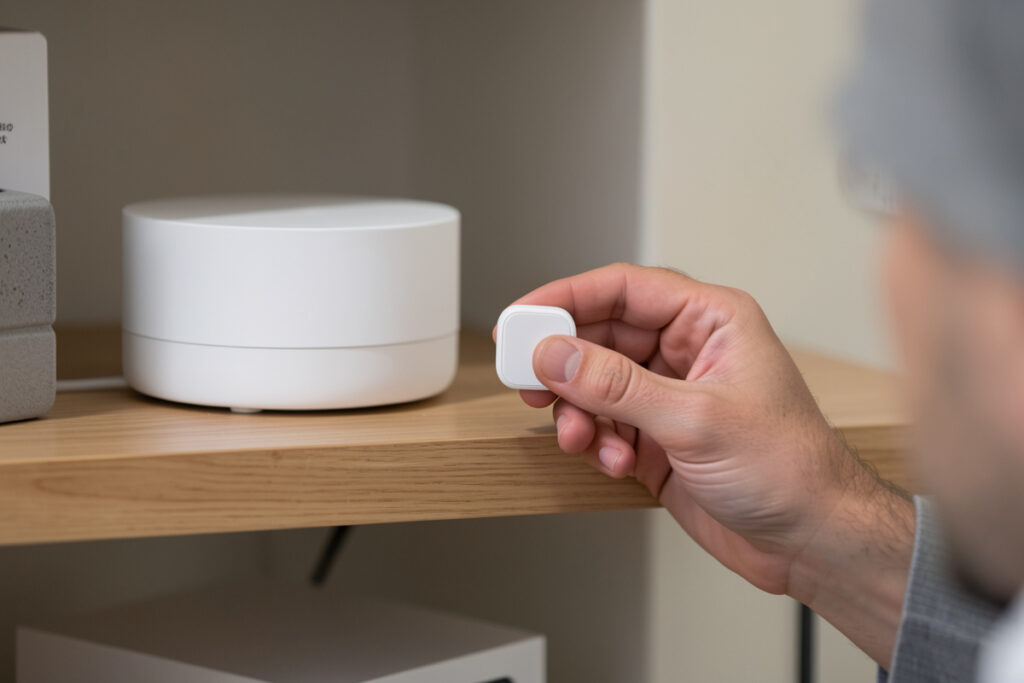
A smart device that won’t pair is almost never broken — it’s usually still bonded to a previous network, sitting too far from the hub during pairing, or on a radio channel your coordinator can’t reach. A device can only belong to one network at a time, and that single fact explains most of the “it just won’t connect” frustration I get asked about. Reset it the right way, pair it close, and the stubborn device usually joins on the first try.
Pairing is where smart homes feel most fragile, because the failure gives you almost no feedback — the app spins, times out, and tells you nothing. This is the order I work through, and it turns a 45-minute fight into a two-minute join. As an Amazon Associate I earn from qualifying purchases.
Rule One: A Device Can Only Be on One Network
This is the single most common reason pairing fails, and it catches everyone eventually. A Zigbee, Z-Wave, or Matter device that was added to one hub or ecosystem holds onto that bond until it’s explicitly reset. Try to add it to a second hub and it simply refuses, because as far as the device is concerned it already has a home. The app rarely tells you this — it just times out — so people assume the device is faulty and send it back.
The fix is to fully reset the device before pairing, every time, especially with anything secondhand or previously installed. A factory reset clears the old network bond and puts the radio back into pairing mode. With Matter devices there’s an extra wrinkle: the original commissioning code may already be consumed, so you sometimes need to remove it from the first ecosystem properly rather than just resetting the hardware. When in doubt, reset both ends — remove the stale device entry from the hub and reset the device.
Rule Two: Pair Close, Then Move It
Pairing is the most signal-hungry thing a device does. It’s exchanging keys and negotiating a connection, and a marginal signal that’s fine for normal operation often isn’t enough to complete a first join. The classic mistake is trying to pair a device in its final far-room location. Bring it within a few meters of the hub or coordinator to pair, confirm it joined, then move it to where it lives. Mesh devices will re-route through repeaters once they’re on the network.
This matters even more for battery devices at the edge of the house. If you pair them far away, they may join through a weak route, work for an hour, then drop. Pairing them close to the coordinator first lets them establish a clean connection, and once the mesh is healthy they’ll find a stable route home. If a device pairs successfully up close but won’t pair in place, you don’t have a pairing problem — you have a range or interference problem, which is a different fix.
Rule Three: Get the Coordinator Off the Noise
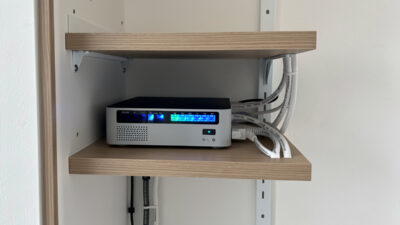
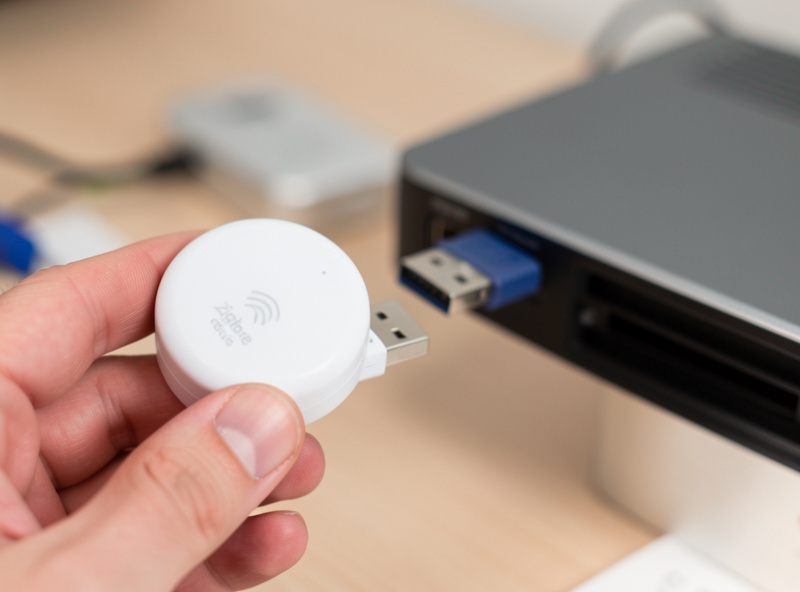
A huge share of pairing trouble traces back to where the coordinator lives. The notorious one is a Zigbee or Thread USB stick plugged directly into a mini-PC or hub right next to a USB 3.0 port or drive. USB 3 radiates broadband interference straight across the 2.4 GHz band, and it desensitizes the coordinator so badly that nearby devices pair while distant ones never will. The fix costs almost nothing: a short USB extension cable to move the stick a foot away from the noise.
Give the coordinator clear air generally — not buried in a metal cabinet, not crammed behind a NAS. I treat coordinator placement as the foundation of the whole network, because every pairing and every link rides on it. A short USB extension cable is the first thing I reach for when a new mesh setup pairs unreliably, and it fixes the problem far more often than it has any right to.
Rule Four: Match the Region and Frequency
Z-Wave runs on a sub-1GHz frequency that differs by region, and a device bought for the wrong region simply cannot talk to your hub — it will never pair, and no amount of resetting changes that. This catches people who buy devices from overseas marketplaces to save money. Before troubleshooting endlessly, confirm the device’s region matches your hub’s. The same logic applies to any radio: the device and the coordinator have to speak the same band, on the same region, or pairing is physically impossible.
For Zigbee, the parallel issue is channel. If your coordinator is on a congested channel — or one that clashes with your WiFi — devices can struggle to pair even when everything else is right. This is rarer than the bond-and-distance problems, but it’s worth knowing about if you’ve ruled everything else out and a class of devices consistently refuses to join.
Rule Five: Read What the App Is Actually Saying
Pairing apps are terrible at explaining failures, but they’re not silent — you just have to know what to look at. A device that briefly appears and then vanishes joined and dropped, which points at signal or interference. A device that never appears at all isn’t being heard, which points at it not being in pairing mode, the wrong protocol, or a region mismatch. A device that appears but won’t finish setup often hit a stale entry or a security-key step. Each of these points to a different fix.
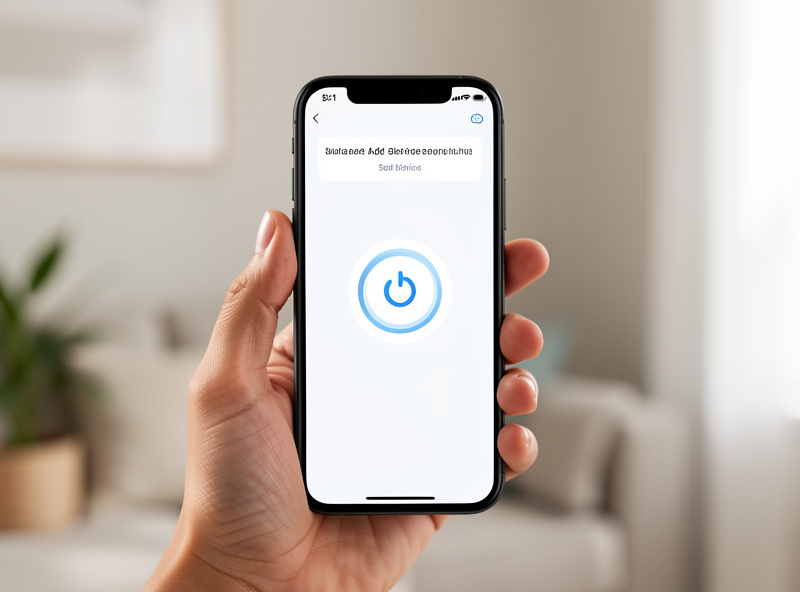
The other habit that saves time: make sure the device is genuinely in pairing mode. Most devices need a specific button-hold to enter it — a fixed number of seconds, sometimes a particular blink pattern to confirm. Half the “won’t pair” cases I help with are a device that was never actually put into pairing mode, so the hub had nothing to find. Read the device’s pairing procedure and watch for its confirmation blink before you start blaming the hub.
When to Reset Both Ends and Start Clean
If you’ve confirmed the device is reset, in pairing mode, close to a well-placed coordinator, and on the right region, and it still won’t join, the cleanest move is to reset both ends. Remove any half-created or stale entry for that device from the hub — a ghost entry from a failed attempt can block a fresh one — then reset the device and pair from scratch. Starting both sides clean clears the contradictory state that a string of half-finished attempts leaves behind.
The mindset that makes pairing painless is treating it as a signal-and-state problem, not a luck problem. Reset clears state, proximity gives signal margin, a well-placed coordinator gives a clean radio, and the right region makes the conversation possible at all. Get those four right and the device that fought you for an hour joins in seconds — and stays joined, because it joined under good conditions instead of marginal ones.
Frequently Asked Questions
Why won’t my smart device pair with a new hub?
The most common reason is that the device is still bonded to a previous network and was never reset. A device can only belong to one network at a time, so it refuses to join a second hub until you factory reset it. Reset it fully first, then pair it close to the new hub.
How close should a device be to the hub when pairing?
Within a few meters. A first join exchanges keys and needs more signal margin than normal operation, so a marginal far-room signal often can’t complete pairing. Pair the device close to the hub, confirm it joined, then move it to its final spot — mesh devices will re-route through repeaters.
My Zigbee devices pair up close but not across the house. Why?
That’s a range or interference problem, not a pairing fault. The most common cause is the coordinator sitting next to a USB 3.0 port or drive, which floods the 2.4 GHz band with noise. Move the coordinator onto a short USB extension away from the noise, and pair distant devices close first.
Can a device bought from another country pair with my hub?
For Z-Wave, often no. Z-Wave uses a sub-1GHz frequency that differs by region, so a device bought for the wrong region physically cannot talk to your hub and will never pair. Always match the device’s region to your hub before troubleshooting. WiFi and Zigbee are less region-locked but still worth checking.
The app spins forever and never finds my device. What now?
First confirm the device is actually in pairing mode — most need a specific button-hold and show a confirmation blink. If it never appears, the hub isn’t hearing it: wrong mode, wrong protocol, or a region mismatch. If it appears then vanishes, that’s a signal problem. Reset both the device and any stale hub entry, then retry close up.
Keep Building
- Smart home troubleshooting: the diagnostic order — where pairing fits in the bigger picture.
- Smart device keeps going offline — the after-pairing failure that’s often the same root cause.
- Zigbee vs Z-Wave vs WiFi protocols — why region and channel matter for pairing.
- Do you need a smart home hub? — choosing the coordinator everything pairs to.