Do You Need a Smart Home Hub? Simple Answer (2026)
The Short Answer for 2026
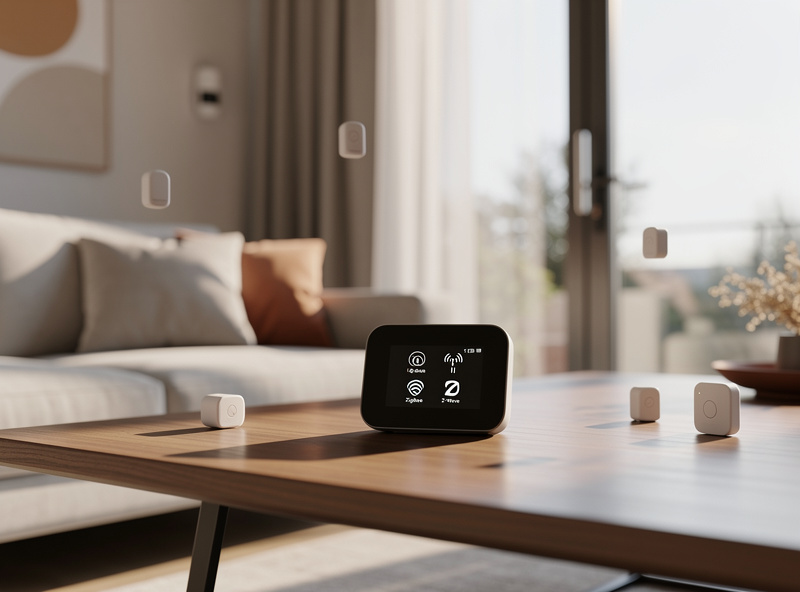
No, most beginners do not need a dedicated smart home hub in 2026. Modern smart home ecosystems have evolved to the point where WiFi-enabled devices and voice assistants can handle basic automation without central hub hardware. However, for homes with 15+ devices or those using Zigbee/Z-Wave protocols, a hub significantly improves reliability and unlocks advanced automation capabilities. The decision depends on your device count, protocol mix, and automation complexity needs.
As an Amazon Associate I earn from qualifying purchases.
What Is a Smart Home Hub?
A smart home hub is a central device that coordinates communication between different smart home devices, translating between various wireless protocols. Think of it as a translator and coordinator that enables devices speaking different “languages” (WiFi, Zigbee, Z-Wave) to work together seamlessly.
Hubs enable:
- Cross-protocol communication (Zigbee to Z-Wave to WiFi)
- Local processing of automations (works without internet)
- Advanced scene creation and conditional logic
- Centralized device management interface
- Backup control during internet outages
- Bulk device configuration and updates
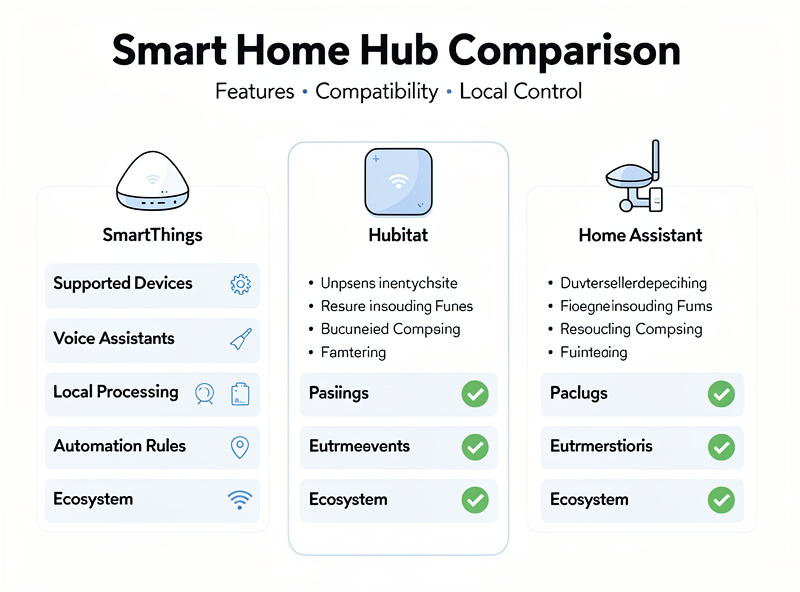
Popular hub options include Samsung SmartThings, Hubitat Elevation, Home Assistant (software-based), and the built-in Zigbee hubs in Amazon Echo 4th gen and Echo Studio. Each serves different user needs and technical comfort levels.
When You Do Not Need a Hub
Many modern smart home setups operate perfectly without dedicated hub hardware. Understanding when you can skip the hub saves $100-200 in upfront costs:
WiFi-Only Setups:
If all your devices connect via WiFi (smart plugs, cameras, thermostats, WiFi bulbs), voice assistants like Alexa or Google Home can coordinate them directly. WiFi devices communicate through your existing router, eliminating the need for additional hardware. This works well for apartments and small homes with under 10 devices.
Small Device Counts:
Homes with under 10 smart devices rarely benefit from hub complexity. Individual device apps or voice control provide sufficient management. A typical starter setup—3 smart bulbs, 2 smart plugs, 1 thermostat, and 1 camera—operates smoothly without hub investment. You can always add a hub later when expanding.
Matter-Compatible Devices:
The Matter protocol enables direct device-to-device communication without requiring a central hub, using Thread networking instead. Thread border routers built into Echo 4th gen, Nest Hub 2nd gen, or Apple TV handle coordination. Matter represents the future of hub-less smart homes.
Simple Automations:
Basic schedules (lights on at sunset, thermostat adjustments) work through device apps or voice assistant routines without hub dependency. If your automations consist of “turn on living room lights at 6 PM” or “set thermostat to 72 degrees at bedtime,” you do not need a hub yet.
When You Definitely Need a Hub
Certain scenarios make a smart home hub essential. Adding a hub becomes necessary when:
1. Mixed Protocol Environments
If you have Zigbee bulbs, Z-Wave sensors, and WiFi cameras, a hub translates between these protocols so devices can trigger each other. Without a hub, these devices exist in separate silos. For example, your Zigbee motion sensor cannot trigger your WiFi smart plug without a hub bridging the communication gap.
2. Complex Automations
Hubs enable sophisticated logic impossible with simple voice routines:
- “If motion detected in hallway AND it is after 10 PM AND away mode is active, then turn on lights and send notification”
- Sunset minus 30 minutes triggers outdoor lights only if someone is home
- Temperature adjustments based on weather forecast integration
- Multi-condition security responses involving multiple sensor types
3. Internet Independence
For users wanting smart home functionality during internet outages, local hubs process automations without cloud dependency. Critical security automations continue working. WiFi devices often fail completely during outages, while hub-coordinated Zigbee/Z-Wave devices maintain local operation.
4. Large Device Counts
Managing 20+ devices through individual apps becomes unwieldy. Each device requires a separate app, account, and interface. A hub provides unified control, status monitoring, and bulk configuration. Imagine checking 15 different apps to see if any devices need updates—hubs centralize this.
5. Professional Integration
Advanced users wanting HomeKit, Alexa, and Google Home to work together need hub-based bridging solutions like Home Assistant. Hubs can expose devices to multiple platforms simultaneously, avoiding ecosystem lock-in.
Hub vs No-Hub Cost Analysis
Understanding the true cost impact helps determine if a hub investment makes financial sense:
5-Year Total Cost of Ownership Comparison
| Scenario | Hub-Free Setup | Hub-Based Setup | Difference |
|---|---|---|---|
| Initial Cost | $0 | $100-150 | +$100-150 |
| Device Cost (15 devices) | $800-1,200 | $750-1,100 | -$50-100 |
| Time Savings Value* | Baseline | +20 hrs/year | +$500 value |
| Internet Backup Value | $0 | Peace of mind | Subjective |
| 5-Year Total | $800-1,200 | $850-1,250 | +$50-150 |
*Valuing time savings at $25/hour for automation convenience
When Hubs Pay Off:
- You have 15+ devices (time savings from unified management)
- You use Zigbee/Z-Wave devices (hub often cheaper than WiFi alternatives)
- Internet outages are frequent in your area (local processing value)
- You want complex automations (advanced logic capabilities)
For most beginners starting with under 10 WiFi devices, the hub investment delays until expansion justifies the cost.
Hub Options Compared
Choose your hub based on technical comfort level and specific needs:
| Hub | Best For | Price | Difficulty | Key Strength |
|---|---|---|---|---|
| Amazon Echo (4th gen) | Beginners, Zigbee devices | $50-100 | Easy | Built-in, affordable |
| Samsung SmartThings | Balanced features | $100-150 | Moderate | Wide protocol support |
| Hubitat Elevation | Local processing, privacy | $150 | Advanced | 100% local operation |
| Home Assistant | Power users, customization | Free (DIY hardware) | Expert | Unlimited customization |
| Apple HomePod mini | HomeKit ecosystem | $99 | Easy | Thread border router |
Amazon Echo 4th Gen — Best Entry Point:
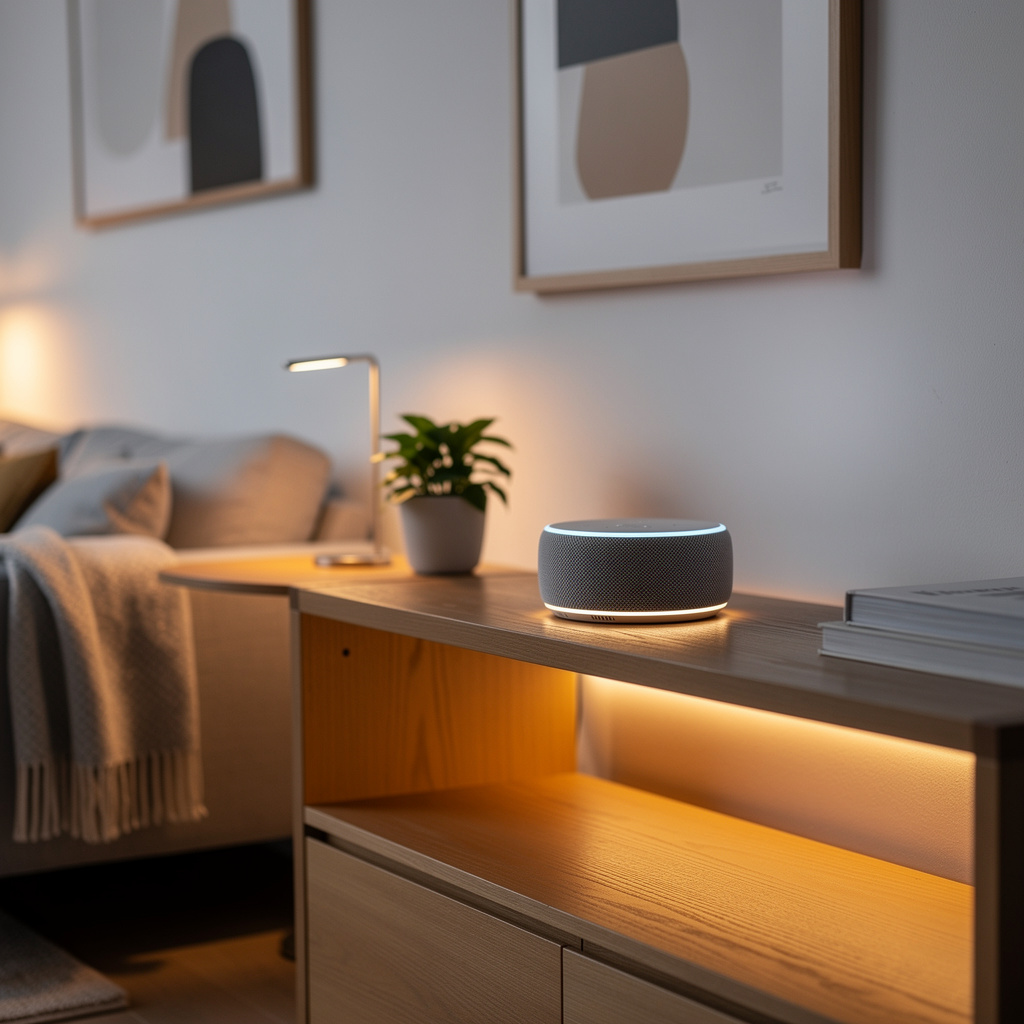
The Echo 4th gen and Echo Studio include built-in Zigbee hubs at no additional cost. This makes them the best starting point for users curious about hubs without upfront investment. The Zigbee support handles bulbs, sensors, and locks without separate hardware. Limitations include no Z-Wave support and limited automation complexity compared to dedicated hubs.
Samsung SmartThings — Best All-Rounder:
SmartThings supports Zigbee, Z-Wave, and WiFi devices simultaneously. The mobile app provides beginner-friendly automation creation. Cloud processing enables complex logic, though this requires internet connectivity. The v3 hub costs $100-130, while the newer Station offers Matter/Thread focus at $60.
Hubitat Elevation — Best for Privacy:
Hubitat processes all automations locally without cloud dependency. This provides the most reliable offline operation and strongest privacy protection. Setup requires more technical knowledge, but online communities provide excellent support. At $150, it is the sweet spot for privacy-conscious users wanting local control.
Home Assistant — Best for Power Users:
Free open-source software running on Raspberry Pi ($50) or old computer. Unlimited customization and integration options. Supports virtually every device and protocol. Requires significant technical expertise but offers the most powerful smart home platform available. The learning curve is steep, but capabilities are unmatched.
Built-In Hubs vs. Dedicated Hubs
Many devices now include limited hub functionality, blurring the distinction:
Echo 4th Gen / Echo Studio:
Built-in Zigbee hub supports Zigbee bulbs, locks, and sensors. Sufficient for basic Zigbee setups but lacks Z-Wave support and advanced automation logic. Best for users wanting simple Zigbee integration without additional hardware investment. The hub functionality comes “free” with speakers you would buy anyway.
SmartThings Station:
Samsung’s newer hub focuses on Matter/Thread support with simplified setup. Good middle ground for modern protocol mixes. Priced at $60, it is the most affordable dedicated hub option while supporting the latest Matter standard.
Google Nest Hub 2nd Gen:
Includes Thread border router for Matter devices. Functions as a hub for Thread-based Matter devices but not for Zigbee or Z-Wave. Useful for users investing in Matter-compatible devices as they enter the market.
Limitations of Built-In Hubs:
- Single protocol support (usually Zigbee only)
- Limited automation complexity
- No advanced scripting capabilities
- Cloud-dependent for some features
- Cannot bridge to other ecosystems easily
Built-in hubs work well for 5-10 device setups. Once you exceed this or need Z-Wave, a dedicated hub becomes necessary.
Specific Use Case Scenarios
Real-world examples help identify if you need a hub:
Scenario 1: Studio Apartment Beginner
Setup: 4 WiFi smart bulbs, 2 smart plugs, 1 Echo Dot
Hub Needed: No
Why: All devices are WiFi. Voice assistant handles control. Individual apps sufficient for configuration. Save $100-150 and invest in more devices instead.
Scenario 2: 4-Bedroom Family Home
Setup: 20+ devices mixed: Zigbee lights, Z-Wave locks, WiFi cameras, multiple sensors
Hub Needed: Yes
Why: Mixed protocols require translation. 20+ devices unwieldy without central management. Complex automations (“if motion AND time AND away mode”) require hub logic. Recommend SmartThings or Hubitat.
Scenario 3: Security-Focused Installation
Setup: 8 door/window sensors, 3 motion detectors, 2 smart locks, 1 security camera
Hub Needed: Yes
Why: Sensors typically use Zigbee or Z-Wave for battery efficiency. Professional security logic requires conditional automations. Recommend Hubitat for local processing or SmartThings with monitoring plan.
Scenario 4: Smart Home Enthusiast
Setup: 50+ devices across all protocols, custom automations, HomeKit integration
Hub Needed: Yes (advanced)
Why: Home Assistant required for this complexity. Bridges Alexa, Google, and HomeKit simultaneously. Handles custom scripting and unusual integrations. Time investment significant but capabilities unmatched.
Hub Setup Walkthrough
If you decide a hub fits your needs, here is the setup process:
Step 1: Choose Your Hub
Based on the comparison above, select the hub matching your technical comfort level and budget. Beginners should start with SmartThings or Echo 4th gen.
Step 2: Unbox and Connect
- Connect hub to power and ethernet (if available)
- Download companion app
- Create account and connect hub to WiFi
- Complete setup wizard (typically 5-10 minutes)
Step 3: Pair Your Devices
- Put devices in pairing mode (varies by manufacturer)
- Use hub app to “add device”
- Follow prompts to complete pairing
- Repeat for each device
Step 4: Create Your First Automation
Start simple: “When motion detected, turn on light.” Test thoroughly. Add conditions gradually: time restrictions, multiple triggers, delays.
Common First-Hub Mistakes:
- Buying hub before having compatible devices
- Expecting WiFi-only setups to benefit from hubs
- Choosing Home Assistant without technical readiness
- Not updating hub firmware regularly
- Creating overly complex automations initially
2026 Recommendation
Start Without a Hub: Begin with WiFi devices and a voice assistant. Most users achieve satisfying smart home experiences with this simple setup. A typical starter home with 5-10 devices functions perfectly without hub complexity.
Add a Hub When:
- You have 15+ devices and management becomes tedious
- You want Zigbee/Z-Wave device compatibility
- Complex conditional automations become necessary
- Internet reliability concerns require local processing
- You want unified control across multiple apps
Best First Hub: The Amazon Echo 4th generation offers built-in Zigbee support for under $100, serving as an excellent entry point before investing in dedicated hub hardware. You get a quality smart speaker plus hub functionality. If you outgrow its capabilities, you have only invested $50-100 rather than $150+ on a dedicated hub you may not need. For a complete guide covering voice assistants, protocols, and automation strategies, see the voice assistants and smart home protocols guide. For the local-control angle specifically, Home Assistant documents how its offline-first architecture works, and the CSA’s Matter specification covers Thread border router requirements.
Remember: You can always add a hub later. Start simple, expand based on actual needs rather than anticipated complexity. The hub decision should solve problems you are experiencing, not problems you imagine having in the future.
Related Articles
- Does Smart Home Work Without Internet?
- Zigbee vs Z-Wave vs WiFi Protocols
- Alexa vs Google Home Comparison
- Smart Home for Beginners Guide
- Matter Protocol Explained
Can I use multiple hubs together?
Yes, but it is generally unnecessary. Some advanced users combine Home Assistant with SmartThings, but this adds complexity most users should avoid. Multiple hubs make troubleshooting harder and create confusion about which device connects to which hub.
Will a hub make my smart home faster?
Hubs improve reliability more than speed. Local processing eliminates cloud delays, but the difference is usually milliseconds. The main benefit is automation continuity during internet outages and the ability to create complex conditional logic.
Do I need a hub for Matter devices?
No. Matter protocol is designed to work without dedicated hubs using Thread border routers built into devices like Echo 4th gen, Google Nest, or Apple TV. A hub adds management convenience and enables complex automations that Matter alone does not provide.
Can I add a hub to an existing smart home?
Absolutely. Adding a hub requires unpairing devices from their current systems and reconnecting to the hub. WiFi devices reconnect easily. Zigbee and Z-Wave devices may need to be reset first. Budget 2-3 hours for transitioning 15-20 devices.
Which hub is easiest for beginners?
The Amazon Echo 4th gen is the easiest entry point since you likely want a smart speaker anyway, and it includes Zigbee hub functionality. For dedicated hubs, Samsung SmartThings offers the most beginner-friendly experience with straightforward app-based setup.