Frigate Hardware Acceleration: Cut CPU Load on Every Camera
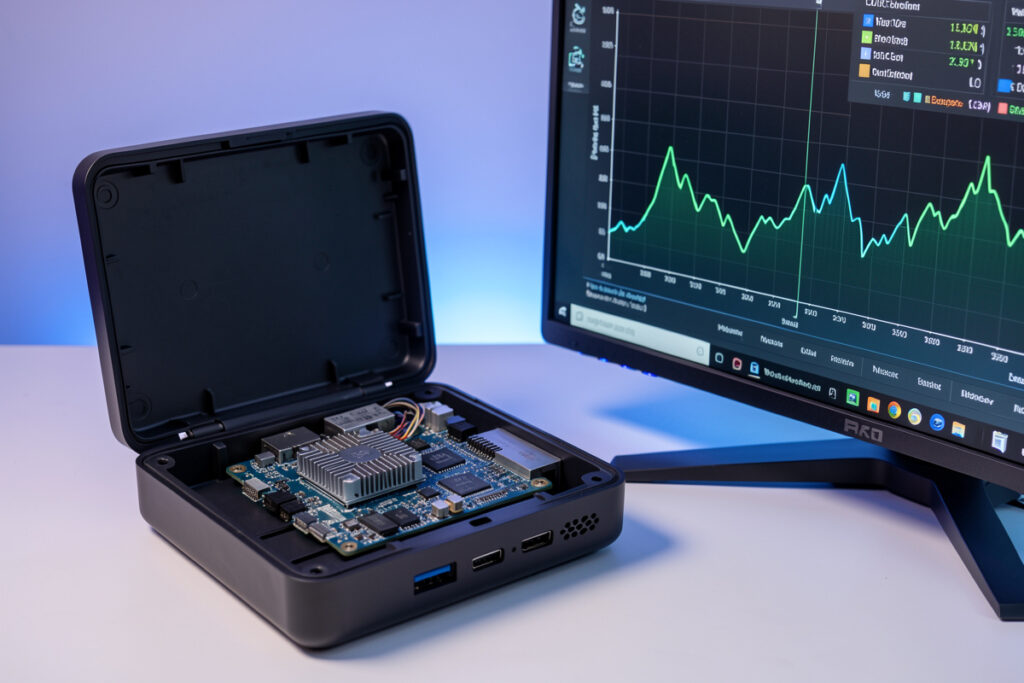
Hardware acceleration moves video decoding off your CPU cores and onto the GPU built to do it, and in Frigate it’s the difference between a box that idles cool and one that runs hot enough to throttle. On my Intel N100, turning on Quick Sync decoding dropped total CPU usage for six 1080p cameras from an ugly sustained load down to single-digit percentages — because decoding six H.265 streams is exactly the job an integrated GPU eats for breakfast and a CPU chokes on.
People obsess over the detection accelerator and forget that video decoding is the heavier, more constant load. Detection only fires when there’s motion to analyze; decoding every frame of every camera never stops. Get decoding onto the iGPU and you free up the cores that were being burned just to unpack video — cores you want available for everything else the box does. If you’re building the pipeline from my Frigate NVR guide, this is the setting that most changes whether your CPU graph is a calm line or a wall.
What Is Hardware Acceleration in Frigate and Why Does It Matter?
Hardware acceleration tells Frigate to decode camera video using a dedicated hardware block — Intel Quick Sync on the iGPU, VA-API more generally, or NVDEC on an NVIDIA card — instead of software decoding on the CPU. Decoding is a per-frame, all-day job, so offloading it typically cuts CPU usage for a multi-camera setup by more than half, sometimes far more.
The reason it matters so much comes down to what each stream costs. Every camera Frigate ingests must have its compressed H.264 or H.265 video turned back into raw frames before anything — detection, recording, live view — can happen. Do that in software and each 1080p stream can eat a meaningful chunk of a CPU core; stack six or eight cameras and you’ve spent your whole processor on decoding alone. The integrated GPU in any modern Intel chip has fixed-function decode hardware (Quick Sync) designed for exactly this, and it does the job at a tiny fraction of the power and heat. Intel’s own overview of Quick Sync Video spells out that these are dedicated media engines, not general CPU work.
This is a separate concern from object detection. Detection is what a Coral accelerator or the OpenVINO detector handles; decoding is what hardware acceleration handles. Two heavy jobs, two pieces of silicon — and the classic beginner mistake is fixing one and wondering why the box is still busy. I lay out the whole split in the main build guide, but the short version is: you almost always want both turned on.
Which GPU Should Decode Your Cameras: Intel, AMD, or NVIDIA?
For a dedicated Frigate box, an Intel iGPU with Quick Sync is the easiest and most power-efficient choice — it’s why the N100 and similar chips dominate home NVR builds. NVIDIA GPUs decode well via NVDEC and are the pick if you already run one for larger models or many high-resolution cameras. AMD works through VA-API but is the least-trodden path with Frigate.
I run Intel for a specific reason: efficiency. A fanless N100 with Quick Sync handles six cameras while sipping 10–15 watts, which matters on a machine that never turns off. Quick Sync has hardware decode for H.264, H.265, and increasingly AV1, so it copes with whatever your cameras output. NVIDIA is genuinely capable — NVDEC is excellent and if you’re already running a GPU for TensorRT detection, decoding there too makes sense — but a discrete card idles at tens of watts you don’t need to spend on a decode-only role. My rule of thumb: Intel iGPU for a dedicated low-power box, NVIDIA only when the GPU is already there for detection. When you’re sizing hardware, factor decode capability in from the start rather than discovering it late, the way I warn about in migrating Home Assistant to new hardware.
How Do You Enable Quick Sync Hardware Acceleration in Frigate?
You do two things: pass the iGPU render device into the Frigate container, then set the matching hwaccel_args preset in your config. For Intel, that’s mapping /dev/dri/renderD128 into the container and setting the Quick Sync preset globally under ffmpeg, so every camera inherits it. Frigate ships named presets so you don’t hand-write ffmpeg flags.
The config side is deliberately simple. Under the global ffmpeg block you set a hwaccel_args preset — Frigate provides preset-vaapi for broad Intel/AMD VA-API support and Quick-Sync-specific presets for newer Intel chips. Set it once globally and it applies to all cameras; override per camera only if one needs something different. The container side is the part people forget: the GPU render node (/dev/dri/renderD128 on most systems) has to be passed through, or Frigate has nothing to accelerate onto. Home Assistant add-on installs generally handle the device mapping for you; Docker users add it to the run or compose file. The exact preset names and device mapping live in the Frigate hardware acceleration docs, and they’re worth matching to your exact chip generation.
One gotcha on older or oddly-provisioned systems: the render device needs the right group permissions for the container to use it, and on some Proxmox or LXC setups you have to pass the device group through explicitly. If acceleration silently isn’t working, a permissions mismatch on /dev/dri is the first thing I check — before I touch a single config line.
How Do You Confirm Hardware Acceleration Is Actually Working?
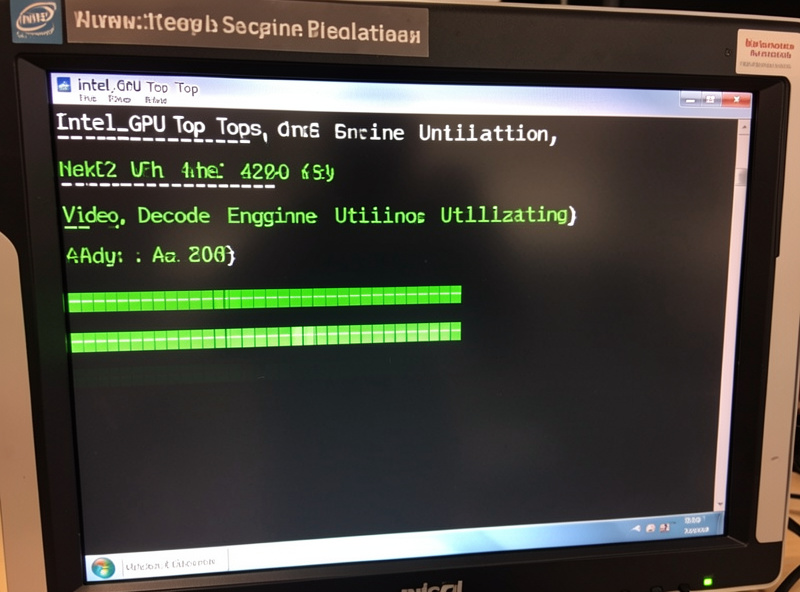
Two checks: watch total CPU usage before and after, and watch the GPU’s decode engine directly. On Intel, intel_gpu_top shows a “Video” engine that should light up under load if decoding is really on the iGPU. If that engine sits at zero while your CPU is pinned, acceleration isn’t engaged no matter what the config says.
I learned to trust the GPU meter over the config file the hard way. The first time I set this up, my hwaccel_args looked perfect, Frigate started without errors, and I assumed it was working — but CPU usage hadn’t budged. Running intel_gpu_top showed the video-decode engine flatlined at zero: the container never got the render device passed through, so ffmpeg had quietly fallen back to software decoding. Everything worked; it just worked on the CPU. That silent fallback is the theme of this whole system, and it’s why “no errors” is not the same as “accelerated.” Now I verify decode on the GPU engine every time, the same discipline I apply to checking database growth in taming a Home Assistant database that’s grown too large.
The sensory version of “it’s working” is a box you can put your hand on. Before acceleration, my mini-PC’s heatsink was warm to the touch and the case fan on my older test box spun up audibly under camera load. After, the same six cameras leave the fanless N100 barely above room temperature and dead silent. Cool and quiet is the signal; hot and loud means the CPU is still doing a job the GPU should own.
Detect Stream Resolution: The Other Half of Cutting CPU Load
Hardware acceleration handles decoding, but you also control how much there is to decode. Frigate runs detection on a separate low-resolution substream, and setting that detect stream sensibly — around 640×480 to 1280×720 rather than full 4K — slashes the decode and detection workload without hurting accuracy, because the detector doesn’t need a 4K image to find a person.
This is the pairing that makes a low-power box viable. You record from the high-resolution main stream so the footage is crisp, but you point detection at a small substream, so the AI and the frame-by-frame decode that feeds it are working on a fraction of the pixels. Decoding a 640×480 detect stream is trivial; decoding full-resolution for detection is wasteful. Configure your cameras for dual streams and set the detect role to the low-res substream — the exact substream resolutions and the models that behave are in best RTSP cameras for Frigate. Combined with hardware-accelerated decode, this is what lets a fanless box calmly run cameras that would otherwise need a workstation. And keeping the box efficient pays off on storage too, since the database and recordings want fast, durable disk — the reasoning I go through in SD card vs SSD for Home Assistant.
Frequently Asked Questions
How much CPU does hardware acceleration save in Frigate?
It varies with camera count and resolution, but offloading decode to an Intel iGPU commonly cuts multi-camera CPU usage by more than half, and often much more. On a six-camera 1080p setup, moving decode from software to Quick Sync can take total CPU load from a sustained heavy figure down to single-digit percentages, because decoding every frame is the heaviest constant job.
Do I still need a Coral if I enable hardware acceleration?
They do different jobs. Hardware acceleration offloads video decoding to the GPU; a Coral or the OpenVINO detector handles object detection. For more than a couple of cameras you generally want both: accelerated decode on the iGPU and detection on a dedicated accelerator, so neither job starves the other.
How do I know if Frigate hardware acceleration is actually working?
Check the GPU decode engine directly, not just the config. On Intel, run intel_gpu_top and watch the Video engine light up under camera load. If that engine stays at zero while CPU usage is high, ffmpeg fell back to software decoding, usually because the render device was not passed into the container.
Which Intel chips support Quick Sync for Frigate?
Essentially all Intel Core chips from 8th generation onward, and the modern N-series like the N100 and N305, include Quick Sync media engines with hardware decode for H.264 and H.265. The N100 in particular has become the popular low-power choice for home NVR builds because it decodes several streams while drawing very little power.
Why is my CPU still high after enabling hardware acceleration?
The most common causes are the GPU render device not being passed into the container, a permissions mismatch on the render node, or a hwaccel preset that does not match your chip. Another culprit is running detection on a full-resolution stream instead of a low-resolution substream. Verify decode on the GPU engine and check your detect stream resolution.
Keep Building
- Frigate NVR on Home Assistant: The Complete Local Camera AI Guide
- Coral TPU for Frigate: Object Detection Without Cooking Your CPU
- Best RTSP Cameras for Frigate: Streams That Don’t Stutter
- Migrating Home Assistant to New Hardware
- When Your Home Assistant Database Grows Too Large
- Home Assistant: SD Card vs SSD