Frigate Person Detection: Snapshot Alerts Straight to Your Phone
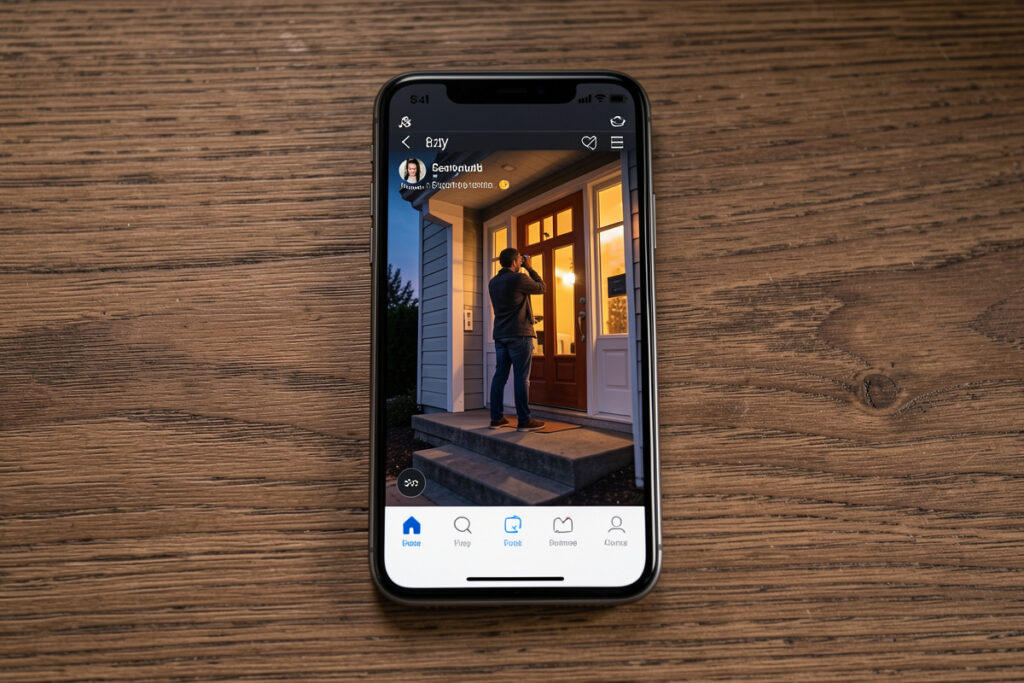
The single automation that makes a local NVR feel worth building is this: the instant Frigate sees a person — not a car, not a swaying branch — a notification lands on your phone with the actual snapshot attached. In my setup that alert fires in well under a second because detection and the message bus are both local, and it carries the picture in the notification itself, so I know whether it’s a delivery driver or a stranger without opening a single app.
That “person, not motion” distinction is the whole game. Old-school motion alerts cry wolf at every cat, cloud shadow, and headlight, and within a week you mute them — at which point the camera is useless. Frigate’s object detection gives you a clean trigger, and Home Assistant turns it into an alert you’ll actually trust. If you’ve built the pipeline from the Frigate NVR guide, this is the payoff step where footage becomes a notification you look at instead of archive you never watch.
How Does Frigate Send a Person Detection to Your Phone?
Frigate publishes a detection event to MQTT the moment a person enters a camera’s zone. Home Assistant’s Frigate integration turns that into a trigger, an automation grabs the event’s snapshot image, and the Home Assistant Companion app delivers it to your phone as a push notification with the picture embedded. The whole chain is local up until the push leaves for your device.
Understanding the pieces makes it debuggable. When Frigate detects an object it fires an MQTT event containing the camera, the object type (“person”), the zone, and an event ID that maps to a snapshot and clip. An automation triggers on the MQTT event (or on the Frigate integration’s event entity), filters for type: person, and calls the mobile app’s notify service with the snapshot URL as the image attachment. Because the detection and MQTT hop happen on your own hardware — the reason a Coral keeps detection fast — the latency from “camera sees a person” to “phone buzzes” is a fraction of a second. The only internet-dependent link is the final push through the mobile provider, which is true of any phone notification. The Home Assistant Companion notification docs cover the notify service side.
How Do You Attach the Snapshot Image to the Notification?
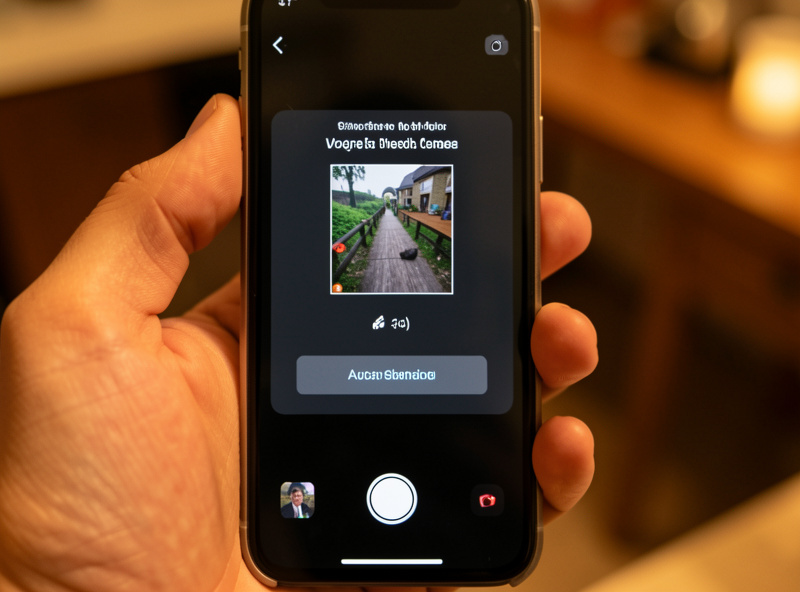
You pass the Frigate snapshot URL in the notification’s data payload — the image attribute for the mobile app. Frigate exposes each event’s snapshot at a predictable API path using the event ID, so the automation references that URL and the Companion app renders the picture right in the notification. That image is the difference between an alert you act on and one you ignore.
The practical detail: Frigate serves snapshots at an endpoint like /api/events/<id>/snapshot.jpg, and the MQTT event payload hands you the ID to build that URL. In the automation, you set the notification’s data.image to that path (routed through your Home Assistant instance so the phone can reach it). On iOS the image shows when you expand or long-press the notification; on Android it appears inline. I always include the snapshot because a text-only “person detected at front door” makes me open the app every time, which defeats the point — the picture lets me triage from the lock screen. For the mechanics of building rich notifications generally, my actionable notifications guide walks through the data payload in detail.
Snapshots come from the same detect pipeline as everything else, so a well-tuned camera — the kind I recommend in best RTSP cameras for Frigate — gives you a snapshot that’s actually legible. A blurry, over-compressed substream produces a snapshot you can’t identify anyone from, which is worth remembering when you set stream quality.
How Do You Stop the Notifications From Driving You Crazy?
Gate the notification on conditions, not just the detection. The three levers I use: filter to the person object only, restrict detection to zones that matter (the walkway, not the public sidewalk), and suppress alerts when a trusted person is home. That combination turns a firehose of pings into a handful of alerts a day that all deserve your attention.
Zones are the most underused lever. Without them, a driveway camera alerts on every car and pedestrian on the street beyond it; with a zone drawn tight around your own path and door, it only fires for someone actually approaching. Layer presence on top — if my phone (or my partner’s) is home, the daytime front-door alert stays silent, because I don’t need to be told I’ve arrived at my own house. And a time or lighting condition can escalate: a person at the back door at 3 a.m. gets a higher-priority alert than one at midday. This is exactly the anti-spam discipline I preach in reducing notification spam in Home Assistant — the best security system is one you never mute. You can also route different alerts to different people, which I cover in per-person notifications.
Should You Use a Blueprint or Write the Automation Yourself?
Start with a community blueprint to get working notifications fast, then graduate to your own automation once you know exactly what conditions you want. The popular Frigate notification blueprints handle the snapshot, clip, and actionable buttons out of the box; a hand-written automation gives you full control over zones, presence gating, and per-person routing. I run my own because my conditions are specific, but I recommend everyone start with a blueprint.
The blueprint route means importing a YAML blueprint, pointing it at your camera and mobile device, and having snapshot notifications in minutes — a great way to confirm the whole chain works before you customize. Once you understand what it’s doing, rewriting it as a plain automation lets you add the exact logic your house needs: the presence suppression, the escalation, the tie-ins to lights. My front-path automation, for instance, doesn’t just notify — it also brings up a porch light via a smart relay when a person is detected after dark, because the notification and the physical response should happen together. The Frigate Home Assistant integration exposes all the entities you need for either path.
The False-Alarm Fix I Wish I’d Known Sooner
Early on, my front camera kept notifying me of a “person” at odd hours when nobody was there. I nearly wrote off Frigate’s detection as flaky. The real problem was two-fold: I hadn’t set a zone, so it was detecting people on the street a house away, and my detection threshold was low enough that a car’s shadow occasionally scored as a person. Drawing a tight zone around my own property and nudging the person threshold up killed the false alarms overnight.
The lesson: when Frigate over-notifies, it’s almost never the AI being dumb — it’s your zones and thresholds being loose. Detection scores every object with a confidence value, and you can require a minimum before it counts; combine that with zones and you get alerts that are almost all real. I also learned to route the noisy experiments to a quiet notification channel while tuning, so I wasn’t buzzing my own pocket every time I adjusted a value. That patience is worth it: a person-detection alert I trust completely is one of the most genuinely useful things in my whole local camera setup, and for critical overnight alerts I lean on the louder delivery options in critical alerts on iPhone.
Frequently Asked Questions
How fast does a Frigate person notification arrive?
The local part of the chain, from the camera seeing a person to Home Assistant firing the automation, takes a fraction of a second because detection and the MQTT event bus run on your own hardware. The only slower link is the final push to your phone through the mobile notification provider, which is the same for any app.
Can I get the camera snapshot in the notification itself?
Yes. Frigate serves each event’s snapshot at an API URL built from the event ID, and you pass that URL as the image attribute in the notification’s data payload. The Home Assistant Companion app then renders the picture in the push notification, so you can identify who is there from the lock screen without opening the app.
How do I stop Frigate person alerts for people on the street?
Draw a zone in Frigate that covers only your own property, like the walkway and door, and require the person to be within that zone before notifying. Without a zone, the camera detects people on the sidewalk or street beyond your yard. Adding a zone is the single most effective fix for street false alarms.
Can I turn off notifications when I am home?
Yes, and you should. Add a condition that suppresses the alert when a trusted person’s phone is detected at home, using device presence in Home Assistant. That way you are not pinged about your own arrivals and comings and goings, while alerts still fire when nobody is home or an unknown person appears.
Do I need a blueprint to set up Frigate notifications?
No, but a community blueprint is the fastest way to get working snapshot notifications and confirm the whole chain functions. Once you understand what it does, you can rewrite it as your own automation to add zone filtering, presence gating, per-person routing, and tie-ins like turning on a light when a person is detected.
Keep Building
- Frigate NVR on Home Assistant: The Complete Local Camera AI Guide
- Home Assistant Actionable Notifications
- Reduce Notification Spam in Home Assistant
- Critical Alerts on iPhone