Frigate NVR on Home Assistant: The Complete Local Camera AI Guide
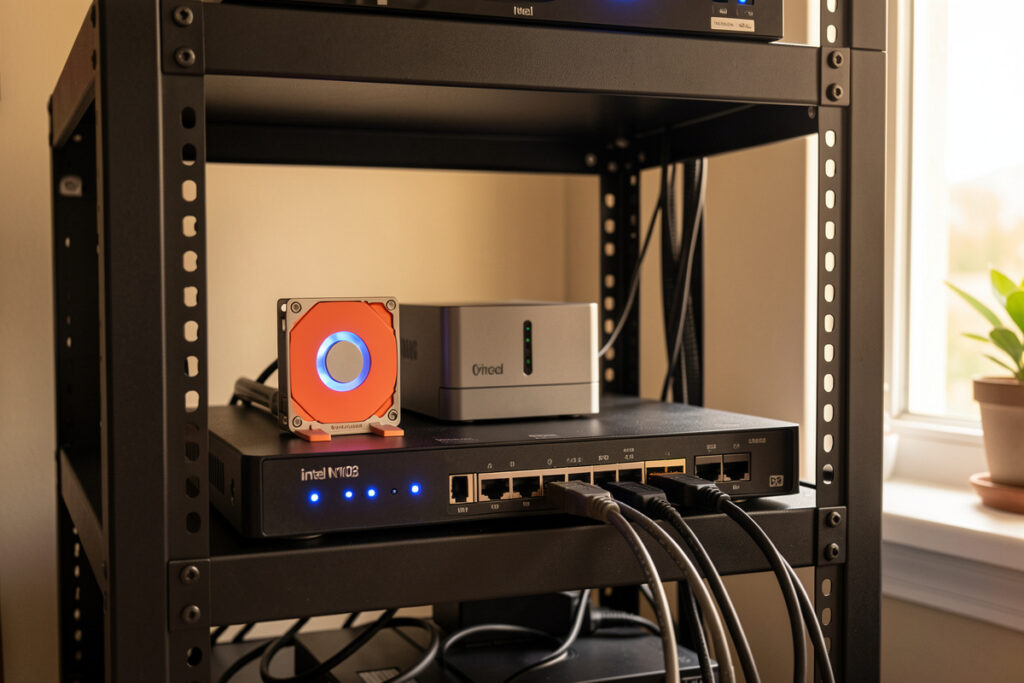
Frigate is a local, open-source NVR built for real-time object detection, and paired with Home Assistant it turns a pile of cameras into a system that actually knows the difference between a person, a car, and a branch moving in the wind. On my hub it runs on an Intel N100 mini-PC with a Coral USB accelerator, watches six cameras, and inferences each frame in roughly 8–12 milliseconds — all of it on hardware I own, with zero footage leaving the house.
That last part is the whole reason I built it. Every cloud camera I have ever tried eventually wants a subscription to unlock the feature you actually bought the camera for, and the footage of my own front door lives on someone else’s server. Frigate flips that: the recordings sit on my NAS, the detection happens on my box, and the only thing that touches the internet is the notification I choose to send to my own phone. When the internet drops, my cameras keep recording and my automations keep firing. That is the bar every device in my setup has to clear.
This guide is the map for the whole build — the hardware that makes detection cheap, the cameras that feed it clean streams, the storage math that keeps you from filling a disk in a week, and the automations that make the footage useful instead of just archived. I have wired and re-wired this pipeline enough times to know where the sharp edges are, so let’s start with what Frigate actually is before you spend a krona on hardware.
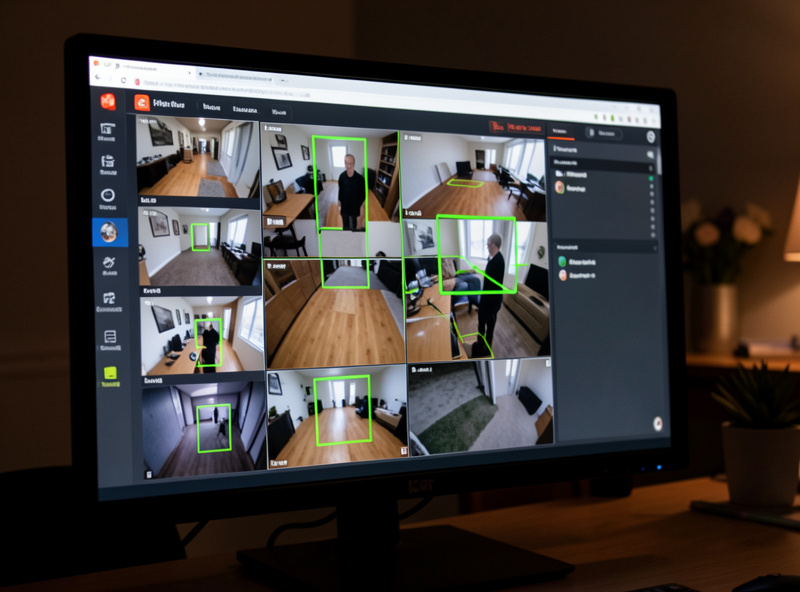
What Is Frigate and Why Run It Instead of a Cloud Camera App?
Frigate is a self-hosted network video recorder that uses local AI to detect objects in your camera streams in real time, then records only what matters. It is free, open-source, and integrates natively with Home Assistant. The trade you make versus a cloud app is one-time effort for permanent ownership: no monthly fee, no footage on a stranger’s server, and detection that works during an outage.
The mental model that matters: a cloud camera is a product you rent, and Frigate is a pipeline you own. A cloud cam decodes and analyzes its own video somewhere in a data center and rations the results back to you through an app and a subscription tier. Frigate pulls the raw RTSP stream off each camera, decodes it on your hardware, runs a neural network over the frames to find people, cars, animals, and packages, and writes clips and snapshots to your own disk. The camera becomes a dumb sensor — exactly how I treat every device on my hub.
Under the hood Frigate runs two streams per camera on purpose. A low-resolution detect stream feeds the AI cheaply, and a high-resolution record stream is what actually gets saved. It also bundles go2rtc for low-latency live viewing and restreaming, so you can watch a feed in the Home Assistant dashboard without hammering the camera with a dozen simultaneous connections. This two-stream design is the single most important concept in the whole system, and getting it wrong is the number-one reason people say “Frigate melted my CPU.”
What Hardware Do You Need to Run Frigate Well?
You need three things: a machine to run the container, a way to decode video without cooking the CPU, and a way to run detection cheaply. In practice that means a low-power x86 box with modern integrated graphics for decoding, a Google Coral accelerator for the AI, and enough storage for however many days of footage you want to keep. My box is a fanless Intel N100 with 16 GB of RAM and an SSD for the database, and it idles under 10 watts.
Let me be specific about why each piece exists. Video decoding — turning the camera’s H.264/H.265 stream into raw frames — is the heaviest continuous job, and it belongs on the iGPU via hardware acceleration, not the CPU cores. Object detection — running the neural net on those frames — is the second job, and a Coral USB TPU does it in about 8–12 ms per frame versus 100+ ms on a CPU. Split those two jobs onto the silicon built for them and a six-camera system barely registers on a load graph. Try to do both on the CPU and a four-core box is on its knees.
Here is how I’d size the common tiers. Intel’s Quick Sync on any 8th-gen-or-newer chip handles decode; the N100 and N305 are the current sweet spot for a dedicated build.
| Build tier | Detection | Cameras (realistic) | Decode method | Rough draw |
|---|---|---|---|---|
| Raspberry Pi 5 + Coral | Coral USB (4 TOPS) | 2–3 @ 1080p | Pi VideoCore (limited) | ~8 W |
| Intel N100 mini-PC + Coral | Coral USB (4 TOPS) | 6–8 @ 1080p | Quick Sync iGPU | ~10–15 W |
| Intel N305 / i5 + Coral | Coral USB or M.2 | 10–16 @ 1080p | Quick Sync iGPU | ~15–25 W |
| i5/i7 + NVIDIA GPU | TensorRT on GPU | 12–20+ @ 1080p | NVDEC / Quick Sync | 60–120 W |
| Any box, no accelerator | CPU (OpenVINO/CPU) | 1–2 @ 1080p | iGPU if present | varies, high load |
The CPU-only row is real and it works — Frigate 0.13+ ships an OpenVINO detector that leans on Intel iGPUs and is genuinely usable for a camera or two — but the moment you want more than a couple of feeds, the Coral pays for itself in headroom and in the electricity bill of a box that isn’t pinned at 90% forever.
How Does Frigate Integrate With Home Assistant?
Frigate exposes everything through MQTT and a dedicated Home Assistant integration, so every camera becomes a set of entities you can automate against: a live view, a binary sensor for each object type, snapshot and clip image entities, and controls to toggle detection. In my automations, a Frigate “person detected in driveway” event is just another trigger, same as a door contact or an mmWave presence sensor.
The plumbing is worth understanding because it is why the integration feels instant. Frigate publishes detection events to an MQTT broker the moment an object crosses your defined zone. The Frigate HA integration subscribes to those messages and materializes them as entities. Because the message bus is local, the latency between “camera sees a person” and “Home Assistant fires an automation” is a fraction of a second — no round trip to a cloud, no polling.
What you build on top of that is where it gets useful. I run zones so the camera only cares about the walkway and the door, not the public sidewalk. I gate notifications on presence, so nobody gets pinged about their own arrival — if a phone I trust is home, the driveway alert stays quiet. And I wire the person-detection snapshot straight to my phone so the notification itself carries the picture, not just a “motion detected” nag. That single design choice is the difference between a system you trust and one you mute after a week.
Coral TPU vs CPU vs GPU: What Should Run Detection?
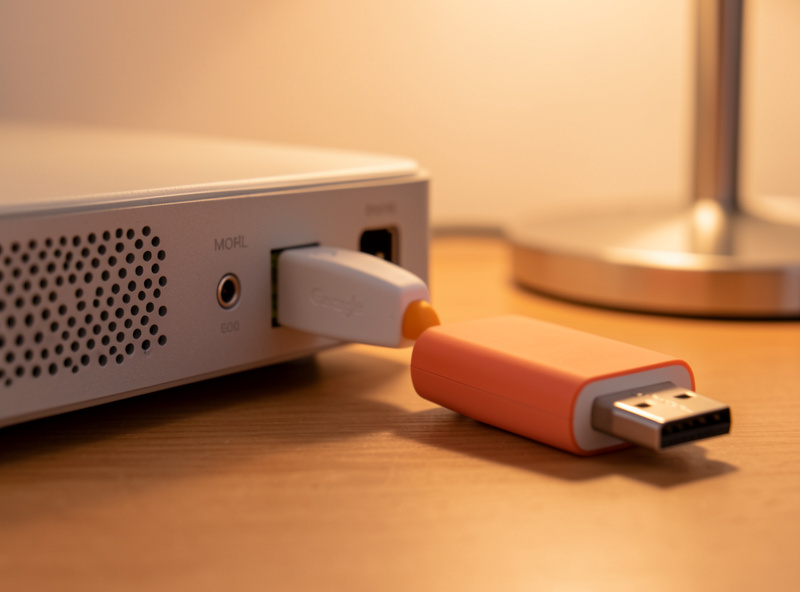
For most home builds a Google Coral USB accelerator is the right answer — it does inference in roughly 8–12 ms at about 2 watts, offloading the AI entirely so your CPU only decodes video. A modern Intel iGPU via OpenVINO is a solid no-extra-hardware option for one or two cameras, and an NVIDIA GPU with TensorRT is the choice when you’re running many high-resolution feeds or larger models.
I ran CPU detection for exactly one weekend when I first set this up, before my Coral arrived. Four cameras on a quad-core box, and inference speeds sat around 90–130 ms with the cores hovering near 70% just to keep up. It functioned, but there was no headroom, the fan was audible from across the room, and adding a fifth camera would have tipped it over. The day the Coral USB stick arrived, inference dropped to single-digit milliseconds and CPU load fell off a cliff. That contrast is why I tell everyone to budget for the accelerator up front. The full walkthrough — drivers, the USB-3 gotcha, and edgetpu config — is in the Coral TPU setup guide.
One honest caveat on the Coral: it accelerates detection, not decoding. People buy a Coral, plug it in, and are baffled that their CPU is still busy — because the video decode was never on the Coral to begin with. Decode belongs on the iGPU, which is a separate config and a separate concern I cover in the hardware acceleration guide. Get both jobs onto their proper silicon and the difference is night and day.
Which Cameras Work Best With Frigate?
Any camera that outputs a standard RTSP stream and lets you configure two substreams will work — the brand matters far less than the stream. What you want is a camera that gives you a clean high-res main stream for recording and a low-res substream (around 640–720p) for detection, ideally over a wired PoE connection. I run a mix of PoE cameras precisely because a stream that never stutters is worth more than any AI feature the camera claims to have.
The camera’s own “AI” is mostly irrelevant here because Frigate does the thinking. What you’re really shopping for is stream reliability and honest specs: dual-stream RTSP, a substream you can set low enough to feed detection cheaply, H.265 support to save bandwidth and disk, and PoE so power and data ride one cable. I lay out the specific models and settings that behave in the best RTSP cameras for Frigate guide, including the substream resolutions I actually run.
The connection type is its own decision with real reliability stakes. A Wi-Fi camera two rooms and a brick wall away from the AP will drop frames, and dropped frames are missed detections. I moved my important cameras — front door, driveway — to PoE for exactly that reason, and put them on their own VLAN so a chatty camera can’t see my laptops. If you’re weighing the wiring effort against convenience, I make the full case in PoE vs Wi-Fi cameras for a local NVR.
How Much Storage Does Frigate Actually Need?
Plan on roughly 30–60 GB per camera per day if you record 24/7 at 1080p on H.265, and a small fraction of that if you only record on detection events. Frigate lets you set retention separately for continuous footage and for event clips, which is the key to keeping the moments that matter without drowning a disk in empty hallway video.
The math is worth doing before you buy a drive. A 1080p H.265 stream at a sensible bitrate runs maybe 2–4 Mbps; multiply that out and a single camera recording around the clock eats tens of gigabytes a day. Six cameras doing 24/7 continuous recording will fill a 2 TB drive in well under two weeks. That is exactly why I don’t record everything continuously on every camera — I run continuous only where I want the timeline, and event-only recording elsewhere, with longer retention on the clips Frigate flagged as containing a person or car.
Frigate’s retention model separates recordings (the continuous/motion timeline) from snapshots and events (the flagged clips and stills), so you can keep 3 days of raw timeline but 30 days of “person at the door” events. Getting those two dials right — and pointing the database and clips at the correct disks — is what keeps the system healthy for years. I walk through the exact config, the record vs. snapshot split, and the SSD-vs-HDD placement in Frigate storage and retention settings.
Frigate vs Blue Iris vs Cloud Cameras: Which Should You Pick?
Choose Frigate if you want free, open-source, Linux-friendly local AI that lives inside Home Assistant. Choose Blue Iris if you’re a Windows household that wants a mature GUI and don’t mind a paid license and a Windows box running 24/7. Choose a cloud camera only if you genuinely never want to manage anything — and accept the subscription and the privacy trade that comes with it.
I’ve run local NVRs long enough to be blunt: for a Home Assistant house, Frigate is the local NVR I’d build today. It’s free, it’s containerized, its detection is excellent with a cheap Coral, and the HA integration is first-class. Blue Iris is genuinely good software — arguably a friendlier interface and broader camera-quirk handling — but it’s Windows-bound, it’s a paid product, and bolting it into Home Assistant is more duct tape than native. The side-by-side on cost, platform, detection, and HA integration is the Frigate vs Blue Iris comparison.
Against cloud cameras there isn’t really a contest on the axes I care about. A cloud cam is easy on day one and a liability every day after: the feature you want is behind a subscription, the footage leaves your house, and when the vendor’s service has a bad day, your “smart” camera is a dumb lens. Every Frigate camera keeps recording locally through an outage. That’s the local-control-first conviction the whole site is built on — if it doesn’t work when the cloud is down, it doesn’t go in a core role.
What Automations Make a Local NVR Actually Useful?
The point of local detection isn’t a wall of camera feeds — it’s turning “the camera saw something” into a decision. In my setup a person detected in the driveway after dark turns on the porch light via a smart relay, sends a snapshot to my phone, and logs the event; a person detected during the day when we’re home does nothing at all. The AI gives you a clean, low-false-alarm trigger, and Home Assistant does the rest.
A few automations that earn their keep on my hub: porch and path lights that come on only for a person (not a passing car or a cat), so I’m not lighting up the street every time a taxi rolls by; a “nobody home + person at the back door” alert that gets a higher-priority notification; and camera detection that pauses when a trusted presence is home, because the best security notification is the one that doesn’t cry wolf. Wiring the snapshot directly into the notification — covered in the person-detection notification guide — is what makes the alert something you actually look at.
The sensory tell that it’s all working is quiet. When I walk up my own path at night, the light comes up a half-second ahead of me, my phone stays silent because it knows my phone is with me, and the only record is a clip filed under “person” that I’ll never need to watch. No buzzing, no app, no chime — just a house that noticed and reacted. That’s the difference between a smart home and a house full of gadgets.
A Realistic Build Order for Your First Frigate Setup
Start small and prove each layer before you scale. Get one camera streaming into Frigate on a modest box with CPU detection, confirm the RTSP substream is clean, then add the Coral, then the hardware-accelerated decode, then the Home Assistant integration and automations, and only then expand to the full camera count. Every step you rush is a step you’ll debug later.
The order I recommend, and the order these guides follow: pick the right cameras and streams, decide PoE vs Wi-Fi before you run cable, add the Coral accelerator, turn on hardware-accelerated decoding, set your storage and retention before the disk fills, wire up person-detection notifications, and if you’re still deciding on the platform, read Frigate vs Blue Iris first. Official install steps and the config reference live in the Frigate documentation.
My biggest early mistake was scaling before stabilizing — I added cameras faster than I tuned them, ended up with a config full of guessed values, and spent an evening untangling which camera was actually eating the CPU. Add one camera, watch the load and the detection logs for a day, then add the next. Boring, but it’s how you end up with a system that runs for years instead of one you rebuild every few months.
Frequently Asked Questions
Is Frigate completely free?
Yes. Frigate is free, open-source software. There is an optional paid Frigate+ service for submitting images to improve detection models, but the core NVR, local AI detection, recording, and Home Assistant integration cost nothing. Your only spend is hardware: a box to run it on, storage, and optionally a Coral accelerator.
Do I need a Coral TPU to run Frigate?
No, but it helps a lot past one or two cameras. Frigate can detect on a CPU or an Intel iGPU via OpenVINO, which is fine for a small setup. A Coral USB accelerator runs inference in roughly 8 to 12 milliseconds at about 2 watts, freeing your CPU to only decode video, and it becomes worth it as soon as you add more cameras.
Does Frigate record even when the internet is down?
Yes. Frigate is fully local. It pulls RTSP streams over your own network, detects on your own hardware, and writes clips and snapshots to your own disk. An internet outage does not stop recording or detection. Only outbound features you choose to add, like a phone notification, need connectivity.
How many cameras can Frigate handle?
It depends on your hardware. A Raspberry Pi 5 with a Coral handles two to three 1080p cameras, an Intel N100 mini-PC with a Coral comfortably runs six to eight, and an i5 or i7 with an NVIDIA GPU can push well past a dozen. The limits come from video decoding capacity and detection throughput, not from Frigate itself.
Can Frigate work with any camera brand?
Almost any camera that outputs a standard RTSP stream and lets you configure a low-resolution substream will work, regardless of brand. Frigate does the object detection itself, so the camera’s own AI features do not matter. What matters is dual-stream RTSP, an adjustable substream, and ideally a wired PoE connection for reliability.
How much disk space does Frigate need?
Roughly 30 to 60 gigabytes per camera per day for 24/7 recording at 1080p on H.265, and far less if you only record on detection events. Frigate lets you set separate retention for continuous recordings and for event clips, so you can keep a few days of full timeline but weeks of the flagged clips that actually matter.
Where to Go Next
Work through the cluster in build order, or jump to the piece you’re stuck on:
- Coral TPU for Frigate: Object Detection Without Cooking Your CPU
- Best RTSP Cameras for Frigate: Streams That Don’t Stutter
- Frigate Hardware Acceleration: Cut CPU Load on Every Camera
- Frigate Person Detection: Snapshot Alerts Straight to Your Phone
- Frigate Storage and Retention: Keep the Clips That Matter
- PoE vs WiFi Cameras for a Local NVR: Reliability Over Convenience
- Frigate vs Blue Iris: The Local NVR I’d Build Today