Frigate Storage and Retention: Keep the Clips That Matter
Frigate’s storage model has two separate dials, and understanding the split is what keeps you from filling a 2 TB drive in under two weeks. Recordings are the continuous or motion-based timeline; snapshots and events are the flagged clips and stills where Frigate actually detected something. You can keep three days of raw timeline but thirty days of “person at the door” events — and that asymmetry is the entire art of retention. Plan on roughly 30–60 GB per camera per day for 24/7 1080p H.265, and a small fraction of that for event-only recording.
Most people either record everything forever until the disk screams, or panic and record nothing and then have no footage when they need it. The right answer sits between: keep a short continuous window where you want a scrubable timeline, and keep the detected events much longer, because those are the moments you’ll ever actually pull up. If you’ve built the Frigate NVR from my main guide, this is the config that decides whether it runs quietly for years or dies of a full disk in a fortnight.
How Much Storage Does Frigate Actually Use?
For continuous 24/7 recording, budget about 30–60 GB per camera per day at 1080p on H.265 — a 2–4 Mbps stream running around the clock. Event-only recording, which saves footage only when an object is detected, uses a fraction of that. Six cameras recording continuously will fill a 2 TB drive in well under two weeks; the same six recording only events might last months.
The math is worth doing before you buy a drive rather than after you fill one. A single 1080p H.265 stream at a sensible bitrate is roughly 2–4 Mbps; that’s on the order of 30–60 GB across a full day. Multiply by camera count and by how many days you want to retain, and you have your disk size. H.265 is the lever that halves this versus H.264 — one more reason I pick cameras that encode in it, as I lay out in best RTSP cameras for Frigate. Framerate matters too: recording at 15 fps instead of 30 nearly halves the file size again without hurting your ability to identify who was there.
Recordings vs Snapshots: What’s the Difference?
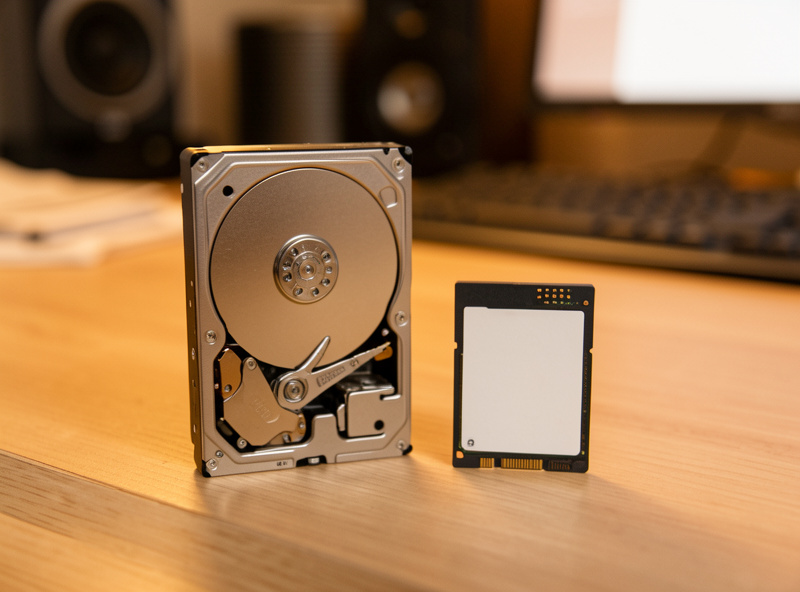
Recordings are the video segments Frigate writes to disk — either continuously or only during motion/detection — and you set how many days to keep them. Snapshots are single still images saved for each detection event, and events are the clips tied to a detected object. Each has its own independent retention setting, so you tune them separately based on how you actually use the footage.
Here’s how the retention settings line up, and roughly what I’d set for a typical home security build.
| Data type | What it is | Typical retention | Storage cost |
|---|---|---|---|
| Continuous recordings | All footage, 24/7 timeline | 1–7 days | Highest |
| Motion recordings | Footage only during motion | 7–14 days | Medium |
| Event recordings (detections) | Clips where an object was detected | 14–30 days | Low |
| Snapshots | Still image per detection | 14–30 days | Very low |
The pattern to notice: the more valuable and less voluminous the data, the longer you keep it. Continuous footage is huge and mostly empty hallway, so it gets the shortest window. Detection clips and snapshots are small and meaningful, so they get the longest. Frigate lets you set a retention mode too — keep all recordings, or keep only the segments that overlap with motion or an active object — which is how you get a scrubable timeline without paying for empty frames. The exact keys live in the Frigate record documentation and the snapshots documentation.
What Retention Settings Should You Actually Use?
For a typical home, I’d run continuous recording at 1–3 days on the cameras where you want a full timeline, motion-based recording elsewhere, and event/snapshot retention at 14–30 days everywhere. That gives you a recent scrubable window plus a month of every detected person or car — the clips you’d ever actually need — without a runaway disk.
My own split leans hard on events. I keep continuous footage short because I almost never scrub a raw timeline; what I pull up is always a specific detection — a person at the gate, a car in the driveway — and those I keep for weeks. I set longer retention on the front-door and driveway cameras than on interior or low-stakes views, because not every camera deserves the same disk budget. And I tie the useful ones into notifications, so a detection I might want later is also a snapshot alert on my phone in the moment. Match retention to how you genuinely use each camera and the numbers fall into place.
SSD or HDD: Where Should Frigate’s Data Live?
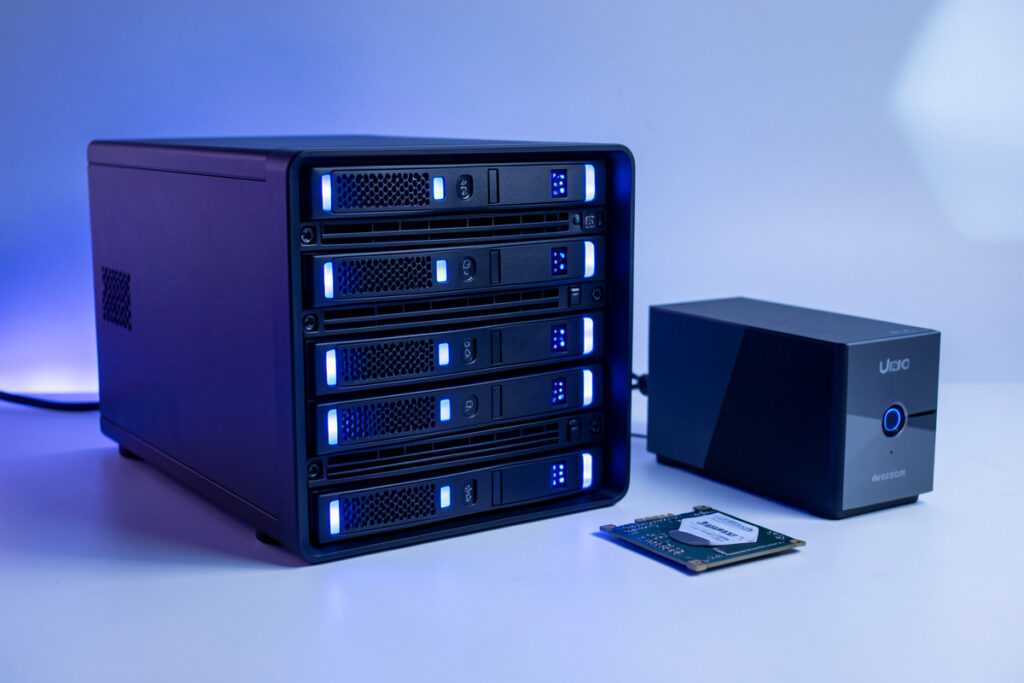
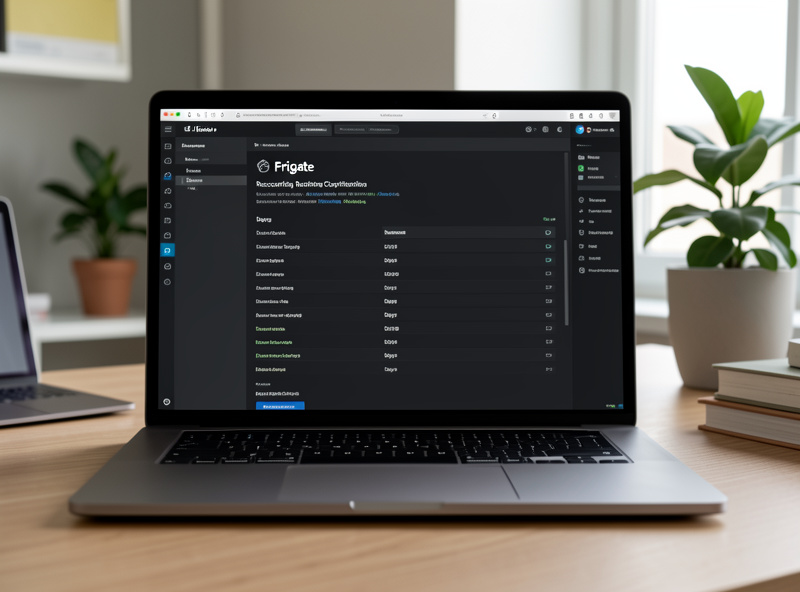
Put Frigate’s database and config on an SSD and the bulk recordings on a hard drive. The database sees constant small writes and benefits from SSD speed and endurance; the recordings are large sequential files that a cheap high-capacity HDD handles perfectly well. Mixing them right gives you responsiveness where it matters and cheap capacity where it doesn’t.
This is the same reasoning I apply to the whole hub — the database is the part that suffers on slow or fragile storage, which is exactly why I argue against running Home Assistant off an SD card in SD card vs SSD. For Frigate specifically, the recordings folder can point at a big spinning disk or a NAS share, while the SQLite database that tracks events stays on fast local SSD. One caveat with network storage: recording to a NAS over the network is fine, but the database should stay on a local disk, because database files on network shares are a known source of corruption. And keep an eye on the database growing unbounded — the same discipline I describe in when your Home Assistant database grows too large applies here.
How Do You Keep From Filling the Disk?
Frigate manages its own retention by deleting the oldest recordings past your day limits, but you still need to size the drive so those limits fit. The failure mode is setting long retention on a small disk: Frigate can’t keep what won’t fit, and you either lose footage early or hit a full disk. Set retention days to what your drive can actually hold, and leave headroom.
A practical way to stay safe: calculate your worst case — all cameras, continuous, at your retention day count — and make sure it fits with room to spare. Frigate will prune old data automatically, but a disk that’s constantly at 99% is a disk that’s one busy night away from problems. I leave a healthy buffer and monitor free space as one of my hub’s health checks. It’s also worth backing up your Frigate config (not the footage) so a rebuild is painless — the same habit as the offsite config backups I set up in the Home Assistant backup guide. You don’t need to back up terabytes of recordings; you need to be able to stand the system back up fast.
The Retention Mistake That Cost Me a Week of Footage
My own lesson was the expensive kind. Early on I set generous continuous retention across every camera on a drive that was too small, feeling clever about keeping “everything.” Within days Frigate was pruning aggressively to stay under the disk limit, and the practical result was that my actual retention was a fraction of what I’d configured — the oldest footage vanished far sooner than the number in my config claimed. When I went looking for a clip from the previous week, it was already gone.
The fix was to stop trying to keep everything and instead keep the right things: short continuous window, long event retention, sized to the drive. The moment I split those dials properly, the system stopped fighting itself. The lesson I’d hand anyone: your effective retention is whatever the disk can hold, not whatever number you typed — so do the storage math first, then set retention to match, and reserve the long windows for the detection clips that are small and actually matter. That’s the difference between a recorder you trust and one that quietly throws away the footage you were counting on.
How Long Should You Keep Security Footage?
There’s no universal rule, but a practical home target is a few days of continuous footage and two to four weeks of detection events. That window covers the realistic scenarios: you notice a package went missing days ago, a neighbor asks whether your camera caught an incident last week, or you want to review who came to the door over the weekend. Beyond a month, home footage is rarely useful and just costs disk.
The reason event retention deserves the longer window is lag. You often don’t know you needed a clip until well after the fact — a delivery dispute surfaces days later, or you only think to check the driveway camera when you notice something’s off. A short continuous window won’t have it, but a month of detection events will. That’s the whole case for the asymmetric split: cheap, meaningful clips kept long; expensive, mostly-empty timeline kept short.
A few practical notes on longer retention. If you ever want footage kept beyond the active drive’s window — say, a clip worth archiving — export it deliberately rather than trusting it to survive Frigate’s automatic pruning, which will eventually delete it like anything else past the limit. Some people run a second, larger drive purely for detection events so those can live longer than the continuous recordings without a giant primary disk. And privacy cuts both ways: footage you keep is footage you’re responsible for, so keeping the minimum that’s genuinely useful is the local-first, privacy-aware default I’d recommend rather than hoarding months of video you’ll never watch. Match the retention to a real need, not a “just in case” that fills a disk.
Related Reading
- Frigate NVR on Home Assistant: The Complete Local Camera AI Guide
- Best RTSP Cameras for Frigate: Streams That Don’t Stutter
- Frigate Person Detection: Snapshot Alerts Straight to Your Phone
- Home Assistant: SD Card vs SSD
- When Your Home Assistant Database Grows Too Large