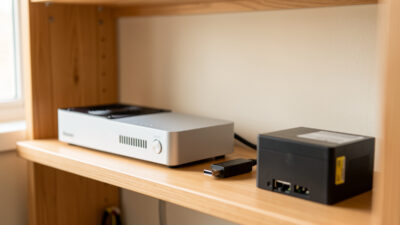
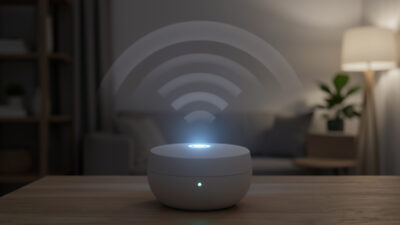
Zigbee Device Keeps Dropping Off the Mesh? The Order I Diagnose It

When a Zigbee device keeps dropping off the mesh, the instinct is to blame the device — but in my experience the hardware is the culprit maybe one time in ten. The other nine, it is a weak parent router, a dying battery, a channel clash, or a coordinator buried in noise. So instead of guessing, I work a fixed order from the most common cause to the least, and I almost always find it before I reach the bottom.
This is that order, written out exactly as I run it. Following a sequence matters because the causes mimic each other — a dropout from interference looks identical to a dropout from a weak link — and a methodical pass stops you from swapping a perfectly good sensor. It is part of my Zigbee2MQTT setup guide cluster, which covers building the network this troubleshooting assumes.
First question: one device or many?
Before anything else I ask whether it is a single device misbehaving or several. If many devices across the house are dropping, the problem is almost certainly network-wide: a channel clash with Wi-Fi, the coordinator in a bad spot, or a coordinator firmware issue. If it is one specific device while everything else is solid, the problem is local to that device — its battery, its distance to a router, or that one unit. This single question splits the whole diagnosis in half and tells me which branch to work.
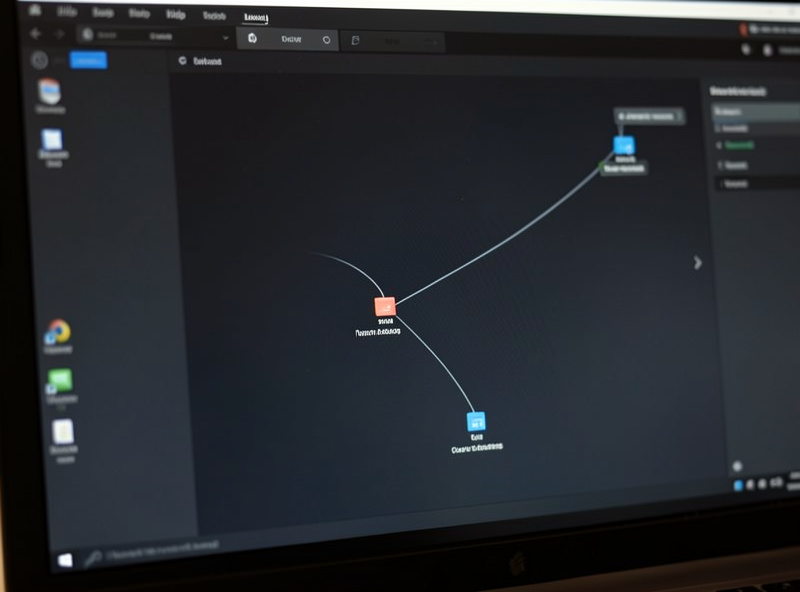
It sounds obvious, but skipping it is how people waste an afternoon re-pairing one sensor when the real issue was the whole network sitting on a congested channel. So: open the network map, look at how many devices show poor link quality or recent dropouts, and let the answer point you. Many devices unhappy means go to the network-wide checks; one device unhappy means start with the local checks below.
Step 1: Check the battery
For a single sleepy device, the battery is the first and cheapest thing to rule out. A weak coin cell does not fail cleanly — it sags under the load of transmitting, so the device checks in fine when idle and drops when it tries to send, which reads exactly like a flaky connection. Before I touch anything else, I look at the device’s reported battery level and, if it is low or the device is old, I simply swap the cell and watch for a day.
One nuance: a battery that is draining unusually fast is itself a symptom, often of a bad mesh link forcing constant retries or an over-aggressive reporting setting. So if a fresh battery only lasts weeks, do not just keep replacing it — that points downstream to a reporting or link problem I cover in why your Zigbee sensor batteries die fast. Fix the cause, not the symptom.
Step 2: Look at the parent router and link quality
This is the step that solves the most cases. On the network map, find the troubled device and see which router it is parented to and how strong that link is. If it is reaching across the house to a distant router, or hanging directly off the coordinator from far away, that marginal link is your dropout. End devices only talk to one parent, so a weak parent means an unreliable device, full stop.
The fix is to give it a stronger, closer parent — which usually means adding or relocating a mains-powered router between the device and the coordinator. If you are fuzzy on why some devices route and others do not, that is the whole subject of routers vs end devices, and it is worth understanding because this one concept explains most mesh trouble. Once a closer router exists, you often need to nudge the device onto it, which is Step 5.
Step 3: Rule out channel and interference (network-wide)
If many devices are unhappy, suspect the radio environment. The most common cause is a Zigbee channel that overlaps a busy Wi-Fi channel, drowning your sensors in louder traffic. The default channel sits under a common Wi-Fi channel and is a frequent offender. Checking and, if needed, changing the channel is its own careful procedure — because it can force re-pairing — and I walk through it in Zigbee channel vs Wi-Fi interference.
Interference is not only Wi-Fi. A microwave oven, a 2.4 GHz video sender, or a dense Bluetooth setup can all inject noise. A strong tell is timing: if dropouts cluster when a specific appliance runs or at the same time each evening when household Wi-Fi peaks, you are looking at interference, not failing devices. Note the pattern — it is the fastest route to the cause.
Step 4: Check the coordinator placement and USB-3 noise
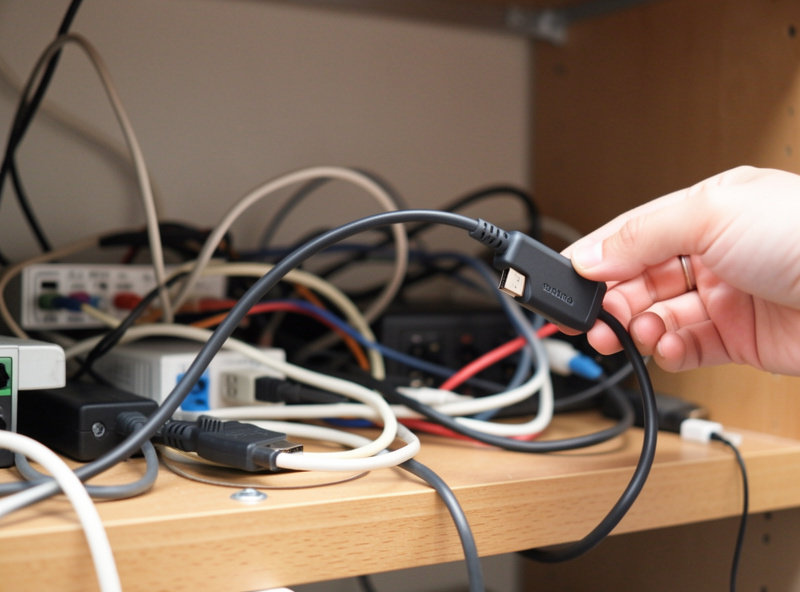
Still network-wide trouble? Look at the coordinator. If it is plugged straight into a USB 3.0 port, or buried in a cabinet beside a router and a stack of warm electronics, it is sitting in interference and its effective range has collapsed. The fix is a short USB 2.0 extension cable to get the radio away from the port and the case, and ideally relocating it out into clear, central air; the official Zigbee2MQTT range and stability guide documents this USB‑3 interference effect directly. I have fixed “the whole network is flaky” complaints with nothing but an extension cable and a better shelf.
This is cheap and fast to test, so I do it early when many devices are affected. The full reasoning, and what makes a good coordinator in the first place, is in the coordinator stick guide. Treat the coordinator like the antenna it is: out in the open, away from noise, and it will reach far more reliably.
Step 5: Re-pair the device in place
If a single device still drops after the battery and router checks, re-pair it — but do it in its final location, not next to the coordinator. Pairing forces the device to find a parent, and pairing it where it lives means it bonds to the local router you want it on rather than reaching back to a distant one. A device that was orphaned because it was originally paired elsewhere, or because its old parent went away, usually settles down once it re-homes onto a strong nearby router.
If the device will not pair at all, that is a slightly different problem with its own checklist — reset state, distance, and join mode — which I cover in smart device won’t pair with your hub. But for a device that pairs fine and then drifts off later, re-pairing in place after giving it a good router nearby is the reliable cure.
Step 6: Add a router, then firmware as a last resort
If everything points to a coverage gap — the device is simply too far from any strong router — the answer is to add one. A mains-powered plug or relay between the trouble spot and the coordinator gives the device a parent it can actually hear. Doing this properly, and getting existing devices to actually use the new router, is the subject of how to add a Zigbee repeater the right way, because simply plugging one in rarely re-homes devices on its own.
Only after all of that do I consider firmware. A coordinator on old firmware can cause network-wide instability, and an individual device occasionally has a firmware quirk fixed by an OTA update. But firmware is the last resort, not the first, because updates carry their own small risk and the vast majority of dropouts are solved by the earlier, free steps. Work the order, and you will rarely get this far.
What “dropping off” actually looks like
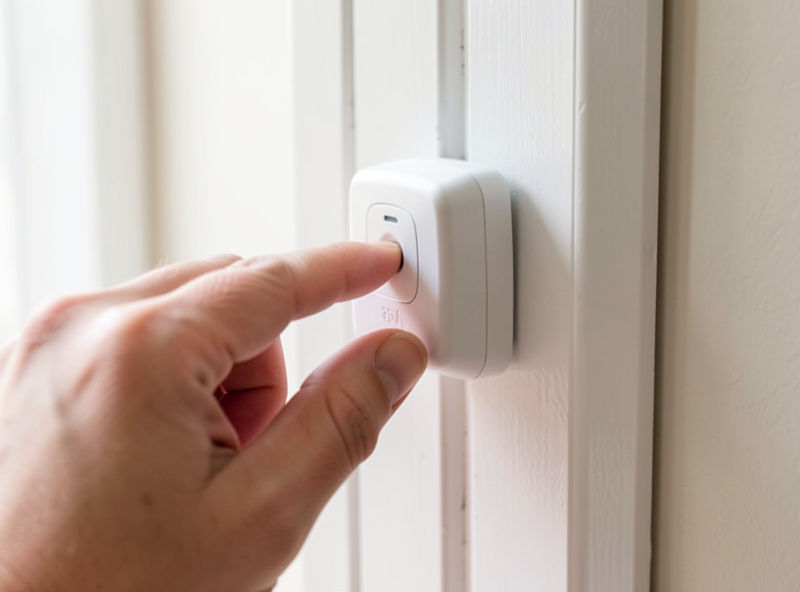
It helps to know the shapes this takes, because “dropping off” covers a few distinct behaviors. Sometimes a device goes unavailable and never comes back until you re-pair it — that is usually an orphaned end device that lost its parent. Sometimes it flickers between available and unavailable through the day — that points to a marginal link or interference that comes and goes. And sometimes it reports stale values, looking online but never updating — often a reporting or battery issue rather than a true disconnect.
Reading which shape you have narrows the cause fast. A device that vanishes for good after working for weeks lost its path; check the router it was leaning on. A device that comes and goes on a daily rhythm is fighting interference; check the channel and what runs at those times. A device stuck on old values is probably not talking at all; check its battery and reporting. The logs and the last-seen timestamp in Zigbee2MQTT tell you which of these you are dealing with before you change a thing.
When it really is the device
Occasionally — that one time in ten — the device genuinely is at fault. The tell is that it fails everywhere: you bring it right next to the coordinator, give it a fresh battery, re-pair it cleanly, and it still misbehaves while identical units are perfectly happy. At that point I stop chasing the network and accept the unit is faulty or has corrupted firmware. Even then I will try an OTA firmware update before binning it, because a surprising number of “dead” devices are just running buggy firmware that a refresh fixes.
The discipline is to reach this conclusion last, not first. Declaring a device dead before you have ruled out battery, link, interference, and placement is how good sensors end up in a drawer while the real problem — a coverage gap or a congested channel — keeps claiming its next victim. The network is usually the patient; the device is usually just the symptom showing.
Why the order matters
The reason I stick to a sequence is that the symptoms are identical no matter the cause — a device “drops off” whether the battery is weak, the link is marginal, the channel is clashing, or the coordinator is buried. Jumping straight to the dramatic fixes (re-pairing everything, changing channel, buying hardware) means you often do unnecessary work and sometimes make things worse. Going cheapest-and-most-common first — battery, then router/link, then interference, then placement — finds most problems in minutes without touching the mesh.
As an Amazon Associate I earn from qualifying purchases.
One last contrast worth drawing: if your trouble is specifically a Wi-Fi device dropping rather than a Zigbee one, that is a different diagnosis entirely, covered in smart device keeps disconnecting from Wi-Fi. Knowing which radio a misbehaving device uses is itself part of the diagnosis — the fixes do not transfer between them.
Frequently Asked Questions
Why does my Zigbee device keep dropping off the network?
Most often it is a weak link to a distant parent router, a sagging battery, or a channel clash with Wi-Fi, not a faulty device. Work the causes in order: check the battery, check which router it is parented to on the map, rule out interference, then check coordinator placement before blaming the hardware.
Is it the device or my whole Zigbee network?
Ask whether one device or many are dropping. Many devices across the house points to a network-wide cause like a congested channel or a badly placed coordinator. A single device while the rest are solid points to that device’s battery, its distance to a router, or that one unit.
Will adding a repeater stop my Zigbee dropouts?
Often yes, if the cause is a coverage gap. A mains-powered plug or relay between the device and the coordinator gives it a strong nearby parent. But existing devices do not always move to a new router on their own, so you usually have to re-pair the troubled device near it.
Could a low battery cause dropouts even if it reads okay?
Yes. A weak coin cell sags under the load of transmitting, so the device looks fine when idle and drops when it tries to send. If a device is old or reads low, swap the cell first. A battery that drains fast is itself a sign of a bad link or aggressive reporting.
Should I change my Zigbee channel to fix dropouts?
Only after checking battery, router links, and coordinator placement, because changing channel can force you to re-pair devices. If many devices drop and your Zigbee channel overlaps a busy Wi-Fi channel, a channel change can help, but treat it as a deliberate step rather than a first guess.