Home Assistant Actionable Notifications: Tap to Act
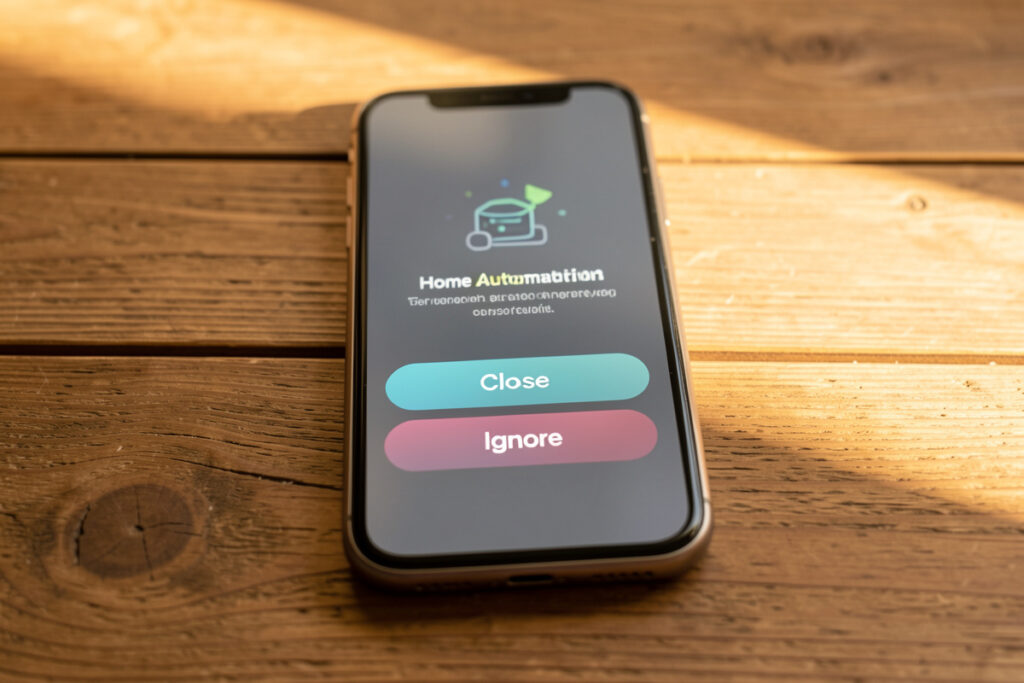
An actionable notification in Home Assistant is a push with buttons: you attach an actions list to the payload, the phone shows tappable choices, and when someone taps one, Home Assistant fires a mobile_app_notification_action event that an automation listens for. In my setup that turns a “garage still open” alert into a one-tap Close it — no unlocking the phone, no opening the app, no walking to a dashboard.
That single capability is the difference between a house that tells you things and a house you can operate from the lock screen. The first time I closed my garage from a notification while standing in a supermarket car park, the smart home finally felt like it was working for me instead of the other way round. But there is one detail that trips up nearly everyone the first time, and it cost me a full evening: the tap event does not know which notification sent it unless you tell it to. Miss that and every button runs the wrong automation.
How Does an Actionable Notification Actually Work?
It is a two-part loop: one automation sends the notification with an actions block, and a second automation reacts to the tap. The phone never runs anything itself — it just reports “the user pressed the button with action ID X” back to your hub over the local network, and your hub decides what that means.
The send side attaches a list of actions, each with a machine-readable action string and a human-readable title:
service: notify.mobile_app_kenny_phone
data:
  message: "Garage has been open 10 minutes."
  title: "Garage"
  data:
    actions:
      - action: "CLOSE_GARAGE"
        title: "Close it"
      - action: "IGNORE_GARAGE"
        title: "Leave open"
When I tap Close it, HA emits an event of type mobile_app_notification_action whose data contains action: "CLOSE_GARAGE". A separate automation triggers on that event and runs the cover-close service. Two halves, one loop. Everything clever you can do with actionable notifications is a variation on this — more buttons, richer payloads, per-person routing — but the skeleton never changes.
How Do I Handle the Button Tap?
Listen for the mobile_app_notification_action event and branch on the action field. The reacting automation is where the real work happens: match the action string, run the service, and — this is the part people forget — clear the original notification so it does not linger on the lock screen after it is answered.
automation:
  - alias: "Handle garage actions"
    trigger:
      - platform: event
        event_type: mobile_app_notification_action
        event_data:
          action: "CLOSE_GARAGE"
    action:
      - service: cover.close_cover
        target:
          entity_id: cover.garage_door
      - service: notify.mobile_app_kenny_phone
        data:
          message: "clear_notification"
          data:
            tag: "garage_alert"
That last block matters. If you send the original notification with a tag, you can send a follow-up message of clear_notification with the same tag to make the alert disappear from every device once it is handled. Without it, I ended up with a stale “garage open” push sitting on my lock screen an hour after I had already closed the door — confusing, and exactly the kind of clutter that erodes trust in the whole notification system.
Why Do My Action Buttons Run the Wrong Thing?
Because two notifications share the same action ID, or because the reacting automation does not check which action fired. This is the single most common actionable-notification bug, and it is why every action string in my hub is unique and namespaced — CLOSE_GARAGE, never a generic CLOSE that a dozen automations might all listen for.
The evening this bit me, I had a “close garage” button and a “close blinds” button both using an action called CLOSE. Tapping either one closed both, because both handling automations triggered on the same string. The fix is discipline: prefix every action with the domain it belongs to, and if you send the same notification type to multiple people, include the person in the payload so the handler knows who tapped.
For that second case, add a data field on the send side:
    data:
      actions:
        - action: "CLOSE_GARAGE"
          title: "Close it"
      # carry context so the handler knows who and what
      tag: "garage_alert"
      group: "garage"
The handling automation can then read trigger.event.data for the tag and any custom fields you attached. Once I namespaced everything and started tagging, the “wrong thing ran” class of bug disappeared entirely. It is the same lesson as consistent entity naming: a little structure up front saves a debugging session later.
What Are the Best Real Uses for Actionable Notifications?
The best ones answer a question you would otherwise walk to a screen to answer. Garage left open — close it? Unknown motion while away — arm the cameras? Washing machine done — start the drying fan? Each is a decision the automation cannot make safely on its own, so it asks you and acts on the answer.
Here are the ones earning their keep in my house right now:
- Garage watchdog: open past 10 minutes sends a Close it button. This is the one I use weekly.
- Away-mode motion: if a motion sensor trips while the house is armed-away, I get View camera and Arm sirens buttons — one pattern in my local-first rule engine.
- Dishwasher finished: a power-clamp plug detects the cycle end and offers Run drying fan.
- Front-door package: a Play “leave it by the door” TTS button that fires a spoken message on the porch speaker.
Notice what they have in common: none of them fire constantly, and each offers a genuine choice. An actionable notification for something you would always want done automatically is just friction — automate that outright. Save the buttons for the genuine forks. If you find yourself always tapping the same button, delete the button and let the automation act on its own.
How Do Actionable Notifications Differ on iPhone and Android?
The concept is identical; the presentation and limits differ. On iOS you long-press or pull down the notification to reveal actions and you are limited to a handful of buttons. On Android the buttons show inline immediately and you get a bit more flexibility, including text-input actions. Both fire the same mobile_app_notification_action event to your hub.
Two platform gotchas worth knowing. On iOS, if you want a button to open a specific dashboard view instead of running a server-side action, you use a uri action pointing at a Lovelace path — handy for jumping straight to a dashboard view without a round trip. On Android, actionable notifications can carry an input field, so a “reply” action can send free text back into an automation. The official actionable-notifications documentation lists every field each platform supports, and it is the reference I keep open whenever I add a new one.
Because both platforms funnel back to the same event, my handling automations do not care which phone tapped — they care about the action string and the tag. That is the beauty of doing the decision on the hub: one handler, any device, and it all keeps working when a phone gets replaced. The decision lives on the local hub, not the cloud, which is exactly why a tap still resolves instantly on the LAN.
Where Do Actionable Notifications Fit in the Bigger System?
They are one channel inside a single notification dispatcher, not a standalone trick. In my hub every alert flows through one wrapper that decides the channel and interruption level; actionable buttons get attached when the alert represents a decision, and left off when it is pure information. That keeps policy in one place instead of scattered across automations.
Layer them thoughtfully. An actionable notification inherits the interruption level of the base push, so an emergency button can be made to override silent mode — though honestly, a garage door rarely deserves that. The genuine emergency case, a critical alert that bypasses Do Not Disturb, is a separate mechanism entirely and I keep the two from overlapping. And every actionable alert should still respect the same debounce and throttle rules as any other notification, or you will get the same “close it?” prompt five times while the door sensor flickers — the exact debounce and throttle pattern I run everywhere else, and often the same underlying issue as an automation that misfires on a chatty trigger. The buttons are the payoff; the plumbing underneath is what makes them trustworthy. Start from the notifications guide for the wrapper, then add actions where a real choice exists.
Frequently Asked Questions
Do actionable notifications work when my phone is locked?
Yes. On both iOS and Android you can reveal and tap the action buttons from the lock screen without unlocking, and the tap fires an event back to Home Assistant. Some sensitive actions can be configured to require authentication first, but by default a lock-screen tap works.
Why does my action button trigger the wrong automation?
Almost always because two notifications use the same action identifier, or the handling automation does not filter on the specific action string. Give every action a unique, namespaced ID like CLOSE_GARAGE rather than a generic CLOSE, and trigger the handler on that exact event_data action value.
How do I clear an actionable notification after it is answered?
Send the original notification with a tag field, then after handling the tap send a follow-up notification whose message is clear_notification with the same tag. Home Assistant removes the matching alert from every device so it does not linger on the lock screen.
How many action buttons can I add to one notification?
It is limited by the operating system, not Home Assistant. iOS practically shows a small handful of buttons and Android a few more. If you need many choices, send fewer buttons and let one of them open a dashboard view where the full set of controls lives.
Can I send text back to Home Assistant from a notification?
On Android yes, using a text-input action that lets you type a reply which arrives in the notification-action event. iOS does not support free-text reply actions in the same way, so for cross-platform designs stick to fixed buttons and use a dashboard for anything needing typed input.
Related Articles
- Home Assistant Notifications: The Complete Guide
- Critical Alerts on iPhone: Wake Me for Leaks, Not Light
- Per-Person Notifications: Route Alerts to the Right Phone
- Cut Home Assistant Notification Spam: Debounce & Throttle
- Home Assistant Automation Examples: Building a Local-First Rule Engine
- Best Home Assistant Dashboard Cards I Keep on Every View