Voice Assistants & Smart Home Protocols: Complete Guide
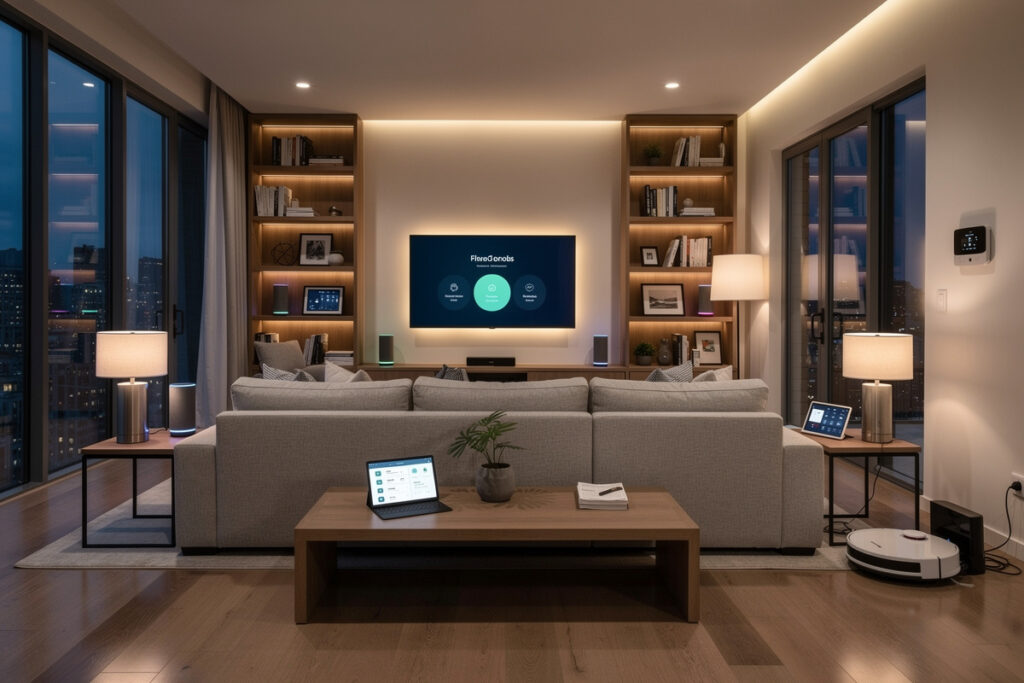
Voice assistants are now the primary input layer for most smart home interactions in 2026, and the ecosystem you pick on day one decides every device you will add for the next five years. I have run all three platforms side by side in my own house.
Here is what the spec sheets do not tell you: Alexa wins on breadth, Google wins on intelligence, and HomeKit wins on privacy — but the decision matters less than WHERE your automations live. That is the real lock-in. This guide walks through the choice in the exact order I wish someone had given me when I started.
As an Amazon Associate I earn from qualifying purchases.
The 2026 Voice Assistant Landscape
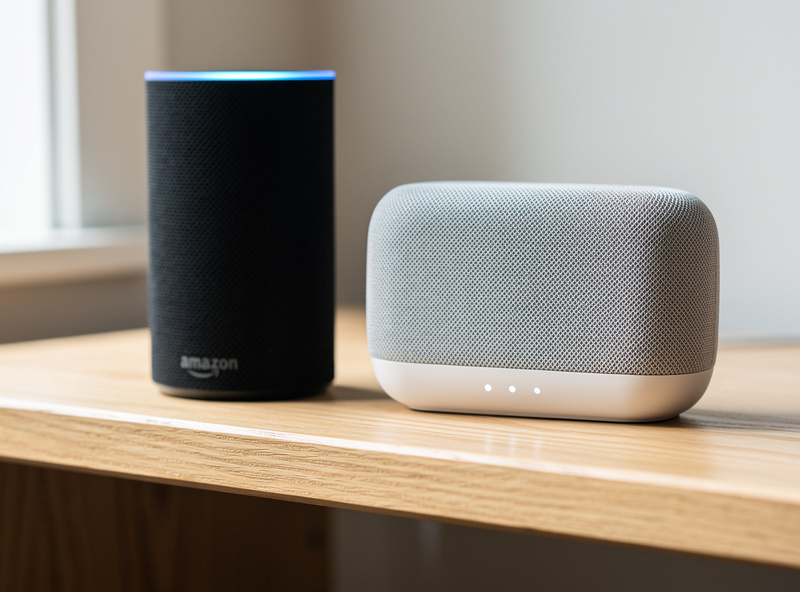
I have watched the smart home market consolidate from a dozen platforms down to three over the last five years. Alexa holds the largest US market share, Google Home follows, and HomeKit commands a smaller but loyal segment — the rest split across SmartThings, open-source platforms, and regional players. Matter adoption has reduced ecosystem lock-in on paper, but the automation gap between platforms is still a brick wall in practice.
Understanding how these platforms compare in 2026 requires evaluating five core dimensions: device compatibility, protocol support, automation capabilities, privacy practices, and total cost of ownership. Each ecosystem makes different trade-offs across these dimensions, and the right choice depends entirely on your existing devices, technical comfort level, and privacy priorities. For a detailed head-to-head comparison, see the Alexa vs Google Home comparison.
Choosing Your Smart Home Ecosystem
Your phone ecosystem should guide your voice assistant choice more than any other factor. Android users gain significant advantages with Google Home — seamless Google Calendar integration, Google Photos on Nest Hub displays, and native Google Maps traffic suggestions for morning routines. iPhone users benefit from HomeKit’s tight Apple Watch integration and on-device Siri processing. Cross-platform users or those without strong preferences should default to Alexa for maximum device compatibility and the most affordable hardware lineup.
Three critical questions determine your best ecosystem: Which phone do you use daily? How many smart devices do you plan to own? How important is privacy versus convenience? Users answering “Android,” “under 15 devices,” and “convenience matters most” should choose Google Home. Users answering “iPhone,” “privacy is critical,” and “I prefer local processing” should choose HomeKit. Everyone else benefits from Alexa’s breadth. For a comprehensive three-way comparison, see the smart home ecosystem comparison.
Smart Home Protocols Explained
Protocol choice determines whether a door sensor battery lasts 3 weeks or 3 years — I learned that the hard way on my first Zigbee contact sensor placed one wall too far from a repeater. The four protocols in play in 2026 — WiFi, Zigbee, Z-Wave, and Matter-over-Thread — each solve a different physical problem. WiFi gives you bandwidth for cameras and displays. Zigbee gives you mesh for sensors and bulbs at low power. Z-Wave gives you wall-penetration and range for security devices. Matter gives you universal compatibility with minimal setup. Here is where each one earns its keep.
Protocol choice matters most when building mixed-device ecosystems. A typical smart home might use WiFi for cameras, Zigbee for lighting through an Echo 4th gen hub, and Z-Wave for security sensors through SmartThings. The hub translates between protocols, enabling a Zigbee motion sensor to trigger a WiFi smart plug. Without protocol awareness, devices from different manufacturers cannot coordinate automations. For a detailed protocol comparison, see the Zigbee vs Z-Wave vs WiFi guide. To understand how Matter is changing this landscape, read the Matter protocol explainer.
Hub Architecture and Local Control
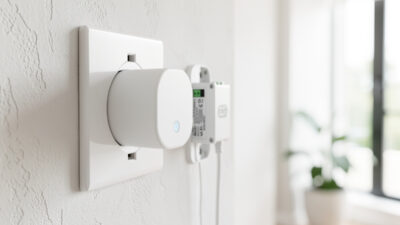
A hub is the translator that lets a Zigbee motion sensor trigger a WiFi smart plug — without one, your devices live in separate worlds. In 2026, hub functionality has spread beyond dedicated boxes: the Echo 4th gen includes a built-in Zigbee coordinator, Nest Hub 2nd gen acts as a Thread border router, and HomePod mini provides Thread mesh networking. These built-in hubs handle basic protocol translation at no additional cost beyond the speaker purchase. The Connectivity Standards Alliance maintains the Matter spec that governs how these hubs interoperate.
Dedicated hubs like Samsung SmartThings ($100-150), Hubitat Elevation ($150), and Home Assistant (free, DIY hardware) provide more advanced capabilities: cross-protocol automation logic, local processing that works during internet outages, and integration with multiple voice assistants simultaneously. Homes with 15+ devices or mixed protocols benefit significantly from dedicated hub investment. For a complete hub decision framework, see the smart home hub guide.
Local processing represents the most significant hub advantage. Cloud-dependent automations fail during internet outages, while hub-processed automations continue running. This matters for security automations (motion-triggered lighting, door sensor alerts) and convenience routines (bedtime shutdown, morning wake sequences). Users in areas with unreliable internet should prioritize local hub platforms like Hubitat or Home Assistant over cloud-dependent options.
Automation Strategies That Actually Work
Effective automations focus on high-frequency, repetitive tasks — the stuff you do every single day. The bedtime shutdown is the one I would keep if I could keep only one: a single voice command kills every light, locks every door, drops the thermostat 4 degrees, and I hear the deadbolt throw with a satisfying thunk from the bedroom. No laps around the house checking windows. That routine alone saves 5 minutes every night. The three highest-impact automations for any home are bedtime shutdown, morning wake sequence (gradual lighting 30 minutes before alarm), and away mode (random lighting patterns during evening hours to deter break-ins).
Beginners should implement 2-3 simple automations and master them before adding complexity. Start with schedule-based routines (lights on at sunset, thermostat adjustment at bedtime), then add sensor-triggered automations (motion-activated hallway lights, door-triggered entry sequence), and finally explore multi-condition logic (if motion AND after 10 PM AND away mode, then lights on and notification sent). Each complexity level requires more capable platforms — voice assistant routines handle simple schedules, while complex logic needs SmartThings, Hubitat, or Home Assistant. For 15 specific automation ideas from beginner to advanced, see the automation ideas guide.
Device Compatibility and Ecosystem Breadth
Alexa supports the widest device catalog of any platform — nearly triple HomeKit’s count — across hundreds of smart bulb brands, dozens of smart lock models, and a vast array of security camera brands. Google Home sits in the middle with a large but somewhat narrower catalog. HomeKit’s smaller count is not a weakness — Apple enforces stricter security certification that filters out the worst gear. In my house, the devices I actually trust all carry Matter or Z-Wave certification. Matter is closing the gap fast: Matter-certified devices now work with all three platforms natively.
Voice Assistant Ecosystem Comparison
| Feature | Amazon Alexa | Google Home | Apple HomeKit |
|---|---|---|---|
| Compatible Devices | Widest | Large | Selective |
| Entry Cost | $40 (Echo Pop) | $50 (Nest Mini) | $99 (HomePod mini) |
| Built-in Hub | Zigbee (Echo 4th gen) | Thread (Nest Hub) | Thread (HomePod mini) |
| Matter Support | Full | Full | Full |
| Z-Wave Support | Via SmartThings | Via separate hub | Not supported |
| Voice Recognition | Good | Best (AI/NLP) | Good |
| Privacy Model | Cloud-stored recordings | Auto-delete options | On-device processing |
| Local Processing | Limited | Limited | Extensive |
| Automation Complexity | Moderate | Moderate | Advanced native |
| Shopping Integration | Amazon Prime | Google Shopping | None |
| Multi-Room Audio | Excellent | Good (Cast) | Good (AirPlay) |
| Smart Display Options | Show 5/8/15 | Nest Hub/Max | None |

Privacy and Security Considerations
The privacy gap between Alexa and HomeKit is not small — it is the entire business model. Alexa stores voice recordings indefinitely and builds advertising profiles from them. Google Home offers auto-delete at 3, 18, or 36 months with granular controls. Apple HomeKit processes most commands on-device and encrypts camera footage end-to-end. I run HomeKit for anything with a camera or microphone, and I keep the Alexa Echo in the kitchen where the tradeoff — convenience for data — feels acceptable. The Mozilla Privacy Not Included database rates every smart home product on privacy, and it is worth checking before you buy.
For privacy-conscious users, three strategies reduce data exposure: enable auto-delete on any platform that offers it, use hardware mute switches on bedroom devices, and prefer local processing platforms (HomeKit, Hubitat, Home Assistant) over cloud-dependent options. No smart home platform offers completely private voice control — all require some cloud processing for complex queries. The privacy spectrum runs from HomeKit (most private) through Google (middle ground) to Alexa (most data collection). For a detailed breakdown by device category, see the offline smart home guide.
Getting Started: Your First 30 Days
The first month of smart home ownership determines long-term satisfaction, and I have onboarded three friends through exactly this sequence. Follow it and you will avoid the mistake I made — buying ten devices on day one and spending a weekend troubleshooting instead of enjoying a single working automation.
Week 1: Choose your ecosystem and purchase one voice assistant speaker. The Amazon Echo Dot 5th gen ($50), Nest Mini ($50), or HomePod mini ($99) serve as your smart home foundation. Place the speaker in your kitchen — it handles the most daily interactions including timers, music, and quick controls.
Week 2: Add 2-3 smart bulbs in your most-used rooms. Philips Hue, Nanoleaf Essentials (Matter-certified), or Wyze Bulbs provide immediate value through voice-controlled lighting. Create your first automation: “turn off all lights at bedtime.”
Week 3: Install a smart plug on your coffee maker or bedside lamp. Smart plugs teach automation concepts without permanent installation — perfect for renters. Create a schedule-based automation (coffee maker on at 6:30 AM).
Week 4: Add a smart thermostat if you own your home. The Nest Learning Thermostat ($130) or Ecobee Smart Thermostat ($190) provide the highest ROI through energy savings of 10-23% annually. Create a bedtime temperature schedule.
After 30 days, evaluate which automations you actually use daily. Remove or disable automations that add complexity without improving your routine. The best smart home is one that works reliably, not one with the most features. Track which commands you voice-activate most frequently — these reveal your actual usage patterns and guide future device purchases. Most users find that a small handful of installed features drives most of their daily smart home value. For a complete beginner walkthrough, see the smart home beginner guide.
Cost Analysis: Building a Voice-Controlled Smart Home
Smart home costs accumulate through three categories: voice assistant hardware, smart devices, and optional hub investment. Entry-level setups (voice assistant + 5 devices) cost $150-350 depending on ecosystem. Mid-range setups (15 devices with hub) run $500-800. Comprehensive setups (25+ devices with advanced automation) range from $1,000-2,500. Alexa offers the lowest entry cost through frequent Echo device sales — Prime Day discounts regularly reach 40-50% off retail.
The five-year cost of ownership differs significantly between ecosystems. A 20-device Alexa setup costs approximately $800-1,200 over five years including initial hardware and replacement devices. Google Home equivalent setups run $900-1,400 due to higher per-device costs. Apple HomeKit commands $1,500-2,200 for the same device count, reflecting premium pricing across the accessory ecosystem. However, HomeKit devices typically receive 2-3 years longer software support, reducing replacement frequency. Factor in energy savings from smart thermostats (10-23% annual reduction, translating to $150-350 yearly savings) and the total cost picture becomes more favorable for all ecosystems.
Budget allocation matters more than total spend. Experts recommend the 40-40-20 rule: 40% of your smart home budget on the voice assistant and hub hardware, 40% on core devices (lighting, thermostat, locks), and 20% reserved for expansion and replacement. This prevents the common mistake of spending everything on a premium voice assistant with nothing left for compatible devices.
Kitchen as Smart Home Command Center
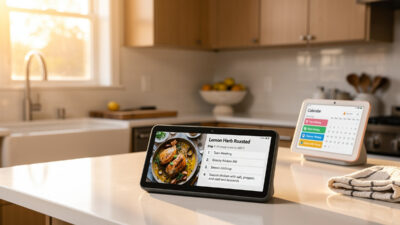
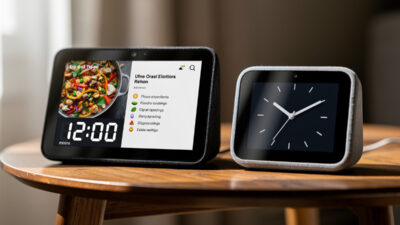
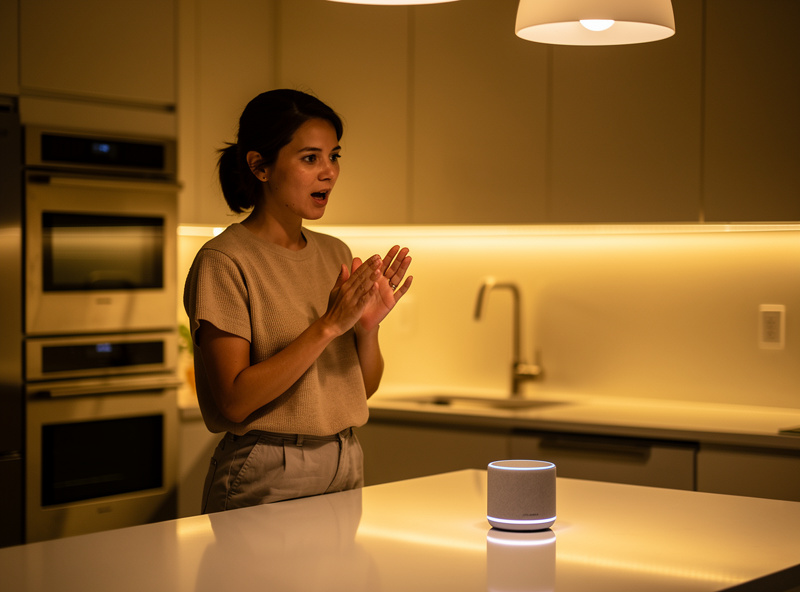
The kitchen earns its spot as the smart home command center because your hands are constantly full — dough, raw chicken, a hot pan — and voice is the only input that works. I cook with flour up to my elbows and still set three timers by voice without touching anything. The Amazon Echo Show 8 ($150) offers the best balance of screen size and functionality for most kitchens — recipes on screen while your hands stay dirty is a genuine workflow upgrade, not a gimmick. Budget-conscious users get similar results with the Echo Dot 5th gen with Clock ($60) and its LED timer display. For detailed kitchen speaker recommendations, see the kitchen smart speaker guide.
Running Multiple Protocols in One House
The smart home that actually works is rarely single-protocol. My house runs all four: WiFi for cameras and the kitchen Show, Zigbee for the cheap sensors and most bulbs, Z-Wave for the front-door lock and the garage sensor (two concrete walls from the hub), and Matter-over-Thread for the newer gear I am phasing in. Coexistence is not hard once the hub is doing the translation, but there are three things I learned the expensive way.
First, USB 3.0 ports destroy Zigbee. My first coordinator was plugged into a USB 3.0 port on my HA mini-PC, and the interference from the port’s signaling cut my Zigbee range in half. A three-dollar USB 2.0 extension cable — moving the stick two feet from the case — doubled the range overnight. If you are troubleshooting Zigbee dropouts, check this before anything else.
Second, Z-Wave and Zigbee channel planning matters when they share the 2.4 GHz space (Z-Wave does not, but your WiFi does). WiFi on channel 1, 6, or 11 will overlap with Zigbee channels 11, 15/16/17, or 20/25/26 respectively. I run WiFi on channel 1 and Zigbee on channel 25 — they coexist cleanly because the frequencies barely touch. Getting this wrong manifests as devices that pair fine but drop intermittently, which is maddening to diagnose.
Third, entity naming. A Zigbee motion sensor in Home Assistant arrives as something like binary_sensor.motion_sensor_ia_kitchen_occupancy — useless for automation logic. My convention is room.device_type.location — for example kitchen.motion.ceiling or hallway.contact.front_door. Naming everything consistently before you build automations saves the weekend you would otherwise spend hunting through forty entities trying to remember which one is the garage door. I renamed all of mine in one painful afternoon and have not regretted it since. The thirty minutes spent on naming conventions pays back every time you write a new automation or debug an existing one — the entity name tells you exactly what it is without opening the device page.
Common Smart Home Mistakes to Avoid
The five most expensive smart home mistakes I have watched people make (and made myself): buying a hub before owning a single compatible device, choosing an ecosystem because one cool gadget supports it, filling the house with WiFi-only gear then wondering why batteries die every three weeks, building complex automations before mastering simple ones, and ignoring firmware updates until a vulnerability makes the news. I spent $200 on Zigbee sensors my first month and could not pair any of them because I had no coordinator — literally zero of them worked for two weeks while I waited for a ConBee II to arrive. Start dead simple, expand based on what you actually use, not what looks impressive in a YouTube demo.
When Automations Break: My Debugging Order
Automations fail. The question is not whether but when, and the debugging order matters more than the fix itself. Every time one of my routines stops firing, I check in this order: trigger first, condition second, action third. Nine times out of ten the trigger is the problem — a sensor went offline, a geofence shifted, a time condition’s window is too narrow. I wasted hours debugging action logic before learning to check the trigger log first.
In Home Assistant, the automation trace feature shows you exactly which condition evaluated false and killed the chain. Before traces existed I would add “send notification” steps between every condition just to figure out where the logic died — it worked, but it was ugly. If you are on Alexa or Google Home, there is no equivalent. You get a notification that the routine failed, but no detail on why. This is another reason I migrated to HA: debugging visibility. When the bedtime routine stopped firing because I renamed the front-door lock entity, the trace showed me the orphaned reference in under thirty seconds. On Alexa I would have stared at a “routine failed” toast and had no idea where to start.
The other debugging lesson: test with a manual trigger before relying on the automatic one. Every automation I build gets a “test” button press first. If it works manually but not automatically, the logic is sound and the trigger is the issue. If it fails manually too, the condition or action is broken. This single habit — manual test before deploy — has saved me more debugging time than any other practice in five years of running this system.
Smart Home for Renters vs Homeowners
I built my first smart home as a renter in a Stockholm apartment where I could not change a single light switch. The key is the portable stack: voice assistant speaker, smart plugs for lamps and appliances, smart bulbs for overhead lights, and battery-powered sensors with adhesive strips. Smart locks like the August Wi-Fi install over existing deadbolts without replacing the lock mechanism — the landlord never knows it is there. This entire setup costs $150-300, goes up in under an hour, and moves to your next apartment in a single box. No holes, no wiring, no questions asked.
Homeowners enjoy permanent installation options that renters cannot access: smart switches replacing wall switches (requires neutral wire), hardwired security cameras, smart thermostats replacing existing thermostats, and smart doorbells requiring doorbell wiring. These permanent installations provide better reliability and aesthetics but require basic electrical knowledge or professional installation by a licensed electrician. Homeowners building comprehensive smart homes should budget $200-500 for professional installation of hardwired devices like smart switches, doorbell cameras, and wired security sensors.
Renters should focus on the “portable smart home” approach: voice assistant speaker, smart plugs for lamps and appliances, smart bulbs for overhead lighting, and battery-powered sensors. This setup costs $150-300, installs in under an hour, and moves to your next apartment without leaving anything behind. Avoid WiFi smart switches (require neutral wire behind walls) and hardwired cameras (require drilling). For a portable security solution, use indoor cameras with stands and door/window sensors with adhesive mounts.
Frequently Asked Questions
Which voice assistant is best for smart home beginners?
Amazon Alexa offers the gentlest learning curve with the most affordable entry point through Echo devices starting at $40. Alexa supports the widest device catalog of any platform, making compatibility unlikely to be an issue. Google Home is equally beginner-friendly for Android users, while HomeKit provides the most polished experience for iPhone users willing to pay premium prices.
Do I need a hub for my smart home?
No, most beginners with under 10 WiFi devices do not need a hub. Voice assistants like Alexa and Google Home coordinate WiFi devices directly. A hub becomes necessary when you have 15+ devices, use Zigbee or Z-Wave protocols, or need complex conditional automations that voice assistant routines cannot handle.
What is Matter protocol and do I need it?
Matter is a universal smart home protocol that enables devices to work across Alexa, Google Home, and Apple HomeKit simultaneously. Over 1,000 Matter-certified products were available by early 2026. You do not need to replace existing devices, but prioritize Matter-certified options for new purchases to ensure maximum future compatibility.
Can smart home devices work without internet?
Most consumer smart home devices require internet for full functionality. However, Zigbee and Z-Wave devices connected through local hubs maintain basic automations during outages. Voice assistants stop working without internet, but physical controls like wall switches and keypad locks continue functioning normally.
How much does a basic smart home cost?
A starter smart home with voice assistant plus 5 devices costs $150-350 depending on ecosystem. Alexa offers the lowest entry cost at approximately $150 for Echo Dot plus 3 smart bulbs and 2 smart plugs. Apple HomeKit starter setups cost $350+ due to premium HomePod pricing and certified accessory costs.
Which ecosystem has the best privacy protection?
Apple HomeKit provides the strongest privacy with on-device processing, end-to-end encryption for cameras, and no voice recording storage by default. Google Home offers auto-delete options at 3, 18, or 36 months. Alexa stores recordings indefinitely unless manually deleted and uses data for advertising profiles.
Can I switch ecosystems later without replacing all devices?
Matter protocol makes switching easier since Matter-certified devices work with all platforms. However, you will lose all routines and automations during migration. WiFi devices reconnect easily, but budget 3-5 hours for reconfiguring a 20-device home. Ecosystem-specific devices like Ring cameras (Alexa-only) cannot transfer.
Related Guides
Explore the complete voice assistant and smart home protocol coverage:
- Alexa vs Google Home: Detailed Head-to-Head Comparison
- Best Smart Home Ecosystem 2026: Alexa vs Google vs Apple
- Do You Need a Smart Home Hub? Decision Guide
- Matter Protocol Explained: Universal Smart Home Standard
- Zigbee vs Z-Wave vs WiFi: Protocol Comparison
- Best Smart Speaker for Kitchen Use
- 15 Smart Home Automation Ideas That Save Time
- Does Smart Home Work Without Internet?
- Smart Home for Beginners: Complete Setup Guide