Light and Shade Automation Scenes: Sun, Presence, and Wake Light
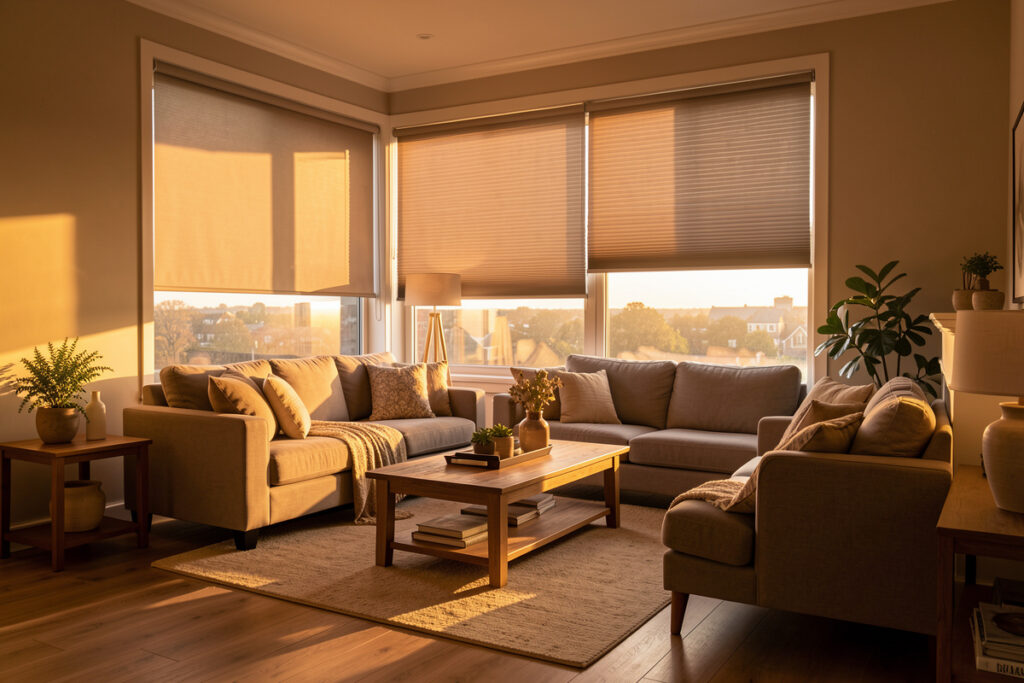
Window shade scenes are where motorized coverings stop being expensive remotes and start earning their keep. A scene ties shades, lights, and sometimes climate into one named state — “Morning,” “Movie,” “Away” — that your hub triggers from time, sun position, presence, or a sensor. In my setup the shades almost never move because I told them to; they move because a rule fired, and that is the whole point of automating them. A well-tuned sun-load scene alone can shave 3-4°C off an afternoon temperature swing on a south-facing room.
This is the automation companion to the smart blinds guide. If you have shades on the hub and they only ever open from an app, you have bought the hardware and skipped the value. Here are the scenes I actually run, how the triggers work, and how to combine shades with lighting so a room responds to the day on its own.
What a shade scene actually is
A scene is a saved set of device states plus a trigger that calls it. “Morning” might be: bedroom shade to 100%, hallway lights to 30% warm, thermostat to day setpoint — all fired by your alarm time or sunrise. The shade is one actor in a coordinated state, not a thing you poke individually. Once you think in scenes, you stop opening shades and start declaring how a room should be, and the hub figures out which devices to move.
The trigger is the clever part. A good shade scene fires from sun position (local civil dusk, not a fixed clock), an illuminance sensor (close when the room actually gets bright), presence (open when someone enters), or window state from a contact sensor. Combining triggers is where it gets genuinely smart — covered in the window sensors guide and the broader automation guide.
| Scene | Trigger | What moves | Why it earns its place |
|---|---|---|---|
| Morning / wake | Alarm time or sunrise | Bedroom shade up, lights fade in | Wakes the room with real daylight |
| Sun-load | Sun angle + high illuminance | South/west shades down | Flattens afternoon heat, cuts cooling load |
| Dusk privacy | Local civil dusk | All front shades down | Privacy that tracks the seasons |
| Movie | Manual / media start | Shades down, lights to 10% | Kills glare on the screen instantly |
| Away | Everyone left (presence) | Shades on a loose schedule | Looks lived-in while empty |
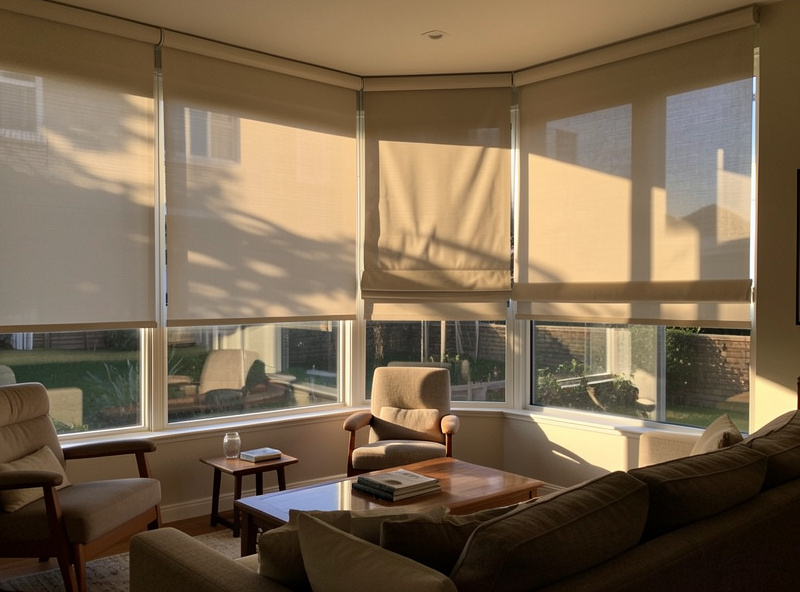
The sun-load scene (my favourite)
This is the scene that pays for the hardware. A south- and west-facing bank of shades drops automatically when the local sun angle and an outdoor illuminance reading say the room is about to bake. In summer it measurably flattens the afternoon temperature swing and takes load off the climate system; in winter I invert it, holding those same shades up to let free solar heat in. The trigger is sun elevation and azimuth calculated locally by the hub itself (in Home Assistant this is the built-in sun integration), gated by an illuminance sensor so it does not drop the shades on an overcast day.
The reason this has to be local is reliability. A sun-load scene that depends on a cloud round-trip will lag or miss entirely on a bad-server day, and a missed sun-load on a hot afternoon is a hot room. Running it on the hub means it fires off the hub’s own sun calculation regardless of the internet — the same weather-aware thinking behind my weather-based automations.
Wake light: shades plus lighting
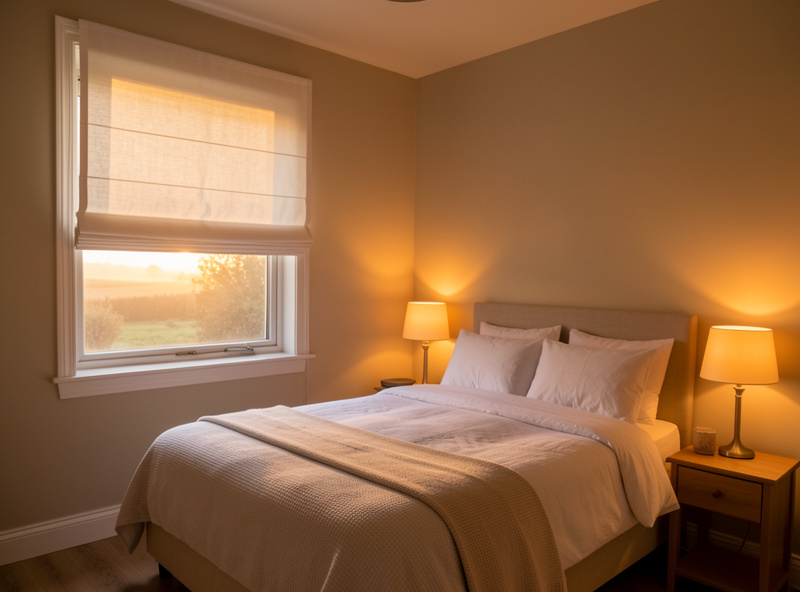
The wake scene is the one guests always ask about. At alarm time the bedroom shade eases up while the lights fade in warm and slow, so the room brightens with a mix of real daylight and tunable light rather than a jarring switch. On dark Swedish winter mornings the lights carry the scene; in summer the shade does most of the work. Pairing the two is the trick — neither alone is as good as both ramping together, and it is built on the same logic as my sunrise lighting routine.
Combining shades and lights in one scene is the core skill. The shade sets the daylight; the lights fill the gap. A good evening scene does the reverse — shades down for privacy, lights up warm — and the room transitions on its own at dusk. Once you have two or three of these, the house starts to feel like it is paying attention, which is the whole reason to automate coverings rather than just motorize them. The light hardware side is in the best smart lights guide.
Presence and away scenes
Time-based scenes are the start; presence is what makes them feel intelligent. An entry scene opens the shade when a presence sensor sees someone come into a room, and an away scene puts the shades on a loose, slightly randomised schedule when everyone has left so the house looks occupied. I do presence with motion and mmWave sensors (exposed to the hub over Zigbee2MQTT) plus room logic, not “a phone joined the Wi-Fi,” because real presence detection is what stops a shade from closing on someone sitting still. The sensor layer is in the sensor buyer’s guide.
Window state belongs in scenes too. A contact sensor that says a window is open can hold a shade up while the window is cracked, or pause a sun-load drop so the shade does not trap a half-open window. Folding window state into shade scenes is the kind of detail that separates a system that works from a pile of timers — and it is exactly what the window sensors guide is about.
Start with two scenes, not twenty
The mistake I see most is people trying to automate every window into every scene on day one, getting tangled, and giving up. Start with two: a wake scene and a dusk-privacy scene, on the windows where they matter most. Live with them for a week, fix what annoys you, then add sun-load and away. Scenes are easier to grow than to untangle, and a small set you trust beats a sprawling set you keep overriding. The broader build order is in the automation ideas guide.
As an Amazon Associate I earn from qualifying purchases.
Frequently Asked Questions
What is a smart shade scene?
A scene is a saved set of device states plus a trigger that calls it. A shade scene moves one or more shades, often alongside lights and climate, in response to time, sun position, presence, or a sensor. Instead of opening a shade manually, you declare how a room should be and the hub moves the right devices.
How do shades automate based on the sun?
The hub calculates local sun elevation and azimuth and fires a scene when the sun would hit a window, usually gated by an illuminance sensor so it ignores overcast days. South and west shades drop to cut afternoon heat; in winter the same logic holds them up to let solar warmth in. Running it locally keeps it firing during outages.
Can I combine shades and lights in one scene?
Yes, and you should. A wake scene raises the bedroom shade while lights fade in warm, so the room brightens with daylight plus tunable light. An evening scene reverses it: shades down for privacy, lights up. Combining the two is what makes a room transition smoothly on its own.
Do shade scenes need the internet?
No, if they run on a local hub with local-protocol shades. Sun-position, time, presence, and sensor triggers all execute on the hub itself, so scenes keep firing during an internet outage. Cloud-dependent scenes lag or fail on a bad-server day, which is why local control matters for shades.
How does presence trigger a shade scene?
A motion or mmWave presence sensor tells the hub someone is in a room, and the hub runs an entry scene that opens the shade. An away scene fires when everyone leaves, putting shades on a loose randomised schedule so the house looks occupied. Sensor-based presence is more reliable than phone-on-Wi-Fi detection.
How many shade scenes should I start with?
Two. Begin with a wake scene and a dusk-privacy scene on the windows that matter most, live with them for a week, then add sun-load and away. Scenes are far easier to grow than to untangle, so a small trusted set beats a large one you keep overriding.