Apartment WiFi Optimization for Smart Homes (2026)
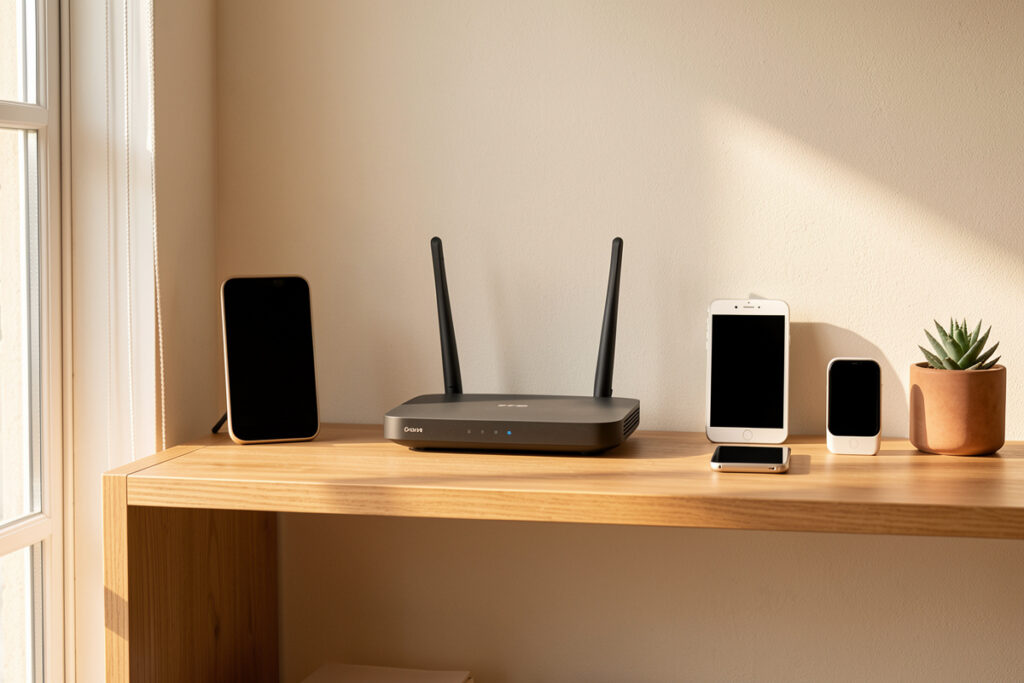
In an apartment, the smart-home Wi-Fi problem is almost never weak signal — it’s congestion. You’re sharing the 2.4 GHz band with twenty neighbors, and that’s the exact band most cheap smart devices use. Picking a clear channel, moving devices onto Zigbee and Z-Wave, and placing one good router centrally fixes the dropouts that “more Wi-Fi” never will.
People reach for a bigger router or a mesh kit when their smart plugs keep falling offline, but in a dense building the airwaves are the bottleneck, not the hardware. I run my own apartment-grade gear with most devices off Wi-Fi entirely and the rest on a carefully chosen channel, and the difference is a network that just stays up. This is the apartment-specific playbook; for the general setup, see the smart home Wi-Fi setup guide, and for the bigger renter picture, the smart home for renters guide.
Apartments break Wi-Fi differently
A house has space; an apartment has neighbors. The walls are thin, the units are close, and every one of them is broadcasting Wi-Fi on the same handful of channels. The result is co-channel interference: your devices and your neighbors’ devices take turns talking, and when the band is crowded, your smart plug’s tiny radio loses the race and drops off. Signal strength looks fine; reliability is terrible.
That’s why the apartment fix is different from the house fix. In a house you chase coverage into dead zones. In an apartment you chase a clear lane through a crowded band. Diagnosing which problem you actually have is the first step — if a device near the router still drops, it’s congestion, not coverage, and the disconnecting-device pattern guide helps you read the symptoms.
Pick a clear channel
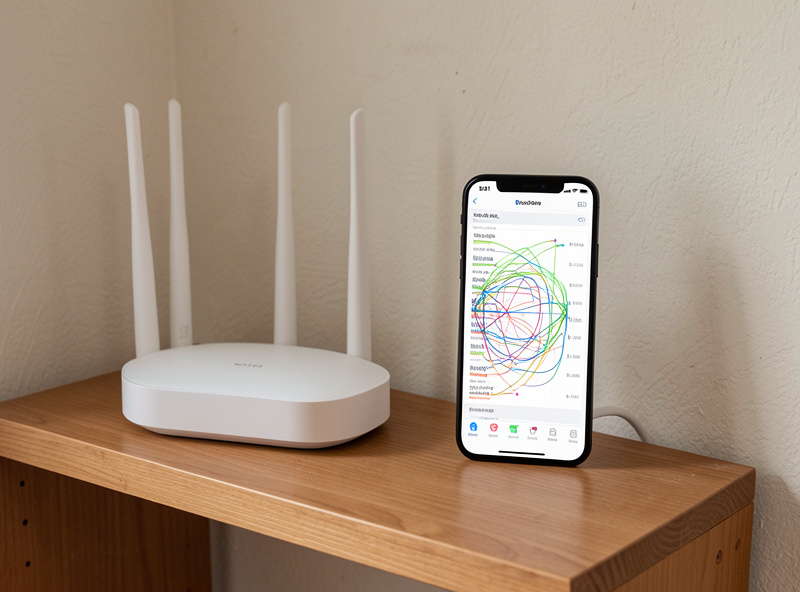
The single highest-impact change is choosing the right channel on the right band. On 2.4 GHz there are really only three non-overlapping channels — 1, 6, and 11 — so a channel analyzer app will show you which of the three your neighbors have left least crowded. Lock your router to that one instead of letting it “auto” hop into the congestion.
Wherever a device supports it, push it to 5 GHz, which has far more channels and far fewer neighbors fighting over them. The catch in a smart home is that many cheap IoT devices are 2.4 GHz only, so they’re stuck in the crowded band — which is the real argument for getting them off Wi-Fi altogether. Reserve the clear 2.4 GHz channel for the devices that have no other option, and move everything else up.
Move smart devices off Wi-Fi entirely
The most reliable apartment smart home barely uses Wi-Fi for its devices. Zigbee and Z-Wave run on their own radios in different frequencies, so your plugs, sensors, and locks talk to a local hub without ever touching the congested Wi-Fi band. In my setup the overwhelming majority of devices are Zigbee or Z-Wave, and Wi-Fi carries only the cameras and the TV — the things that genuinely need the bandwidth.
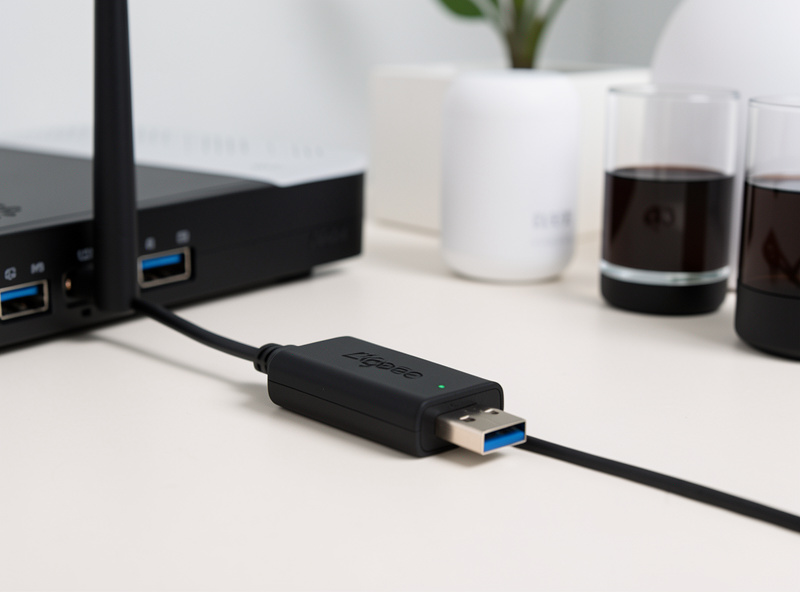
This is the structural fix that no amount of router tuning matches: every device you move to Zigbee or Z-Wave is one fewer radio fighting your neighbors for airtime. The tradeoffs between the radios are laid out in the Wi-Fi vs Zigbee and Zigbee vs Z-Wave vs Wi-Fi comparisons, and the device guidance in the renter-friendly smart devices guide steers you toward the lower-interference options. One note: keep your Zigbee coordinator on a short extension cable away from the router and any USB 3 port, because USB 3 noise quietly wrecks Zigbee on channel.
Placement and small-space mesh
One well-placed router beats a sprawling mesh in most apartments. Put it centrally and out in the open — not in a cabinet, not on the floor, not jammed behind the TV — and a single unit usually blankets a flat with signal to spare. Apartments are small; the problem was never reach.
If you have a genuinely awkward layout — a long railroad apartment, a thick interior wall around a bathroom — a small two-node mesh helps, and the best mesh Wi-Fi picks guide covers options that don’t need wired backhaul you can’t install in a rental. If your trouble is one specific dead corner rather than general congestion, the fix Wi-Fi dead zones guide is the targeted read. But try good placement of a single router first; it’s free and it usually wins.
Segment your IoT, even in a rental
Dozens of chatty devices on the same network as your laptops and phones is how a smart home turns flaky and how a cheap gadget becomes a security liability. Segmenting the IoT gear onto its own network keeps the chatter contained and the important devices isolated. In a rental you don’t need enterprise gear for this — many consumer routers offer a guest network or a second SSID that does the job.
If your router supports proper VLANs, even better; the separate Wi-Fi network for IoT guide walks through both the simple guest-SSID approach and the full segmentation. The point is the same either way: give the smart devices their own lane so they’re not competing with — or exposing — the devices that matter most. It’s the last piece of an apartment network that stays quietly reliable.
Set your 2.4 GHz radio to 20 MHz width
After picking channel 1, 6, or 11, force the 2.4 GHz radio to 20 MHz channel width instead of 40 MHz. A 40 MHz channel bonds two bands together and spans roughly half the usable 2.4 GHz spectrum, so it stomps on two of your three clear lanes at once — in a crowded building it makes congestion worse, not better. Locking to 20 MHz keeps each network in its own lane, and it is the second-biggest reliability win after picking the channel itself.
The setting hides in most router admin pages as “channel width,” “bandwidth,” or “HT mode,” and a lot of routers ship on auto or 40 MHz by default. Set 2.4 GHz to 20 MHz and leave 5 GHz on 40 or 80 MHz where there is room to spare. The payoff is airtime: smart-home radios send tiny packets, and a calmer 20 MHz channel means your plug’s transmission collides far less often with a neighbor’s. In my setup the 2.4 GHz radio carries only the handful of Wi-Fi-only devices that cannot move to Zigbee, all on a locked channel 1 at 20 MHz — and those are exactly the devices that used to drop, now solid for months.
Verify the change the same way you picked the channel: reopen the analyzer and confirm your network now sits in a single 20 MHz block over channel 1, 6, or 11 instead of a fat 40 MHz smear across two of them. If your neighbors are all running wide, your narrow, well-placed network quietly wins the airtime battle — the polite radio in a loud room is the one that still gets heard.
As an Amazon Associate I earn from qualifying purchases.
Frequently Asked Questions
Why does my smart home WiFi keep dropping in an apartment?
Almost always congestion, not weak signal. In a dense building you share the 2.4 GHz band with many neighbors, and cheap smart devices on that band lose the race for airtime and drop off. If a device near the router still disconnects, it is interference, which you fix with a clear channel and by moving devices off WiFi.
What is the best WiFi channel for an apartment?
On 2.4 GHz, use channel 1, 6, or 11 — the three non-overlapping channels — and pick whichever a channel analyzer shows your neighbors crowd least. Lock the router to it rather than leaving it on auto. Move any device that supports it to 5 GHz, which has far more room.
Should smart home devices use WiFi or Zigbee in an apartment?
Zigbee or Z-Wave wherever possible. They run on separate radios that never touch the congested WiFi band, so plugs, sensors, and locks bound to a local hub stay reliable. Reserve WiFi for cameras and TVs that genuinely need the bandwidth.
Do I need a mesh WiFi system in an apartment?
Usually not. Apartments are small, so one well-placed router out in the open typically covers the whole unit. A small two-node mesh only helps with awkward layouts or a thick interior wall. Try central placement first because it is free and usually solves the problem.
Can I separate my smart devices onto their own network as a renter?
Yes. Many consumer routers offer a guest network or a second SSID that isolates IoT devices without any special hardware, and routers with VLAN support can segment them fully. Either way, giving smart devices their own lane keeps the network reliable and more secure.
Why does my Zigbee network drop near the router?
USB 3 ports and cables emit interference in the 2.4 GHz range that overlaps Zigbee. Put the Zigbee coordinator on a short USB extension cable to move it away from the router and any USB 3 device. This single change resolves a surprising number of flaky Zigbee networks.